Documentation Index

Fetch the complete documentation index at: https://docs.arbitrageone.de/llms.txt

Use this file to discover all available pages before exploring further.

This article helps you connect SAS to Google Sheets and export your sourcing data to ArbitrageOne with a single click. All your sourcing data is stored securely and encrypted and can only be decrypted with your account. We never have access to your sources in plain text. Important: Once you’ve created the sheet in ArbitrageOne, do not edit the sheet or delete any rows.

Don’t feel like reading? Watch this video…

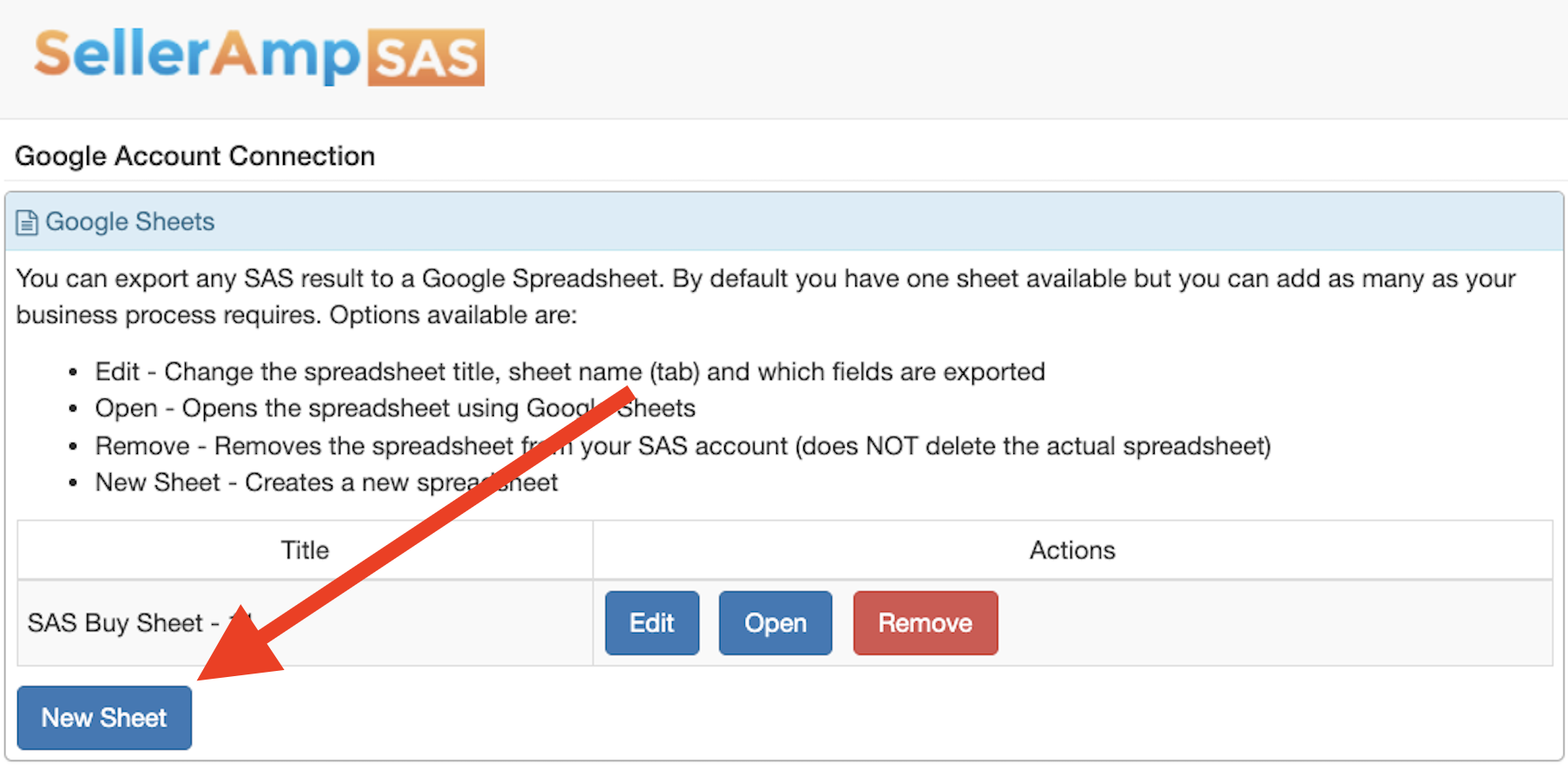
If you haven’t linked a Google account to SellerAmp SAS yet, you can do so here under “Google Account”: SellerAmp Google Account Connection
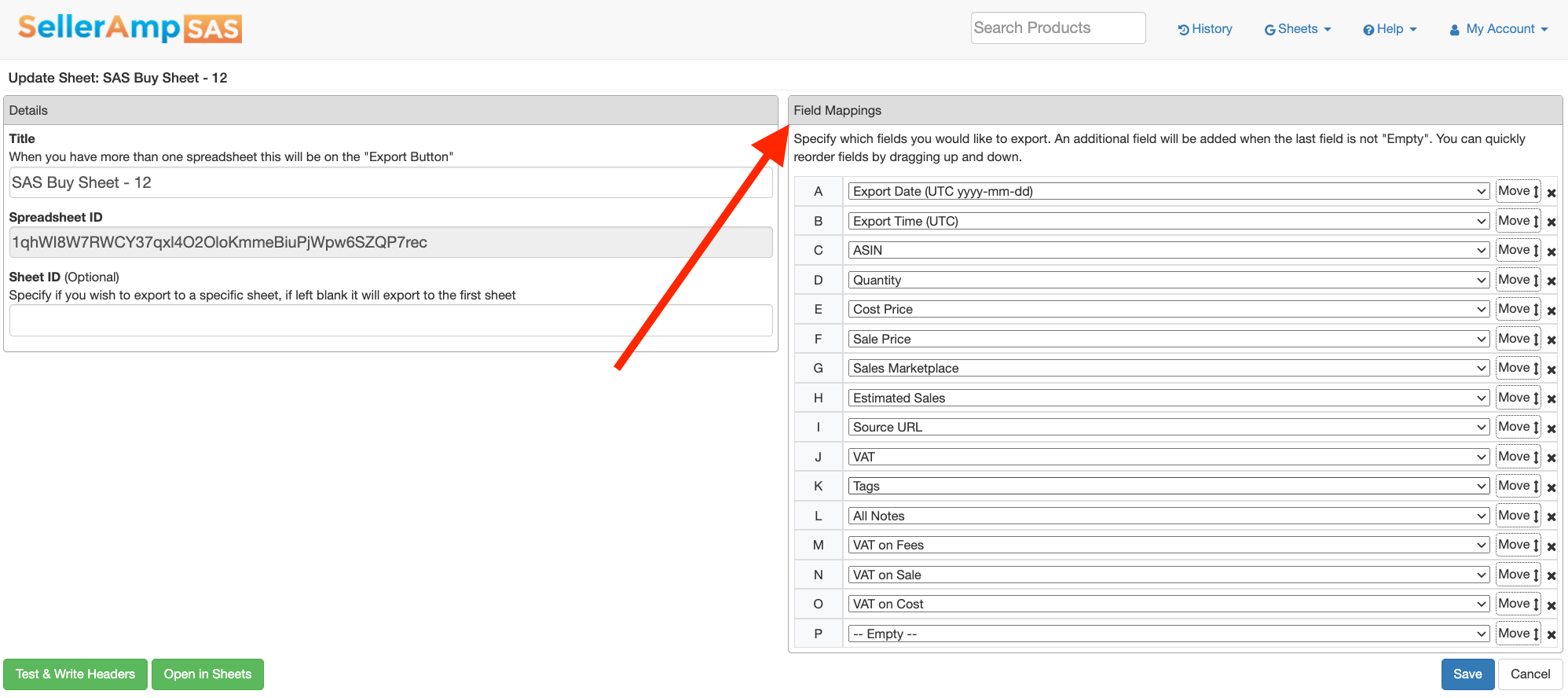
Step 1: Create a new sheet Click “New Sheet” in SellerAmp SAS. Step 2: Adjust the columns (Field Mappings) In the “Field Mappings” section you need to add all of the following columns. The order doesn’t matter:
  • Export Date (UTC yyyy-mm-dd)
  • Export Time (UTC)
  • ASIN
  • Quantity
  • Source URL
  • Tags
  • All Notes
  • Estimated Sales
  • Cost Price
  • Sale Price
  • Sales Marketplace
  • VAT
  • VAT on Fees
  • VAT on Sale
  • VAT on Cost
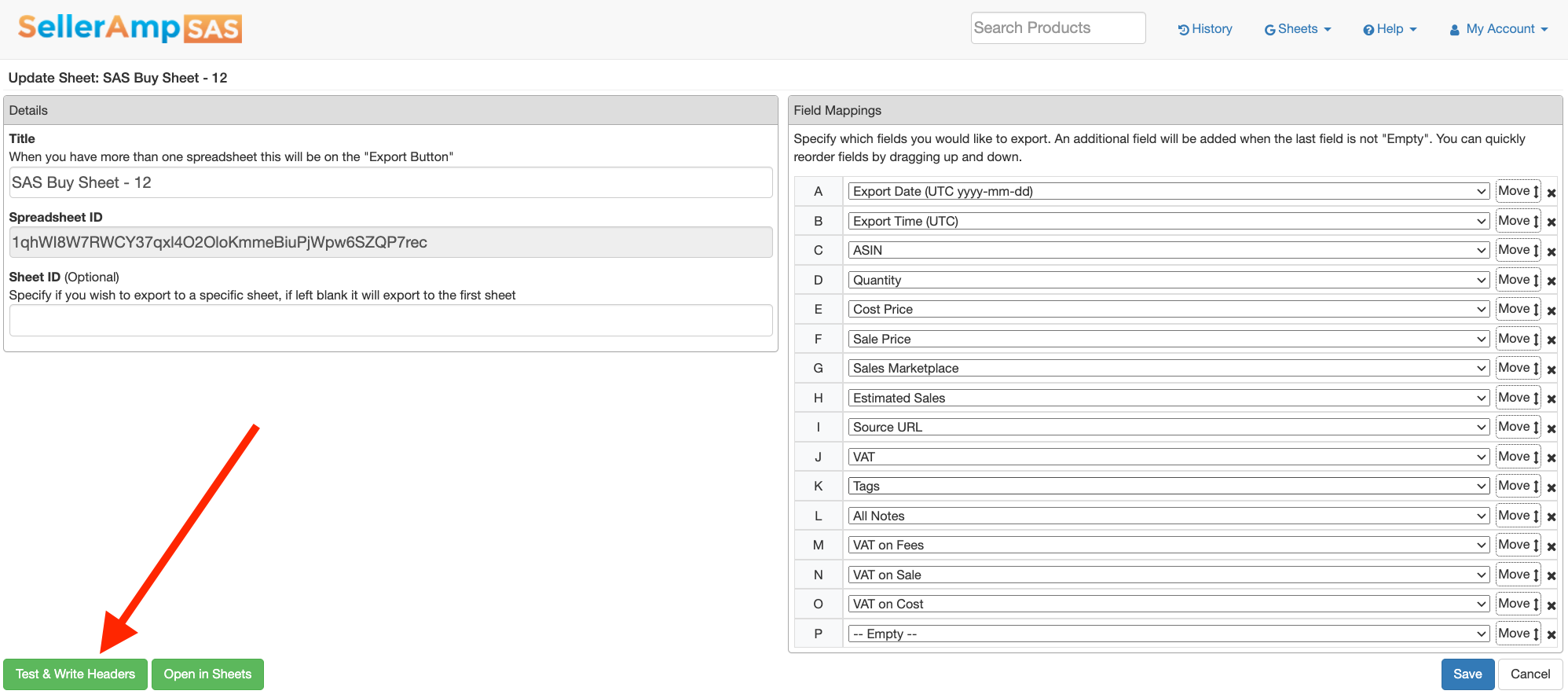
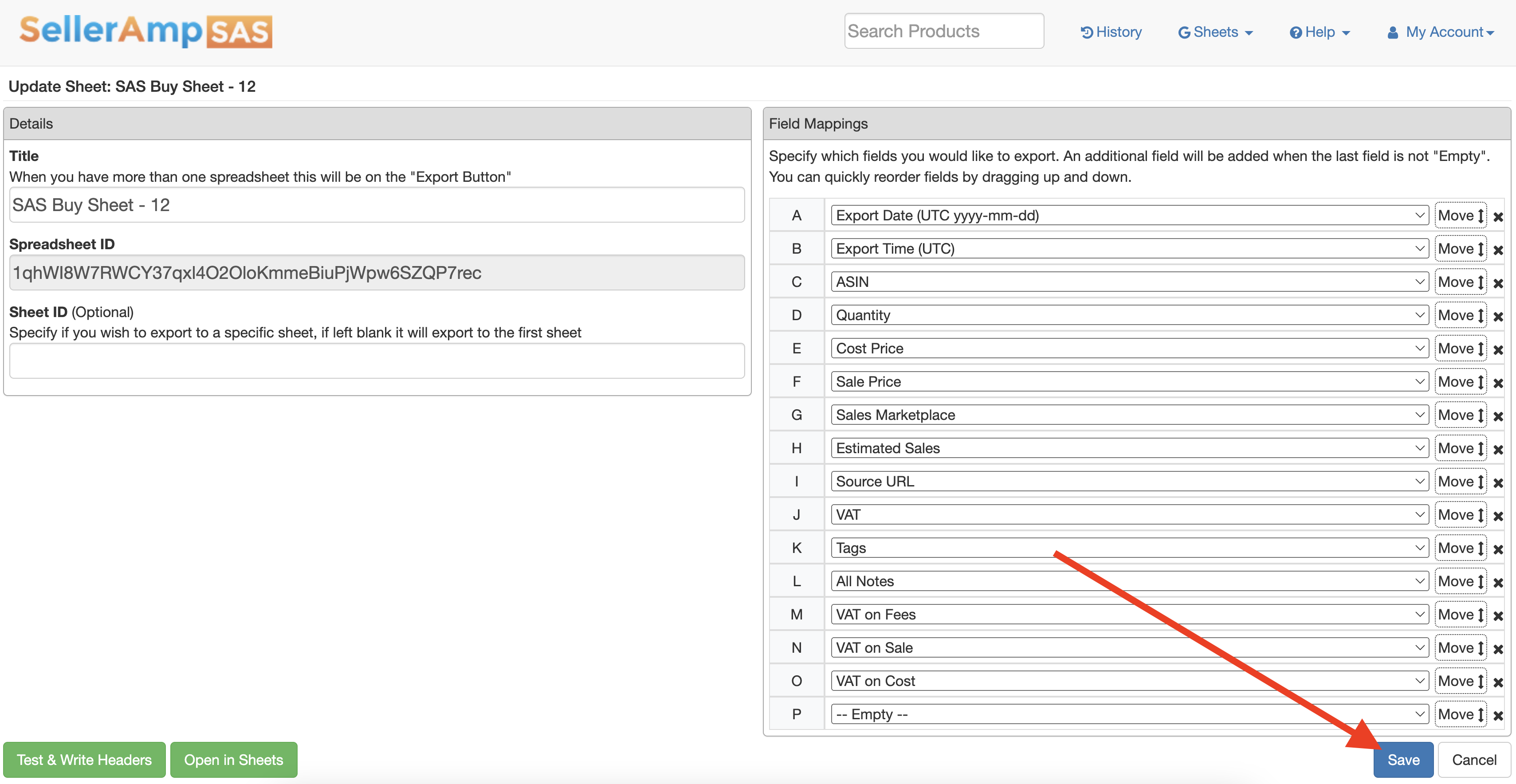
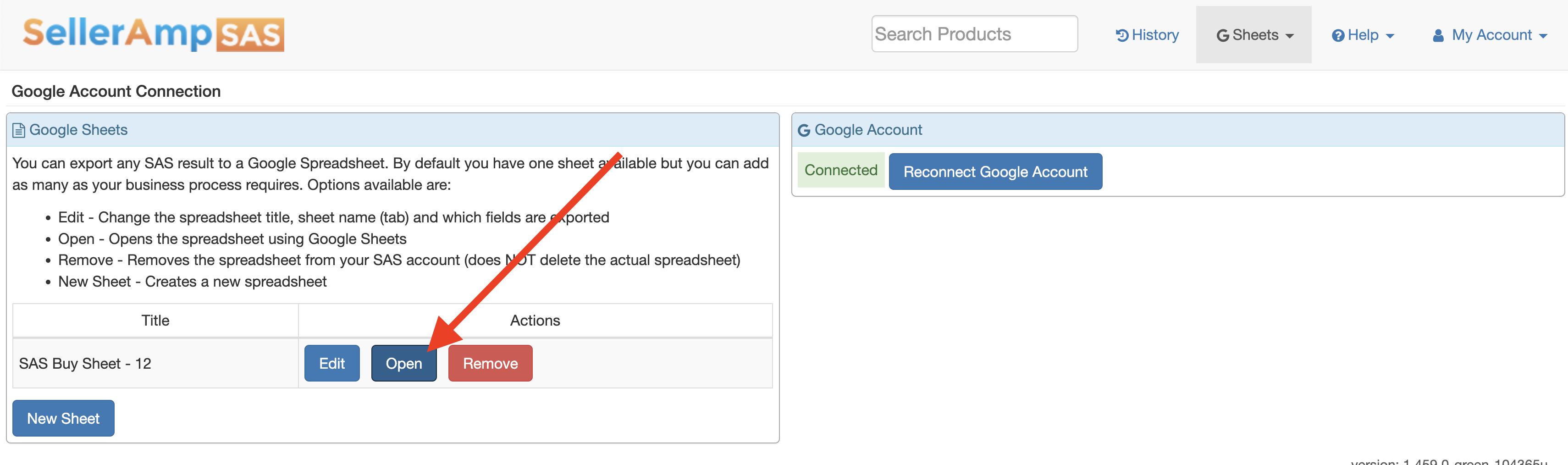
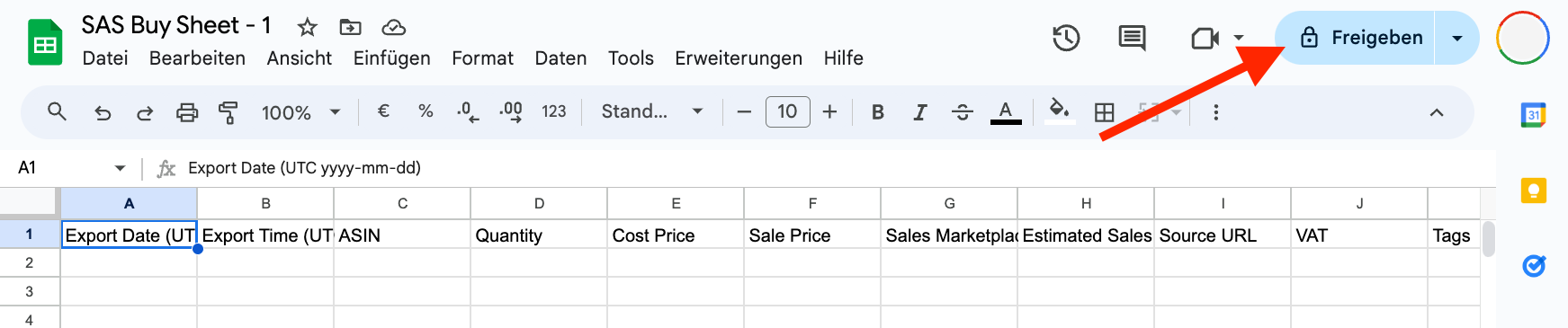
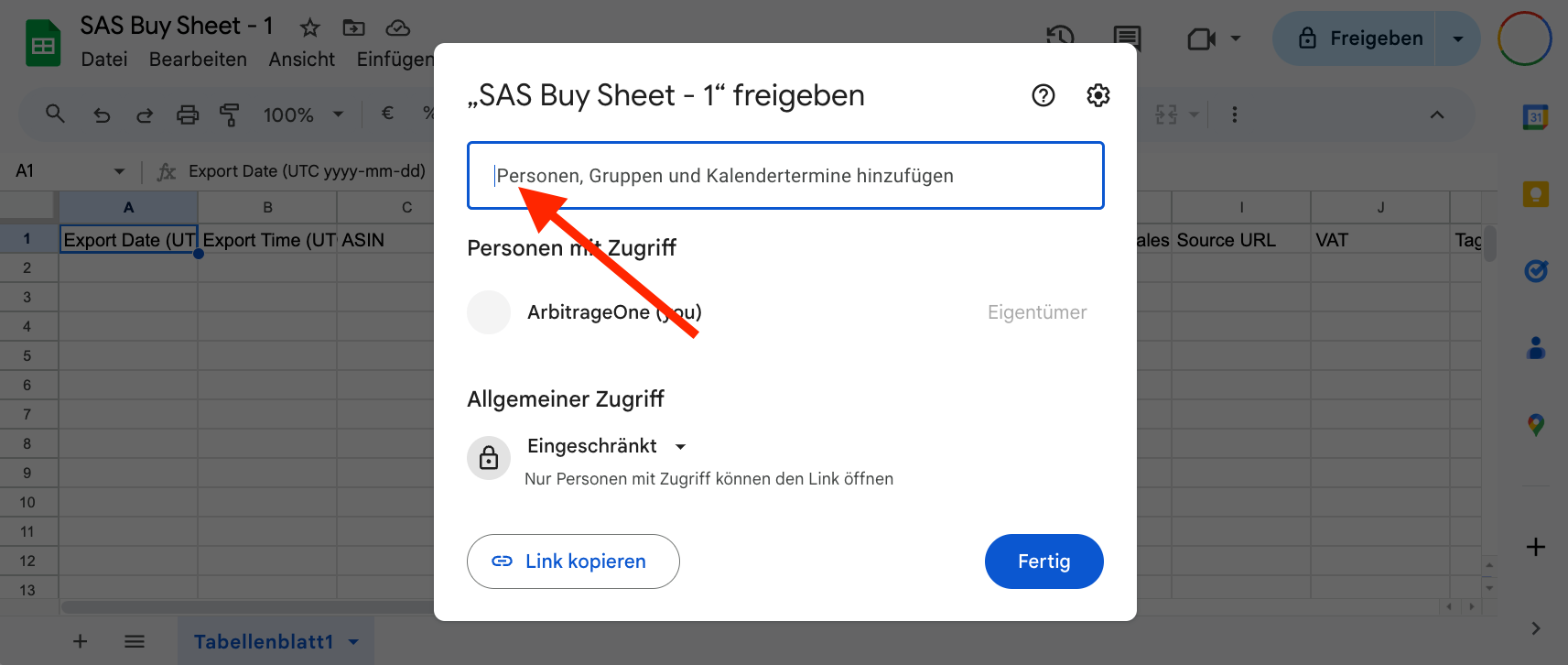
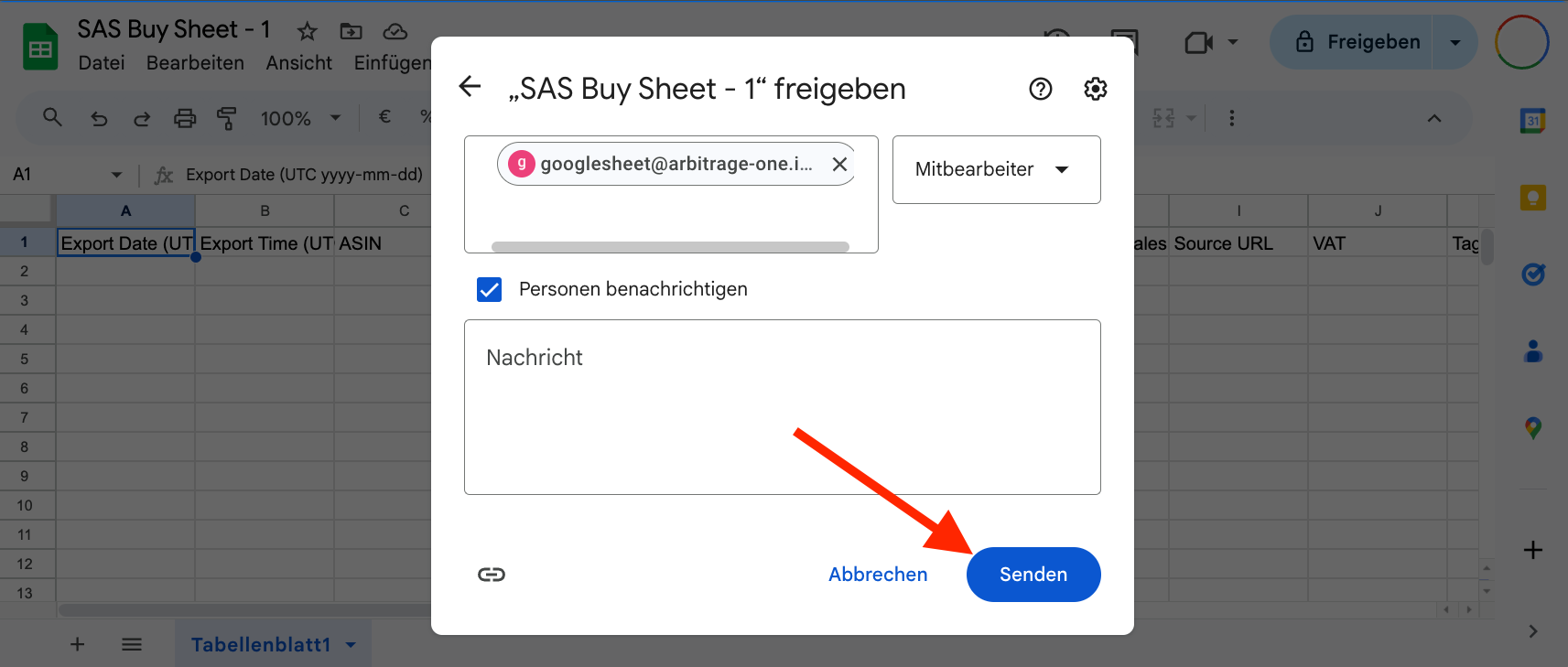
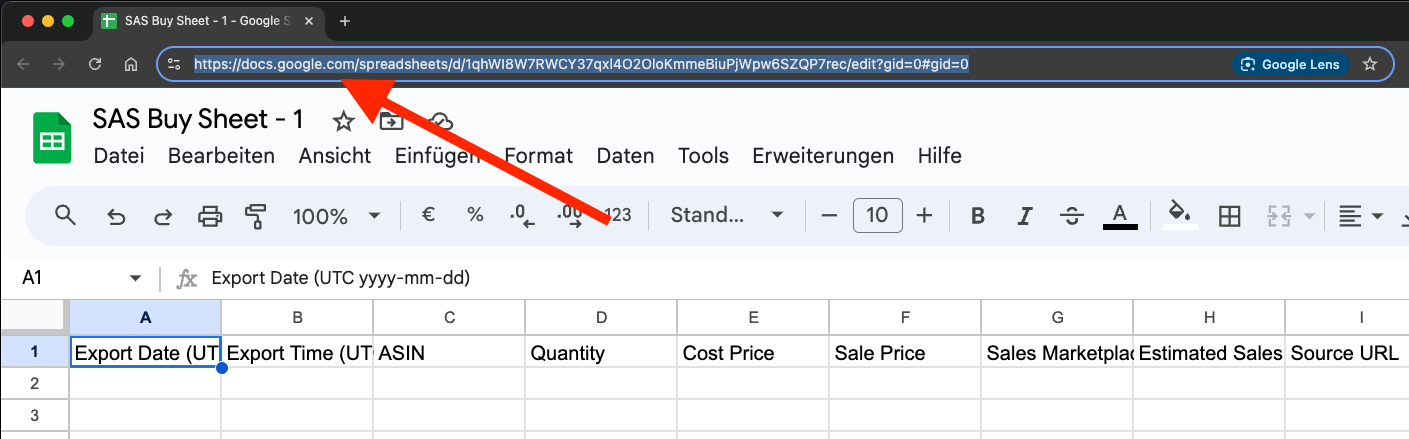
Step 3: Add headers Once you’ve set up the Field Mappings correctly, click “Test & Write Headers”. ⚠️ Important: Press this button only once. Step 4: Save Click “Save” to finalize the setup. Step 5: Open the Google Sheet Click “Open in Sheets” to open your newly created Google Sheet. Step 6: Grant access A new tab opens. Click “Share” in the top right. A pop-up window appears. Add the following ArbitrageOne Service Account: googlesheet@arbitrage-one.iam.gserviceaccount.com Note: The service account is not a regular Google account. It’s required to securely retrieve your data in encrypted form. The ArbitrageOne team cannot log into this service account or view your sheets. All your sourcing data is securely encrypted and can only be decrypted with your account. We never have access to your sources in plain text. Click “Send” to confirm. Step 7: Copy the URL Click in your browser’s address bar and select the entire URL. Copy it to your clipboard (CTRL + C or right-click > Copy). Step 8: Paste the URL into ArbitrageOne Paste the Google Sheet URL into ArbitrageOne. Important: Once you’ve added the sheet to ArbitrageOne, do not edit the sheet or delete any rows.