Step 1: Link your Google account to ProfitGo
In Google Sheets, click Connect to Google and follow the instructions to link ProfitGo to your Google account.Step 2: Create a new Google Sheet and adjust columns
Click Create in ProfitGo.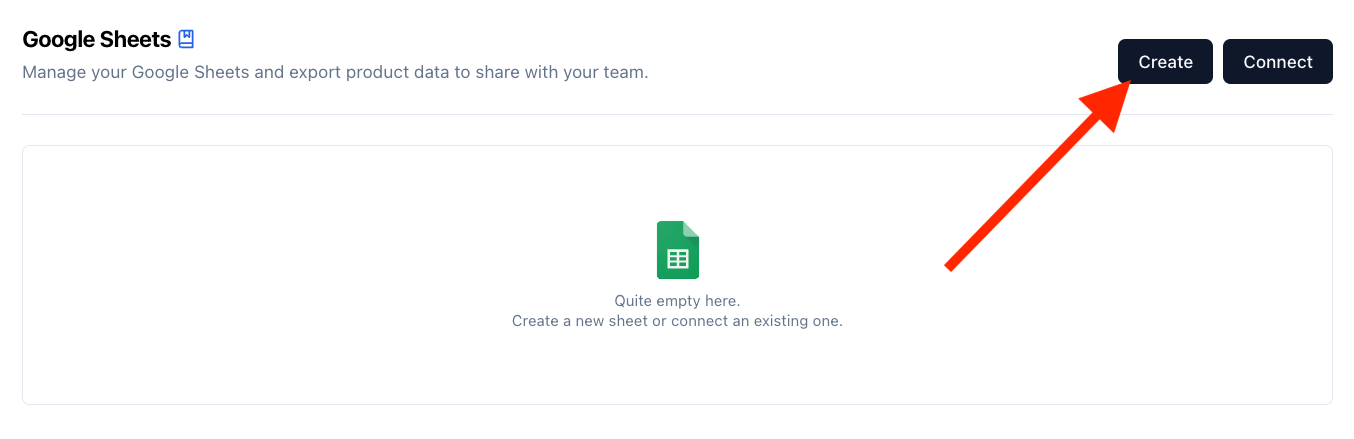
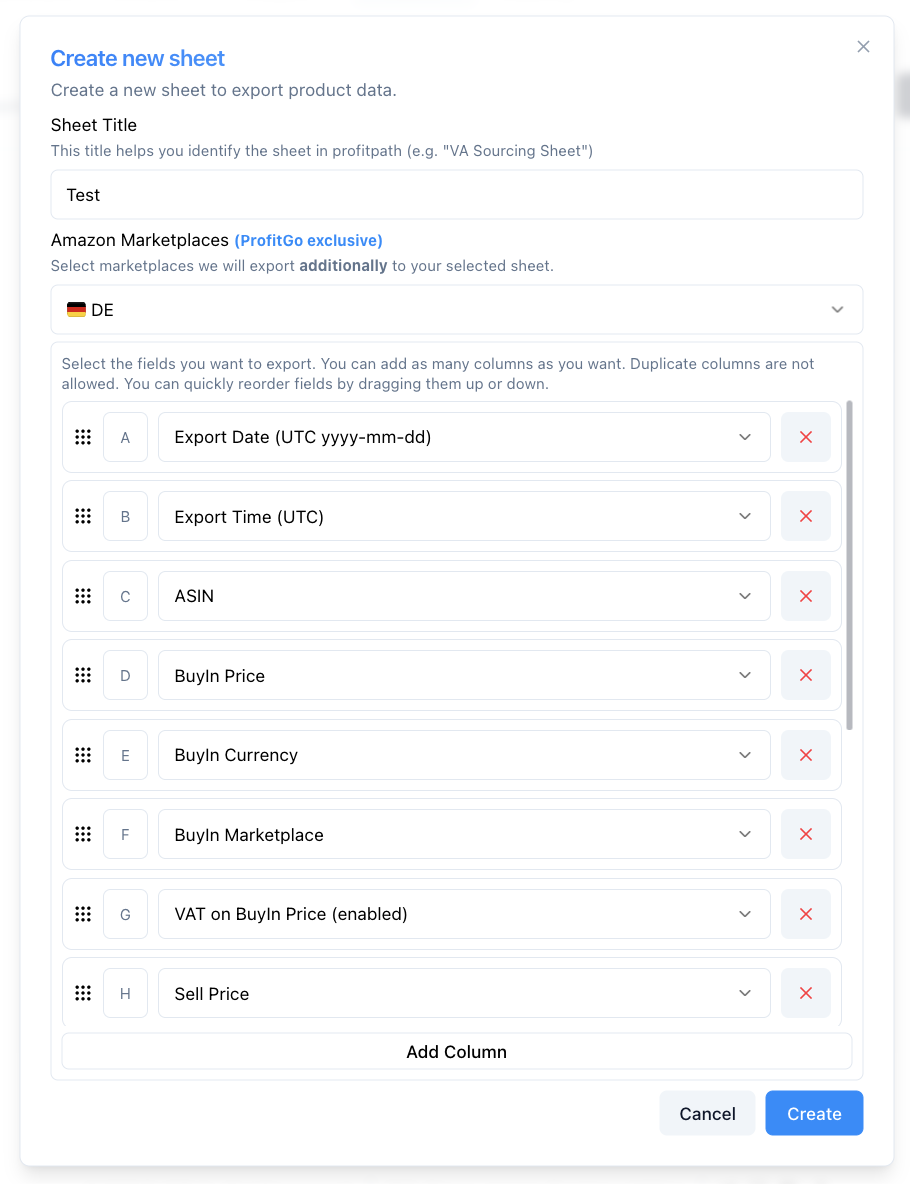
- Export Date (UTC yyyy-mm-dd)
- Export Time (UTC)
- ASIN
- BuyIn Price
- BuyIn Currency
- BuyIn Marketplace
- VAT on BuyIn Price (enabled)
- Sell Price
- Sell Currency
- Sell Marketplace
- VAT on Sell Price (enabled)
- Supplier URL
- Source URL
- Quantity
- Estimated Sales
- Groups
Step 3: Open Google Sheet
Click “Open” to open your newly created Google Sheet.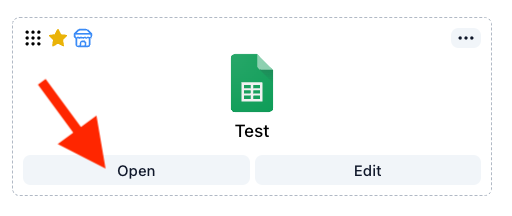
Step 4: Grant access
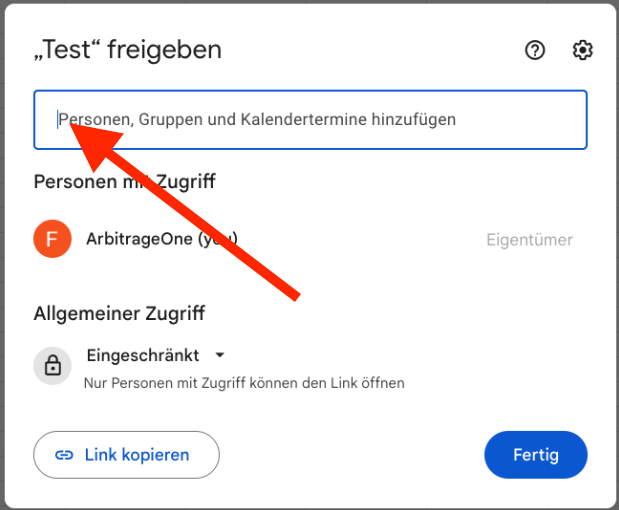
A new tab opens. Click “Share” in the top right.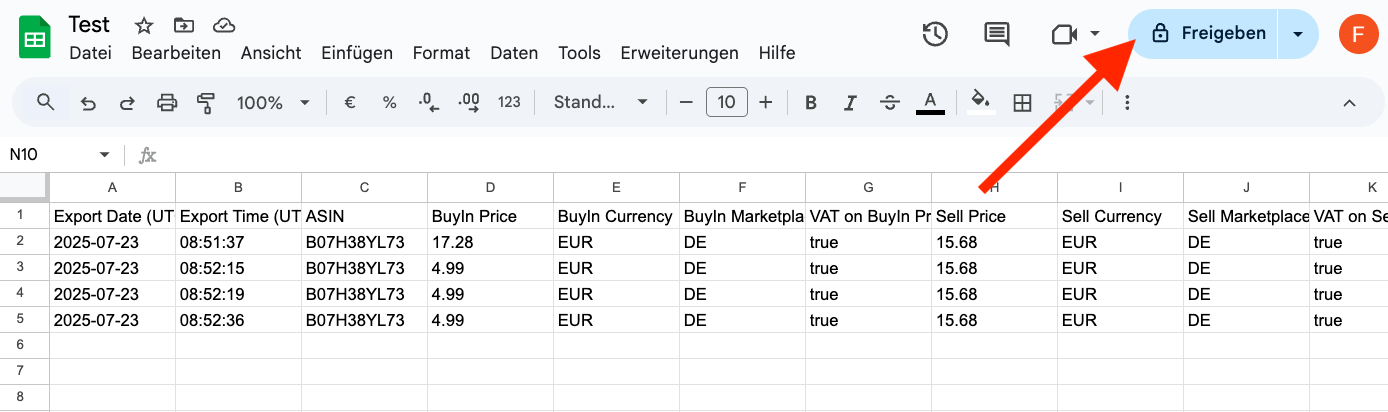
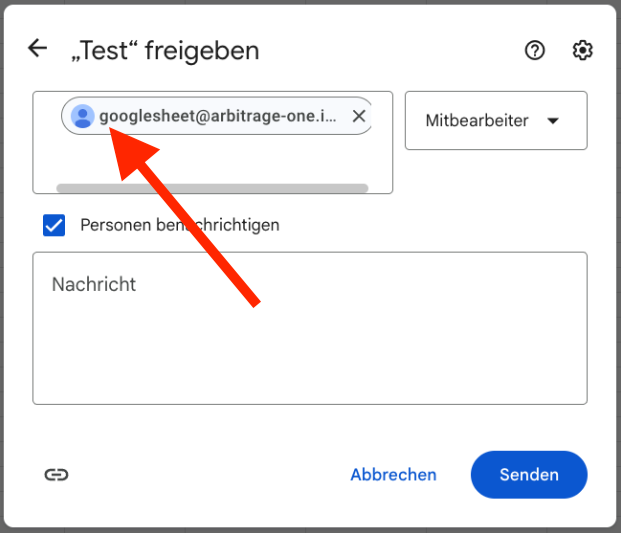
googlesheet@arbitrage-one.iam.gserviceaccount.com
Note: The service account is not a regular Google account. It’s required to securely retrieve your data in encrypted form. The ArbitrageOne team cannot log into this service account or view your sheets.
All your sourcing data is securely encrypted and can only be decrypted with your account. We never have access to your sources in plain text.
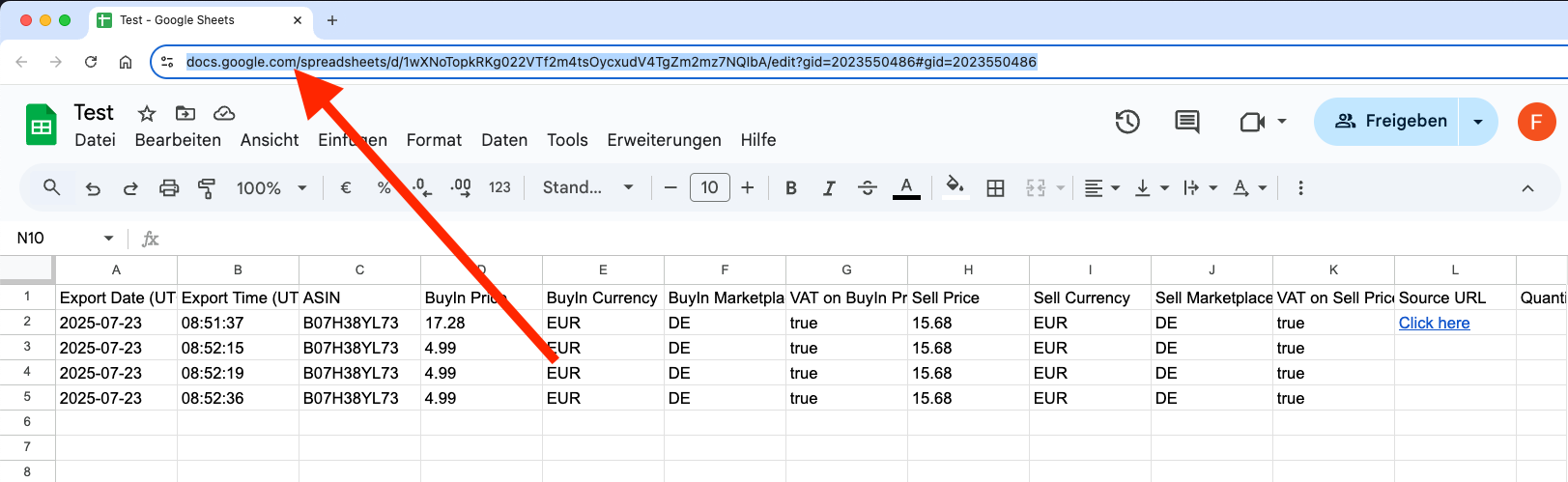
Step 5: Copy the URL
Click in your browser’s address bar and select the entire URL. Copy it to your clipboard (CTRL + C or right-click > Copy).