
Short description
The A1 Analyzer Chrome Extension opens the ArbitrageOne product analysis as a sidebar on the shop page you are currently checking. The extension detects product identifiers and, when they can be assigned reliably, transfers the purchase price and source shop to the Analyzer. On Amazon product pages, it detects the ASIN. On other product pages, it searches for EAN, UPC or GTIN. If no product identifier is available, it uses the product title as the search term.Requirements
- Google Chrome
- An active ArbitrageOne account with access to the Analyzer
- You are signed in to app.arbitrageone.de in the same Chrome profile
Install the extension
Step 1: Open the Chrome Web Store
→ Open A1 Analyzer in the Chrome Web Store Click Add to Chrome and confirm the installation.Step 2: Pin the extension
Open the extensions menu in Chrome using the puzzle icon and pin A1 Analyzer. The A1 icon then remains directly accessible in the browser toolbar.Step 3: Sign in to ArbitrageOne
Open app.arbitrageone.de and sign in. The extension uses your existing A1 session, but does not read your password or cookies.Analyze a product directly on a shop page
Step 1: Open a product page
Open a product detail page on Amazon or another online shop. After a short scan, the A1 icon shows a detected product identifier. If several valid identifiers are found, you can select the correct one in the panel.Step 2: Open the Analyzer
Click the A1 icon in the browser toolbar. The Analyzer opens as a sidebar on the current product page.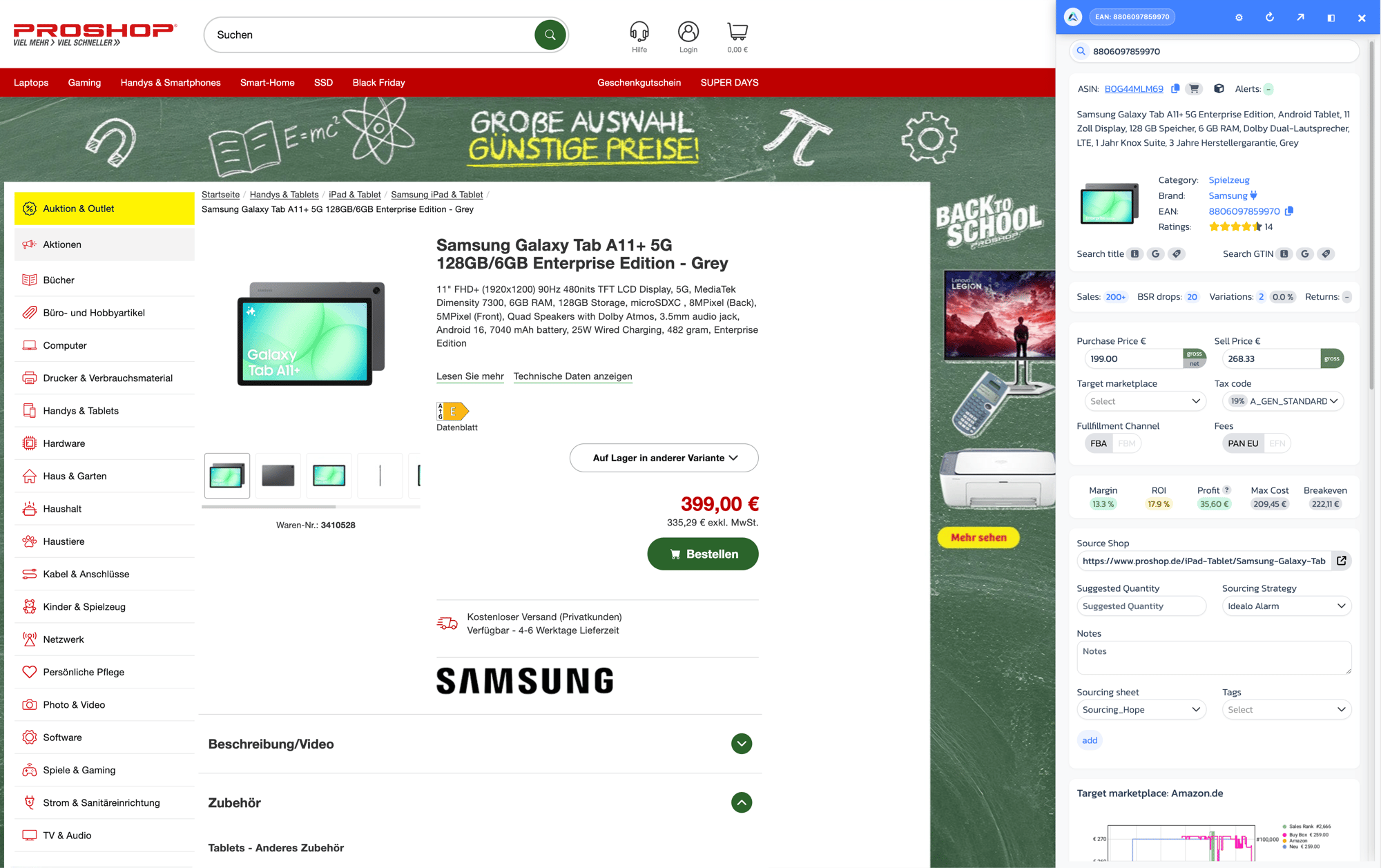
Step 3: Check the transferred data
The extension starts the search using the detected ASIN, EAN, UPC, GTIN or product title. A clearly assigned EUR purchase price and the cleaned shop URL are transferred automatically to the Analyzer. If a price cannot be assigned reliably on the product page, the field deliberately remains empty. Enter the purchase price manually in this case.Step 4: Evaluate the product
Check the Keepa history, offers, approvals, margin, ROI and profit in the Analyzer. The full explanation is available in How do I use the Analyzer for product evaluation?.Search selected text using the context menu
You can also select an EAN, ASIN or product name on any website:- Select the text you want to search.
- Open the context menu with a right click.
- Open A1 Analyzer.
- Select the desired destination.
Adjust settings
Open the gear icon in the sidebar header.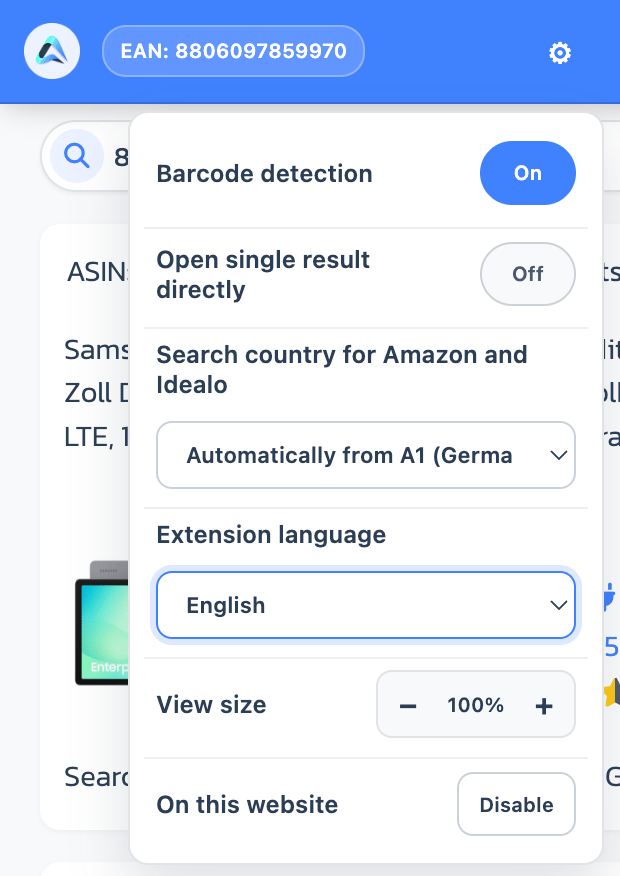
The other header icons let you reload the Analyzer, open it in a regular A1 tab, move the sidebar to the other side of the screen or close it. You can change the width by dragging the edge of the sidebar.
Behavior when switching products
When you open another product page, the extension loads the new product analysis. The purchase price and source shop from the previous product are not transferred to the new product. If you then enter another ASIN, EAN or search term manually in the Analyzer, product-specific values are also reset. This prevents shop data from the previous product remaining attached to the new one.Common issues
Issue: The A1 icon is not visible.Solution: Open the Chrome extensions menu and pin A1 Analyzer. Issue: The sidebar asks you to sign in.
Solution: Open A1 in a regular tab, sign in and then click Try again in the panel. Issue: No identifier is detected.
Solution: Check that barcode detection is enabled and the website is active. If the page does not provide a clear identifier, select the EAN, ASIN or product title and use the context menu. Issue: The purchase price is not transferred.
Solution: The extension only transfers clearly assigned EUR prices. When a page shows several prices, installments, recommended retail prices, used offers or unclear variants, the field remains empty and must be completed manually. Issue: The extension does not run on a specific page.
Solution: Login, account, cart and checkout pages are deliberately excluded, as are selected social media, messaging and AI services. On regular product pages, you can reverse a local deactivation by clicking the A1 icon.