
Short description
The SKU Debugger is a tool that lets you see in seconds whether an SKU has been received correctly by Amazon, whether the listing is active and which issues Amazon is reporting. You’ll need it whenever a purchase is in your orders or returns but the SKU doesn’t go live.⚠️ Analyze first, then act. When a listing doesn’t go live, the SKU Debugger is always the first step — it tells you the exact reason. If you see a ❌ or an ERROR there, fix the cause it shows you first. Triggering Create listings again won’t help while the underlying problem (e.g. missing approval, compliance error) persists — the SKU will just keep hitting the same error. Re-triggering manually is only the solution when processing simply hasn’t run yet (see Common issues).
Where do I find the SKU Debugger?
Wherever an SKU appears in a table, you’ll see a wrench icon (🔧) next to it. Currently available in:- Purchase Orders — next to every recorded SKU
- Returns — for upgraded return SKUs
Modal layout
The modal is called Inspect SKU and is split into two main sections: ArbitrageOne SKU processing (what we did) and Current Amazon status (what Amazon reports back).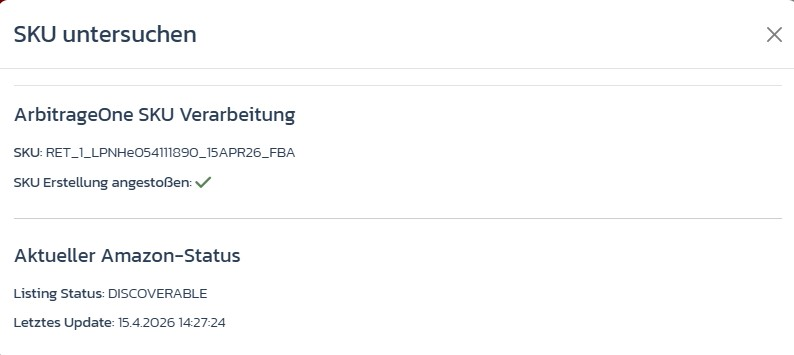
Marketplace tabs
If your SKU has multiple active marketplaces, you’ll see tabs at the top (DE, AT, FR, IT, ES, …). Each marketplace connection is checked individually because an SKU can be live in DE but blocked in FR. With only one active marketplace, the tabs are hidden.”ArbitrageOne SKU processing” section
Shows what happened on our side:- SKU — the exact Seller SKU
- SKU creation triggered:
- ✅ Triggered on [date] — we have submitted the SKU to Amazon
- ❌ Not yet triggered — we haven’t sent anything to Amazon yet
”Current Amazon status” section
Loads live data directly from the Amazon SP-API:- Listing status — e.g.
BUYABLE,DISCOVERABLE,INACTIVE - Last update — time of Amazon’s last response
- Listing issues — list with severity badge (ERROR / WARNING), plain text and error code (only visible if Amazon reports issues)
Step-by-step: Analyze a listing issue
Step 1: Find the SKU in the module
→ Open directly in the app: app.arbitrageone.de/purchaseorders Open Purchase Orders and find the affected line. Click the 🔧 next to the SKU.Step 2: Choose the marketplace
Choose the tab for the marketplace where the SKU should go live.Step 3: Check processing
Is there an ❌ next to SKU creation triggered? Then the SKU hasn’t been submitted to Amazon yet — see Common issues below.Step 4: Check the Amazon status
Is there a ✅ but the listing isn’t live? Look at Listing issues. Each row shows severity, plain text and error code — exactly as Amazon reports it.Step 5: Hover for details
Longer error messages are truncated. Hover over the text to see the full message.Typical SKU statuses (tooltip on the SKU)
- Created — The SKU was created by ArbitrageOne for this purchase
- Reused — A matching SKU already existed and is being used again
- Waiting for approval — You don’t have Ungating for this ASIN/marketplace yet; the listing will be created automatically once the approval comes through
Common issues
Issue: “SKU creation triggered is ❌.” Solution: Here — and only here — re-triggering really is the right move, because nothing has been sent to Amazon yet. Check under Settings → Listing creation whether automatic creation is enabled and the Active for all purchases from date is correct. Manual creation then runs via the Create listings button. If there’s already a ✅ but the listing still isn’t live, re-triggering won’t help — an Amazon error is the cause (see below). Issue: “Listing issues show errors with severity ERROR and codes like90220 or 8541.”
Solution: These are Amazon compliance errors (e.g. missing brand/category approval, GPSR requirements, missing tax data).
Issue: “Listing status is INACTIVE even though everything looks right.”
Solution: Common causes: zero stock, a stranded inventory problem or a blocked ASIN. Open the Seller Central link on the SKU entry and check there.
Issue: “An error occurred while loading the listing data from Amazon.”
Solution: The SP-API responded, but with an error. Usually a temporary limitation — wait a moment and reopen. If the error persists, check your SP-API connection in Settings.
Issue: “Listing is waiting for approval, but the approval came through a long time ago.”
Solution: Under Settings → Listing creation there’s the field Max. age for listing submission after approval (days). If your purchase is older than this value, the SKU is no longer submitted — increase the value or trigger the listing manually.