Connecting a "PrepBusiness" Prep Center to ArbitrageOne
Connect PrepBusiness as a Prep Center to ArbitrageOne.
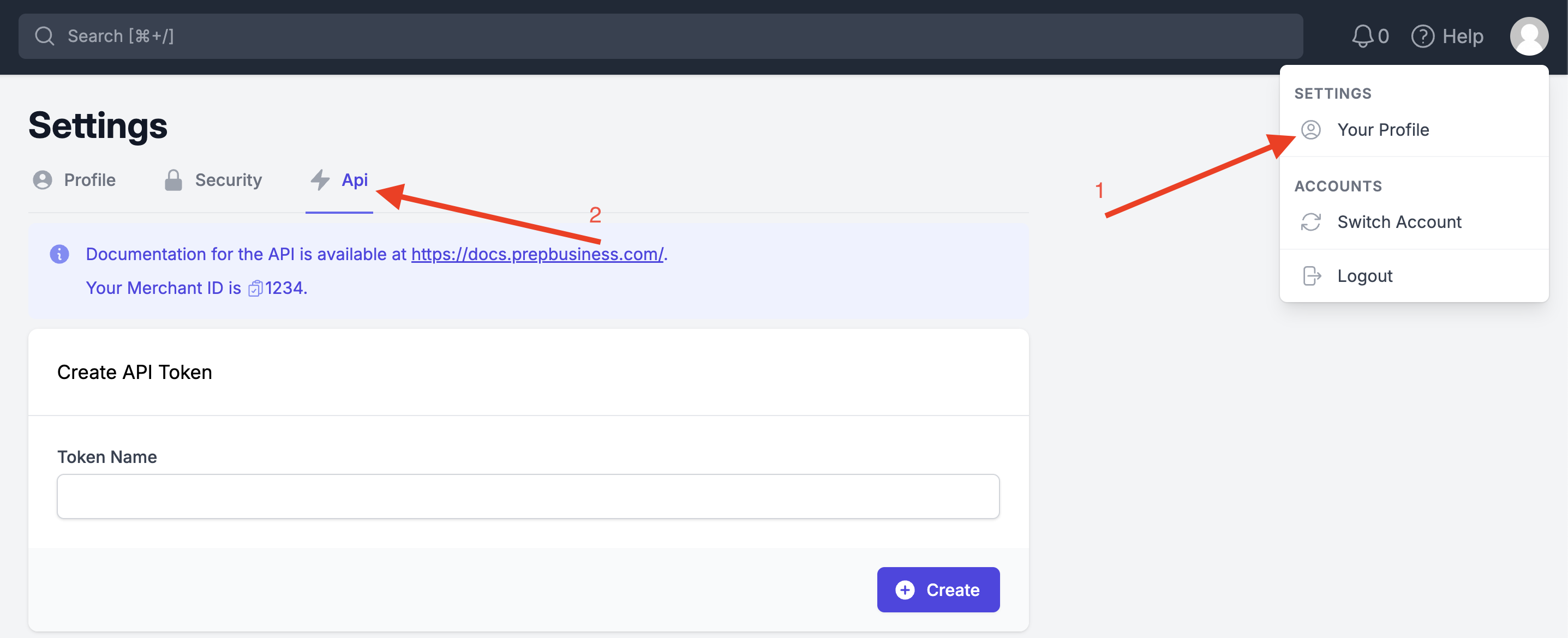
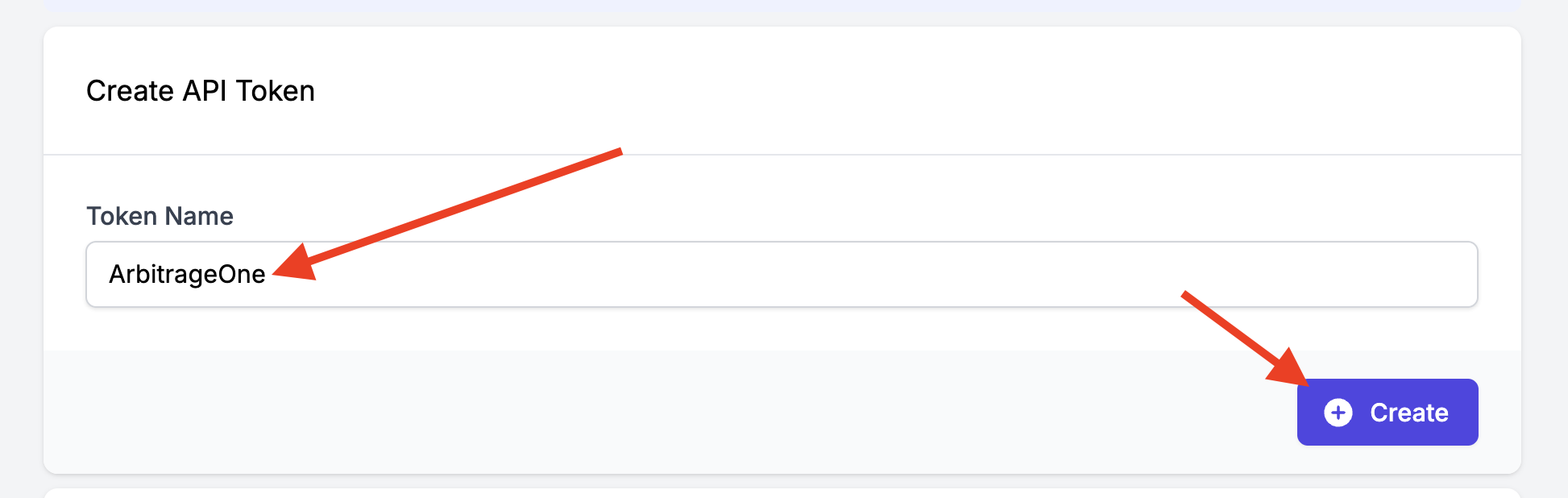
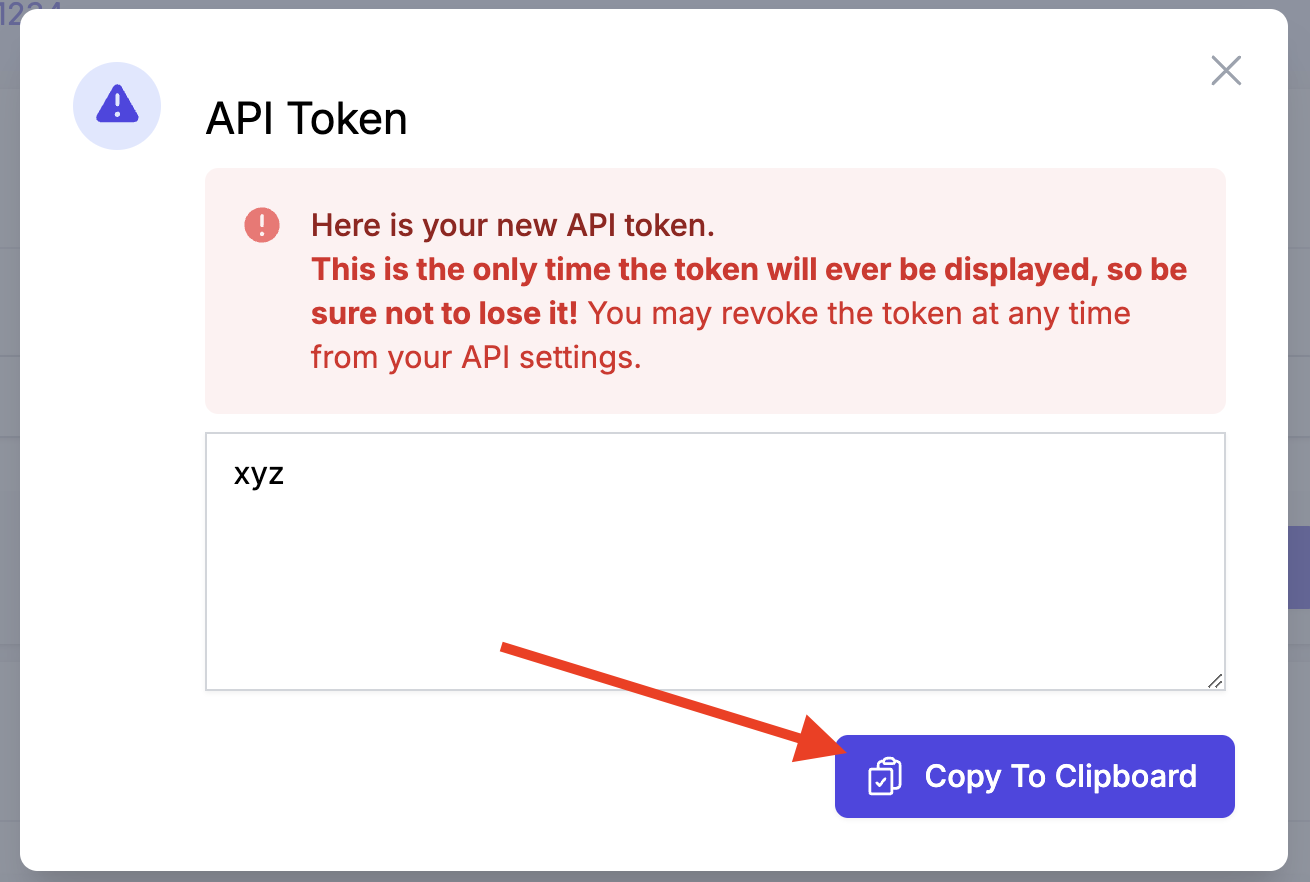
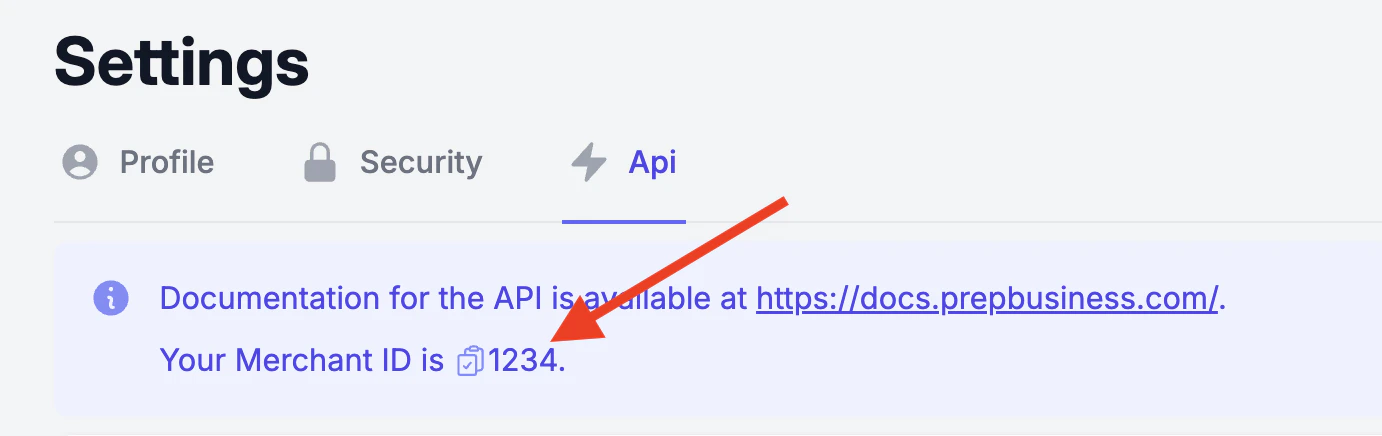
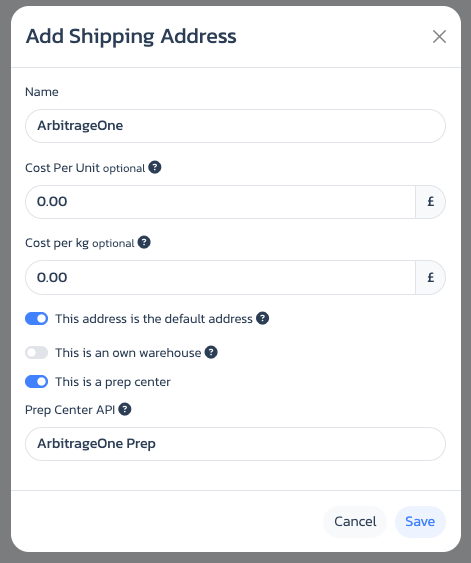
Step 1: Log in to the Prep Center portalLog in to the Prep Center portal and click your profile picture in the top right. Select “Your Profile” and then the “Api” tab.Step 2: Create an API tokenUnder “Create API Token”, enter a Token Name (e.g. ArbitrageOne) and click “Create”.Step 3: Copy and paste the API key→ Open directly in the app: app.arbitrageone.de/marketplaceA pop-up window appears. Click “Copy To Clipboard”, then paste the API key into ArbitrageOne under “API Token”.Step 4: Copy and paste your Merchant IDGo back to the Prep Center portal and close the pop-up. Next, copy your Merchant ID — you’ll find it at the top inside the blue info box (click the copy icon next to the number) — and paste it into ArbitrageOne.Step 5: Add a shipping address→ Open directly in the app: app.arbitrageone.de/shippingaddressesAfter successfully adding the Prep Center API, add or edit a shipping address in ArbitrageOne under Settings. Enable the toggle “This is a Prep Center” and select the correct entry under “Prep Center API”.
⌘I
{"docsConfig":{"theme":"luma","$schema":"https://mintlify.com/docs.json","name":"ArbitrageOne Docs","colors":{"primary":"#2266EA","light":"#5A82F7","dark":"#113D91"},"logo":"https://mintcdn.com/arbitrageonegmbh/4IPdEH7veSXle-7b/images/A1_LOGO_Original.webp?fit=max\u0026auto=format\u0026n=4IPdEH7veSXle-7b\u0026q=85\u0026s=5db984685de937d2abb0ff298e3f741b","favicon":"https://mintcdn.com/arbitrageonegmbh/ShD4UaeKYUqUXMEQ/images/a1-favicon.svg?fit=max\u0026auto=format\u0026n=ShD4UaeKYUqUXMEQ\u0026q=85\u0026s=b2e2310c31640d97531380009156b222","styling":{"latex":false},"navigation":{"languages":[{"language":"de","default":true,"href":""},{"language":"en","href":"en"},{"language":"fr","href":"fr/articles/account-abo/abo-verwalten"},{"language":"es","href":"es/articles/account-abo/abo-verwalten"},{"language":"it","href":"it/articles/account-abo/abo-verwalten"}]}},"deployment":{"deploymentMetadataValue":{"subdomain":"arbitrageonegmbh","hasAudioNarration":false,"actualSubdomain":"arbitrageonegmbh","customDomains":["docs.arbitrageone.de"],"gitSource":{"type":"github","owner":"pippotone","repo":"arbitrageone-knowledge-base","deployBranch":"main","contentDirectory":"","isPrivate":true,"mountPath":"","label":""},"chroma":{"liveDeploymentHistoryId":"6a861d92c5e98dca5828379c","collectionId":"70594661-01f0-4f08-961a-7967574acc01","schemaVersion":"v3","latestBuiltDeploymentHistoryId":"6a861d92c5e98dca5828379c"},"entitlements":{"AI_CHAT":{"status":"DISABLED"}},"buildId":"6a861d92c5e98dca5828379c:success","clientVersion":"0.0.3964","searchFilterCounts":[{"language":"de","tag":"Entwürfe zur Prüfung","count":10},{"language":"de","tag":"Erste Schritte","count":10},{"language":"en","tag":"Getting Started","count":10},{"language":"es","tag":"Primeros pasos","count":10},{"language":"fr","tag":"Premiers pas","count":10},{"language":"it","tag":"Primi passi","count":10},{"language":"de","tag":"Sourcing","count":9},{"language":"en","tag":"Sourcing","count":9},{"language":"es","tag":"Sourcing","count":8},{"language":"fr","tag":"Sourcing","count":8},{"language":"it","tag":"Sourcing","count":8},{"language":"de","tag":"ProfitTracker","count":5},{"language":"de","tag":"Einkäufe","count":5},{"language":"en","tag":"ProfitTracker","count":5},{"language":"en","tag":"Purchases","count":5},{"language":"es","tag":"ProfitTracker","count":5},{"language":"es","tag":"Compras","count":5},{"language":"fr","tag":"ProfitTracker","count":5},{"language":"fr","tag":"Achats","count":5},{"language":"it","tag":"ProfitTracker","count":5},{"language":"it","tag":"Acquisti","count":5},{"language":"de","tag":"Konto \u0026 Abo","count":2},{"language":"de","tag":"Export","count":2},{"language":"de","tag":"Rücksendungen","count":2},{"language":"de","tag":"Virtuelle Assistenten","count":2},{"language":"en","tag":"Account \u0026 Subscription","count":2},{"language":"en","tag":"Export","count":2},{"language":"en","tag":"Returns","count":2},{"language":"en","tag":"Virtual Assistants","count":2},{"language":"es","tag":"Cuenta y suscripción","count":2},{"language":"es","tag":"Export","count":2},{"language":"es","tag":"Devoluciones","count":2},{"language":"es","tag":"Asistentes virtuales","count":2},{"language":"fr","tag":"Compte \u0026 Abonnement","count":2},{"language":"fr","tag":"Export","count":2},{"language":"fr","tag":"Retours","count":2},{"language":"fr","tag":"Assistants virtuels","count":2},{"language":"it","tag":"Account e abbonamento","count":2},{"language":"it","tag":"Export","count":2},{"language":"it","tag":"Resi","count":2},{"language":"it","tag":"Assistenti virtuali","count":2},{"language":"de","tag":"Compliance","count":1},{"language":"en","tag":"Compliance","count":1},{"language":"en","tag":"Purchase Analysis","count":1},{"language":"es","tag":"Compliance","count":1},{"language":"es","tag":"Análisis de compras","count":1},{"language":"fr","tag":"Conformité","count":1},{"language":"fr","tag":"Analyse des achats","count":1},{"language":"it","tag":"Compliance","count":1},{"language":"it","tag":"Analisi degli acquisti","count":1}]},"assistantConfig":{"enableAskAiButton":false,"enableStarterQuestions":false,"enableContextualStarterQuestions":false,"enableAskAiSearchBar":true},"hasChatPermissions":false,"hasWebMcpPermissions":false,"toggles":[{"name":"kill-isr","enabled":true,"variant":{"name":"disabled","enabled":false,"feature_enabled":true},"impressionData":false},{"name":"agent-mintlify-slack","enabled":true,"variant":{"name":"disabled","enabled":false,"feature_enabled":true},"impressionData":false},{"name":"editor-v7-file-tree","enabled":true,"variant":{"name":"disabled","enabled":false,"feature_enabled":true},"impressionData":false},{"name":"agent-integrations-settings","enabled":true,"variant":{"name":"disabled","enabled":false,"feature_enabled":true},"impressionData":false},{"name":"automations-pr-grouping","enabled":true,"variant":{"name":"disabled","enabled":false,"feature_enabled":true},"impressionData":false},{"name":"custom-prefix","enabled":true,"variant":{"name":"disabled","enabled":false,"feature_enabled":true},"impressionData":false},{"name":"analytics-v7","enabled":true,"variant":{"name":"disabled","enabled":false,"feature_enabled":true},"impressionData":false},{"name":"user-flows-analytics","enabled":true,"variant":{"name":"disabled","enabled":false,"feature_enabled":true},"impressionData":false},{"name":"no-publish-flow","enabled":true,"variant":{"name":"disabled","enabled":false,"feature_enabled":true},"impressionData":false},{"name":"workos-onboarding","enabled":true,"variant":{"name":"disabled","enabled":false,"feature_enabled":true},"impressionData":false},{"name":"llms-txt-v2","enabled":true,"variant":{"name":"disabled","enabled":false,"feature_enabled":true},"impressionData":false},{"name":"pause-universal-search-reconcile","enabled":true,"variant":{"name":"disabled","enabled":false,"feature_enabled":true},"impressionData":false},{"name":"snapshot-serving-live","enabled":true,"variant":{"name":"disabled","enabled":false,"feature_enabled":true},"impressionData":false},{"name":"stripTemperatureMiddleware","enabled":true,"variant":{"name":"disabled","enabled":false,"feature_enabled":true},"impressionData":false},{"name":"per-site-search-delta","enabled":true,"variant":{"name":"disabled","enabled":false,"feature_enabled":true},"impressionData":false},{"name":"support-platform-pylon-zendesk","enabled":true,"variant":{"name":"disabled","enabled":false,"feature_enabled":true},"impressionData":false},{"name":"snapshot-serving","enabled":true,"variant":{"name":"disabled","enabled":false,"feature_enabled":true},"impressionData":false},{"name":"instant-rollback","enabled":true,"variant":{"name":"disabled","enabled":false,"feature_enabled":true},"impressionData":false},{"name":"granular-notifications-server","enabled":true,"variant":{"name":"disabled","enabled":false,"feature_enabled":true},"impressionData":false},{"name":"granular-notifications","enabled":true,"variant":{"name":"disabled","enabled":false,"feature_enabled":true},"impressionData":false},{"name":"editor-private-page-search","enabled":true,"variant":{"name":"disabled","enabled":false,"feature_enabled":true},"impressionData":false},{"name":"automations-fable","enabled":true,"variant":{"name":"disabled","enabled":false,"feature_enabled":true},"impressionData":false},{"name":"fixed-ai-action-pricing","enabled":true,"variant":{"name":"disabled","enabled":false,"feature_enabled":true},"impressionData":false},{"name":"automation-resolve-merge-conflict","enabled":true,"variant":{"name":"disabled","enabled":false,"feature_enabled":true},"impressionData":false},{"name":"scoped-publishing","enabled":true,"variant":{"name":"disabled","enabled":false,"feature_enabled":true},"impressionData":false},{"name":"mintql","enabled":true,"variant":{"name":"disabled","enabled":false,"feature_enabled":true},"impressionData":false},{"name":"page-level-analytics","enabled":true,"variant":{"name":"disabled","enabled":false,"feature_enabled":true},"impressionData":false},{"name":"editor-version-history-v2","enabled":true,"variant":{"name":"disabled","enabled":false,"feature_enabled":true},"impressionData":false},{"name":"editor-nav-generations","enabled":true,"variant":{"name":"disabled","enabled":false,"feature_enabled":true},"impressionData":false},{"name":"billing-page-v2","enabled":true,"variant":{"name":"disabled","enabled":false,"feature_enabled":true},"impressionData":false},{"name":"workspace-projects","enabled":true,"variant":{"name":"disabled","enabled":false,"feature_enabled":true},"impressionData":false},{"name":"assistant-v5","enabled":true,"variant":{"name":"disabled","enabled":false,"feature_enabled":true},"impressionData":false},{"name":"byok-sep-25","enabled":true,"variant":{"name":"disabled","enabled":false,"feature_enabled":true},"impressionData":false},{"name":"fork-pr-previews","enabled":true,"variant":{"name":"disabled","enabled":false,"feature_enabled":true},"impressionData":false},{"name":"revalidation-jwt","enabled":true,"variant":{"name":"disabled","enabled":false,"feature_enabled":true},"impressionData":false},{"name":"vite-origin","enabled":true,"variant":{"name":"disabled","enabled":false,"feature_enabled":true},"impressionData":false},{"name":"editor-agent-model-picker","enabled":true,"variant":{"name":"disabled","enabled":false,"feature_enabled":true},"impressionData":false},{"name":"billing-updated-9-15","enabled":true,"variant":{"name":"disabled","enabled":false,"feature_enabled":true},"impressionData":false},{"name":"hobby-abuse-scan","enabled":true,"variant":{"name":"disabled","enabled":false,"feature_enabled":true},"impressionData":false},{"name":"dashboard-inbox","enabled":true,"variant":{"name":"disabled","enabled":false,"feature_enabled":true},"impressionData":false}],"privacy":{"consentBanner":{"enabled":true}},"isAtlas":false,"googleFontsInlined":false},"customCss":[{"filePath":"style.css","content":"@media (min-width:1024px){#sidebar-content{width:18rem!important}#body-content{padding-left:18rem!important}#content-area{margin-left:max(0px,calc(50vw - 348px - 18rem))!important}}"}],"page":{"pagePath":"en/articles/erste-schritte/connecting-a-prepbusiness-prep-center-to-arbitrageone","slug":"/en/articles/erste-schritte/connecting-a-prepbusiness-prep-center-to-arbitrageone","pageMetadata":{"title":"Connecting a \"PrepBusiness\" Prep Center to ArbitrageOne","description":"Connect PrepBusiness as a Prep Center to ArbitrageOne.","category":"Getting Started","lang":"en","updated":"19.03.2025","href":"/en/articles/erste-schritte/connecting-a-prepbusiness-prep-center-to-arbitrageone"},"description":{"compiledSource":"\"use strict\";\nconst {jsx: _jsx} = arguments[0];\nconst {useMDXComponents: _provideComponents} = arguments[0];\nfunction _createMdxContent(props) {\n const _components = {\n p: \"p\",\n ..._provideComponents(),\n ...props.components\n };\n return _jsx(_components.p, {\n children: \"Connect PrepBusiness as a Prep Center to ArbitrageOne.\"\n });\n}\nfunction MDXContent(props = {}) {\n const {wrapper: MDXLayout} = {\n ..._provideComponents(),\n ...props.components\n };\n return MDXLayout ? _jsx(MDXLayout, {\n ...props,\n children: _jsx(_createMdxContent, {\n ...props\n })\n }) : _createMdxContent(props);\n}\nreturn {\n default: MDXContent\n};\n","frontmatter":{},"scope":{}},"pageType":"default","mdx":{"mdxSource":{"compiledSource":"\"use strict\";const{Fragment:_Fragment,jsx:_jsx,jsxs:_jsxs}=arguments[0];const{useMDXComponents:_provideComponents}=arguments[0];function _createMdxContent(props){const _components={a:`a`,em:`em`,p:`p`,strong:`strong`,..._provideComponents(),...props.components},{OptimizedImage}=_components;if(!OptimizedImage)_missingMdxReference(`OptimizedImage`,true);return _jsxs(_Fragment,{children:[_jsx(_components.p,{children:_jsx(_components.strong,{children:`Step 1: Log in to the Prep Center portal`})}),`\n`,_jsxs(_components.p,{children:[`Log in to the `,_jsx(_components.strong,{children:`Prep Center portal`}),` and click your profile picture in the top right. Select `,_jsx(_components.strong,{children:`“Your Profile”`}),` and then the `,_jsx(_components.strong,{children:`“Api”`}),` tab.`]}),`\n`,_jsx(OptimizedImage,{src:`https://mintcdn.com/arbitrageonegmbh/NZo3nUkop3rLRZd_/articles/erste-schritte/images/prep_business_1.png?fit=max\u0026auto=format\u0026n=NZo3nUkop3rLRZd_\u0026q=85\u0026s=cbce9f8630d44bbc7841a109d62ff0e1`,alt:``,\"data-og-width\":`2874`,width:`2874`,\"data-og-height\":`1170`,height:`1170`,\"data-path\":`articles/erste-schritte/images/prep_business_1.png`,\"data-optimize\":`true`,\"data-opv\":`3`,srcset:`https://mintcdn.com/arbitrageonegmbh/NZo3nUkop3rLRZd_/articles/erste-schritte/images/prep_business_1.png?w=280\u0026fit=max\u0026auto=format\u0026n=NZo3nUkop3rLRZd_\u0026q=85\u0026s=dc3dd32b4cff504516546b31e459fba6 280w, https://mintcdn.com/arbitrageonegmbh/NZo3nUkop3rLRZd_/articles/erste-schritte/images/prep_business_1.png?w=560\u0026fit=max\u0026auto=format\u0026n=NZo3nUkop3rLRZd_\u0026q=85\u0026s=2db39d4deb53287581b91dcb16576a56 560w, https://mintcdn.com/arbitrageonegmbh/NZo3nUkop3rLRZd_/articles/erste-schritte/images/prep_business_1.png?w=840\u0026fit=max\u0026auto=format\u0026n=NZo3nUkop3rLRZd_\u0026q=85\u0026s=7d6ce306da24ac7ffdc316b0f441b97a 840w, https://mintcdn.com/arbitrageonegmbh/NZo3nUkop3rLRZd_/articles/erste-schritte/images/prep_business_1.png?w=1100\u0026fit=max\u0026auto=format\u0026n=NZo3nUkop3rLRZd_\u0026q=85\u0026s=e08140db0bbc12411d19c55cbbd4650b 1100w, https://mintcdn.com/arbitrageonegmbh/NZo3nUkop3rLRZd_/articles/erste-schritte/images/prep_business_1.png?w=1650\u0026fit=max\u0026auto=format\u0026n=NZo3nUkop3rLRZd_\u0026q=85\u0026s=df5d15d6e328ca5e522647a4e268b061 1650w, https://mintcdn.com/arbitrageonegmbh/NZo3nUkop3rLRZd_/articles/erste-schritte/images/prep_business_1.png?w=2500\u0026fit=max\u0026auto=format\u0026n=NZo3nUkop3rLRZd_\u0026q=85\u0026s=9c67dc9b53992661b5e653f622eeee69 2500w`}),`\n`,_jsx(_components.p,{children:_jsx(_components.strong,{children:`Step 2: Create an API token`})}),`\n`,_jsxs(_components.p,{children:[`Under `,_jsx(_components.strong,{children:`“Create API Token”`}),`, enter a `,_jsx(_components.strong,{children:`Token Name`}),` (e.g. `,_jsx(_components.em,{children:`ArbitrageOne`}),`) and click `,_jsx(_components.strong,{children:`“Create”`}),`.`]}),`\n`,_jsx(OptimizedImage,{src:`https://mintcdn.com/arbitrageonegmbh/NZo3nUkop3rLRZd_/articles/erste-schritte/images/prep_business_2.png?fit=max\u0026auto=format\u0026n=NZo3nUkop3rLRZd_\u0026q=85\u0026s=7129ec3867e997dc25be1305fb8c4c01`,alt:``,\"data-og-width\":`1946`,width:`1946`,\"data-og-height\":`618`,height:`618`,\"data-path\":`articles/erste-schritte/images/prep_business_2.png`,\"data-optimize\":`true`,\"data-opv\":`3`,srcset:`https://mintcdn.com/arbitrageonegmbh/NZo3nUkop3rLRZd_/articles/erste-schritte/images/prep_business_2.png?w=280\u0026fit=max\u0026auto=format\u0026n=NZo3nUkop3rLRZd_\u0026q=85\u0026s=eb62a4eb5e5fcc5575699882dc03ac0f 280w, https://mintcdn.com/arbitrageonegmbh/NZo3nUkop3rLRZd_/articles/erste-schritte/images/prep_business_2.png?w=560\u0026fit=max\u0026auto=format\u0026n=NZo3nUkop3rLRZd_\u0026q=85\u0026s=9f82e6397415ae67bd5e58952c8f40d8 560w, https://mintcdn.com/arbitrageonegmbh/NZo3nUkop3rLRZd_/articles/erste-schritte/images/prep_business_2.png?w=840\u0026fit=max\u0026auto=format\u0026n=NZo3nUkop3rLRZd_\u0026q=85\u0026s=af1d09d191eced170ae148b7ffeac9fa 840w, https://mintcdn.com/arbitrageonegmbh/NZo3nUkop3rLRZd_/articles/erste-schritte/images/prep_business_2.png?w=1100\u0026fit=max\u0026auto=format\u0026n=NZo3nUkop3rLRZd_\u0026q=85\u0026s=063a7a10ab0d215b044df9b3733b8968 1100w, https://mintcdn.com/arbitrageonegmbh/NZo3nUkop3rLRZd_/articles/erste-schritte/images/prep_business_2.png?w=1650\u0026fit=max\u0026auto=format\u0026n=NZo3nUkop3rLRZd_\u0026q=85\u0026s=c827c399a5df2b713423965c2a528494 1650w, https://mintcdn.com/arbitrageonegmbh/NZo3nUkop3rLRZd_/articles/erste-schritte/images/prep_business_2.png?w=2500\u0026fit=max\u0026auto=format\u0026n=NZo3nUkop3rLRZd_\u0026q=85\u0026s=7b704a025776e3ddc17afd3d64bb1a80 2500w`}),`\n`,_jsx(_components.p,{children:_jsx(_components.strong,{children:`Step 3: Copy and paste the API key`})}),`\n`,_jsxs(_components.p,{children:[`→ Open directly in the app: `,_jsx(_components.a,{href:`https://app.arbitrageone.de/marketplace`,children:`app.arbitrageone.de/marketplace`})]}),`\n`,_jsxs(_components.p,{children:[`A pop-up window appears. Click `,_jsx(_components.strong,{children:`“Copy To Clipboard”`}),`, then paste the API key into `,_jsx(_components.strong,{children:`ArbitrageOne`}),` under `,_jsx(_components.strong,{children:`“API Token”`}),`.`]}),`\n`,_jsx(OptimizedImage,{src:`https://mintcdn.com/arbitrageonegmbh/NZo3nUkop3rLRZd_/articles/erste-schritte/images/prep_business_3.png?fit=max\u0026auto=format\u0026n=NZo3nUkop3rLRZd_\u0026q=85\u0026s=db300b0cb4ce27a2a7fd6944315da791`,alt:``,\"data-og-width\":`1310`,width:`1310`,\"data-og-height\":`882`,height:`882`,\"data-path\":`articles/erste-schritte/images/prep_business_3.png`,\"data-optimize\":`true`,\"data-opv\":`3`,srcset:`https://mintcdn.com/arbitrageonegmbh/NZo3nUkop3rLRZd_/articles/erste-schritte/images/prep_business_3.png?w=280\u0026fit=max\u0026auto=format\u0026n=NZo3nUkop3rLRZd_\u0026q=85\u0026s=e02d4cf7ea159c2bae3fbe245454ef2f 280w, https://mintcdn.com/arbitrageonegmbh/NZo3nUkop3rLRZd_/articles/erste-schritte/images/prep_business_3.png?w=560\u0026fit=max\u0026auto=format\u0026n=NZo3nUkop3rLRZd_\u0026q=85\u0026s=0c986b669c7b103caf2f5a311513d337 560w, https://mintcdn.com/arbitrageonegmbh/NZo3nUkop3rLRZd_/articles/erste-schritte/images/prep_business_3.png?w=840\u0026fit=max\u0026auto=format\u0026n=NZo3nUkop3rLRZd_\u0026q=85\u0026s=1bb47003fd37cc490e7efbca8d132c45 840w, https://mintcdn.com/arbitrageonegmbh/NZo3nUkop3rLRZd_/articles/erste-schritte/images/prep_business_3.png?w=1100\u0026fit=max\u0026auto=format\u0026n=NZo3nUkop3rLRZd_\u0026q=85\u0026s=3a6132d16cf31a67b21e1bc676781153 1100w, https://mintcdn.com/arbitrageonegmbh/NZo3nUkop3rLRZd_/articles/erste-schritte/images/prep_business_3.png?w=1650\u0026fit=max\u0026auto=format\u0026n=NZo3nUkop3rLRZd_\u0026q=85\u0026s=4b5d107448b520580f2e43af7049a9a1 1650w, https://mintcdn.com/arbitrageonegmbh/NZo3nUkop3rLRZd_/articles/erste-schritte/images/prep_business_3.png?w=2500\u0026fit=max\u0026auto=format\u0026n=NZo3nUkop3rLRZd_\u0026q=85\u0026s=ac67f6428cfeb2c8dcf31eaa4c589610 2500w`}),`\n`,_jsx(_components.p,{children:_jsx(_components.strong,{children:`Step 4: Copy and paste your Merchant ID`})}),`\n`,_jsxs(_components.p,{children:[`Go back to the `,_jsx(_components.strong,{children:`Prep Center portal`}),` and close the pop-up. Next, copy your `,_jsx(_components.strong,{children:`Merchant ID`}),` — you’ll find it at the top inside the blue info box (click the copy icon next to the number) — and paste it into `,_jsx(_components.strong,{children:`ArbitrageOne`}),`.`]}),`\n`,_jsx(OptimizedImage,{src:`https://mintcdn.com/arbitrageonegmbh/NZo3nUkop3rLRZd_/articles/erste-schritte/images/prep_business_4.png?fit=max\u0026auto=format\u0026n=NZo3nUkop3rLRZd_\u0026q=85\u0026s=59292844e977ab009d1d290ca92316d5`,alt:``,\"data-og-width\":`1382`,width:`1382`,\"data-og-height\":`436`,height:`436`,\"data-path\":`articles/erste-schritte/images/prep_business_4.png`,\"data-optimize\":`true`,\"data-opv\":`3`,srcset:`https://mintcdn.com/arbitrageonegmbh/NZo3nUkop3rLRZd_/articles/erste-schritte/images/prep_business_4.png?w=280\u0026fit=max\u0026auto=format\u0026n=NZo3nUkop3rLRZd_\u0026q=85\u0026s=058ffb450aecccfbbe3e4615fa21043b 280w, https://mintcdn.com/arbitrageonegmbh/NZo3nUkop3rLRZd_/articles/erste-schritte/images/prep_business_4.png?w=560\u0026fit=max\u0026auto=format\u0026n=NZo3nUkop3rLRZd_\u0026q=85\u0026s=c84482dad07d9b467eba3eabb568e0a6 560w, https://mintcdn.com/arbitrageonegmbh/NZo3nUkop3rLRZd_/articles/erste-schritte/images/prep_business_4.png?w=840\u0026fit=max\u0026auto=format\u0026n=NZo3nUkop3rLRZd_\u0026q=85\u0026s=f6ab090b703b80b8f21b05198abd24cb 840w, https://mintcdn.com/arbitrageonegmbh/NZo3nUkop3rLRZd_/articles/erste-schritte/images/prep_business_4.png?w=1100\u0026fit=max\u0026auto=format\u0026n=NZo3nUkop3rLRZd_\u0026q=85\u0026s=9065df3f65b2d15dcefeec65dac2ae99 1100w, https://mintcdn.com/arbitrageonegmbh/NZo3nUkop3rLRZd_/articles/erste-schritte/images/prep_business_4.png?w=1650\u0026fit=max\u0026auto=format\u0026n=NZo3nUkop3rLRZd_\u0026q=85\u0026s=3fc512f802c47ee62912019f46a9371d 1650w, https://mintcdn.com/arbitrageonegmbh/NZo3nUkop3rLRZd_/articles/erste-schritte/images/prep_business_4.png?w=2500\u0026fit=max\u0026auto=format\u0026n=NZo3nUkop3rLRZd_\u0026q=85\u0026s=49d20a76a5d52691de1cb013aac65e5d 2500w`}),`\n`,_jsx(_components.p,{children:_jsx(_components.strong,{children:`Step 5: Add a shipping address`})}),`\n`,_jsxs(_components.p,{children:[`→ Open directly in the app: `,_jsx(_components.a,{href:`https://app.arbitrageone.de/shippingaddresses`,children:`app.arbitrageone.de/shippingaddresses`})]}),`\n`,_jsxs(_components.p,{children:[`After successfully adding the Prep Center API, add or edit a `,_jsx(_components.strong,{children:`shipping address`}),` in `,_jsx(_components.strong,{children:`ArbitrageOne`}),` under `,_jsx(_components.em,{children:`Settings`}),`. Enable the toggle `,_jsx(_components.strong,{children:`“This is a Prep Center”`}),` and select the correct entry under `,_jsx(_components.strong,{children:`“Prep Center API”`}),`.`]}),`\n`,_jsx(OptimizedImage,{src:`https://mintcdn.com/arbitrageonegmbh/NZo3nUkop3rLRZd_/articles/erste-schritte/images/prep_business_5.png?fit=max\u0026auto=format\u0026n=NZo3nUkop3rLRZd_\u0026q=85\u0026s=d3d4ddfbd0774458b7a115e577104289`,alt:``,\"data-og-width\":`471`,width:`471`,\"data-og-height\":`563`,height:`563`,\"data-path\":`articles/erste-schritte/images/prep_business_5.png`,\"data-optimize\":`true`,\"data-opv\":`3`,srcset:`https://mintcdn.com/arbitrageonegmbh/NZo3nUkop3rLRZd_/articles/erste-schritte/images/prep_business_5.png?w=280\u0026fit=max\u0026auto=format\u0026n=NZo3nUkop3rLRZd_\u0026q=85\u0026s=36974b8c41d8cbb074ce48b7f1439f48 280w, https://mintcdn.com/arbitrageonegmbh/NZo3nUkop3rLRZd_/articles/erste-schritte/images/prep_business_5.png?w=560\u0026fit=max\u0026auto=format\u0026n=NZo3nUkop3rLRZd_\u0026q=85\u0026s=89ddef5968a3b553bd661a1114d1ff27 560w, https://mintcdn.com/arbitrageonegmbh/NZo3nUkop3rLRZd_/articles/erste-schritte/images/prep_business_5.png?w=840\u0026fit=max\u0026auto=format\u0026n=NZo3nUkop3rLRZd_\u0026q=85\u0026s=97eabd67b029f8deabccc99e9c79b94d 840w, https://mintcdn.com/arbitrageonegmbh/NZo3nUkop3rLRZd_/articles/erste-schritte/images/prep_business_5.png?w=1100\u0026fit=max\u0026auto=format\u0026n=NZo3nUkop3rLRZd_\u0026q=85\u0026s=d2ba987a8bd9204751905cfe82bc57f0 1100w, https://mintcdn.com/arbitrageonegmbh/NZo3nUkop3rLRZd_/articles/erste-schritte/images/prep_business_5.png?w=1650\u0026fit=max\u0026auto=format\u0026n=NZo3nUkop3rLRZd_\u0026q=85\u0026s=cacc4c70dbbd8c93ab8efd0c50a64ddf 1650w, https://mintcdn.com/arbitrageonegmbh/NZo3nUkop3rLRZd_/articles/erste-schritte/images/prep_business_5.png?w=2500\u0026fit=max\u0026auto=format\u0026n=NZo3nUkop3rLRZd_\u0026q=85\u0026s=49844b27ec2e3df3e5ed1e6b7c751c00 2500w`})]})}function MDXContent(props={}){const{wrapper:MDXLayout}={..._provideComponents(),...props.components};return MDXLayout?_jsx(MDXLayout,{...props,children:_jsx(_createMdxContent,{...props})}):_createMdxContent(props)}return{default:MDXContent};function _missingMdxReference(id,component){throw new Error(`Expected `+(component?`component`:`object`)+\" `\"+id+\"` to be defined: you likely forgot to import, pass, or provide it.\")}","frontmatter":{},"scope":{"config":{},"pageMetadata":{"title":"Connecting a \"PrepBusiness\" Prep Center to ArbitrageOne","description":"Connect PrepBusiness as a Prep Center to ArbitrageOne.","category":"Getting Started","lang":"en","updated":"19.03.2025","href":"/en/articles/erste-schritte/connecting-a-prepbusiness-prep-center-to-arbitrageone"}}},"mdxSourceWithNoJs":null},"mdxExtracts":{"tableOfContents":[],"codeExamples":{}},"jsLinks":["/_mintlify/custom/arbitrageonegmbh/12485fd9bb0945bb/mava-widget.js"],"subdomain":"arbitrageonegmbh","siteName":"ArbitrageOne Docs","title":"Connecting a \"PrepBusiness\" Prep Center to ArbitrageOne - ArbitrageOne Docs","navMaps":{"firstHrefInVersion":{},"firstHrefInLanguage":{"de":{"href":"/articles/erste-schritte/connecting-a-prepbusiness-prep-center-to-arbitrageone","matchLevel":1},"en":{"href":"/en/articles/erste-schritte/connecting-a-prepbusiness-prep-center-to-arbitrageone","matchLevel":0},"fr":{"href":"/fr/articles/erste-schritte/connecting-a-prepbusiness-prep-center-to-arbitrageone","matchLevel":1},"es":{"href":"/es/articles/erste-schritte/connecting-a-prepbusiness-prep-center-to-arbitrageone","matchLevel":1},"it":{"href":"/it/articles/erste-schritte/connecting-a-prepbusiness-prep-center-to-arbitrageone","matchLevel":1}}},"lastModified":"2026-08-12T15:15:16.428Z","originalFileLocation":"en/articles/erste-schritte/connecting-a-prepbusiness-prep-center-to-arbitrageone.md","locale":"en"},"headHtml":"\u003cscript data-mint-head>(function(){var d=document.documentElement,p=null;if(!p){try{p=localStorage.getItem(\"isDarkMode\")}catch(e){}if(p==='true')p='dark';else if(p==='false')p='light';if(p!=='light'\u0026\u0026p!=='dark'\u0026\u0026p!=='system')p=\"system\"}var r=p==='system'?(matchMedia(\"(prefers-color-scheme: dark)\").matches?'dark':'light'):p;d.classList.remove(r==='dark'?'light':'dark');d.classList.add(r);d.setAttribute(\"data-theme-preference\",p)})();\u003c/script>\u003cmeta data-mint-head name=\"description\" content=\"Connect PrepBusiness as a Prep Center to ArbitrageOne.\">\u003cmeta data-mint-head name=\"application-name\" content=\"ArbitrageOne Docs\">\u003cmeta data-mint-head name=\"generator\" content=\"Mintlify\">\u003clink data-mint-head rel=\"icon\" type=\"image/png\" sizes=\"192x192\" href=\"/mintlify-assets/_mintlify/favicons/arbitrageonegmbh/sM4V8wdA_VFGr_Zf/_generated/favicon/android-chrome-192x192.png\" media=\"(prefers-color-scheme: light)\">\u003clink data-mint-head rel=\"apple-touch-icon\" type=\"image/png\" sizes=\"180x180\" href=\"/mintlify-assets/_mintlify/favicons/arbitrageonegmbh/sM4V8wdA_VFGr_Zf/_generated/favicon/apple-touch-icon.png\">\u003clink data-mint-head rel=\"icon\" type=\"image/png\" sizes=\"16x16\" href=\"/mintlify-assets/_mintlify/favicons/arbitrageonegmbh/sM4V8wdA_VFGr_Zf/_generated/favicon/favicon-16x16.png\" media=\"(prefers-color-scheme: light)\">\u003clink data-mint-head rel=\"icon\" type=\"image/png\" sizes=\"32x32\" href=\"/mintlify-assets/_mintlify/favicons/arbitrageonegmbh/sM4V8wdA_VFGr_Zf/_generated/favicon/favicon-32x32.png\" media=\"(prefers-color-scheme: light)\">\u003clink data-mint-head rel=\"shortcut icon\" type=\"image/x-icon\" href=\"/mintlify-assets/_mintlify/favicons/arbitrageonegmbh/sM4V8wdA_VFGr_Zf/_generated/favicon/favicon.ico\" media=\"(prefers-color-scheme: light)\">\u003clink data-mint-head rel=\"icon\" type=\"image/png\" sizes=\"192x192\" href=\"/mintlify-assets/_mintlify/favicons/arbitrageonegmbh/sM4V8wdA_VFGr_Zf/_generated/favicon-dark/android-chrome-192x192.png\" media=\"(prefers-color-scheme: dark)\">\u003clink data-mint-head rel=\"icon\" type=\"image/png\" sizes=\"16x16\" href=\"/mintlify-assets/_mintlify/favicons/arbitrageonegmbh/sM4V8wdA_VFGr_Zf/_generated/favicon-dark/favicon-16x16.png\" media=\"(prefers-color-scheme: dark)\">\u003clink data-mint-head rel=\"icon\" type=\"image/png\" sizes=\"32x32\" href=\"/mintlify-assets/_mintlify/favicons/arbitrageonegmbh/sM4V8wdA_VFGr_Zf/_generated/favicon-dark/favicon-32x32.png\" media=\"(prefers-color-scheme: dark)\">\u003clink data-mint-head rel=\"shortcut icon\" type=\"image/x-icon\" href=\"/mintlify-assets/_mintlify/favicons/arbitrageonegmbh/sM4V8wdA_VFGr_Zf/_generated/favicon-dark/favicon.ico\" media=\"(prefers-color-scheme: dark)\">\u003cmeta data-mint-head property=\"og:title\" content=\"Connecting a \u0026quot;PrepBusiness\u0026quot; Prep Center to ArbitrageOne - ArbitrageOne Docs\">\u003cmeta data-mint-head property=\"og:description\" content=\"Connect PrepBusiness as a Prep Center to ArbitrageOne.\">\u003cmeta data-mint-head property=\"og:site_name\" content=\"ArbitrageOne Docs\">\u003cmeta data-mint-head property=\"og:url\" content=\"https://docs.arbitrageone.de/en/articles/erste-schritte/connecting-a-prepbusiness-prep-center-to-arbitrageone\">\u003cmeta data-mint-head property=\"og:type\" content=\"website\">\u003cmeta data-mint-head property=\"og:image\" content=\"https://arbitrageonegmbh.mintlify.app/_mintlify/api/og/v2?division=Getting+Started\u0026amp;title=Connecting+a+%22PrepBusiness%22+Prep+Center+to+ArbitrageOne\u0026amp;description=Connect+PrepBusiness+as+a+Prep+Center+to+ArbitrageOne.\u0026amp;theme=58f967f8e3a3ee23e8682a80\u0026amp;signature=85e88b3611b49c223ce9a162f177e92b4a0f10bb186f17eb6288c4d3d71e8bcb\">\u003cmeta data-mint-head property=\"og:image:width\" content=\"1200\">\u003cmeta data-mint-head property=\"og:image:height\" content=\"630\">\u003cmeta data-mint-head name=\"twitter:card\" content=\"summary_large_image\">\u003cmeta data-mint-head name=\"twitter:title\" content=\"Connecting a \u0026quot;PrepBusiness\u0026quot; Prep Center to ArbitrageOne - ArbitrageOne Docs\">\u003cmeta data-mint-head name=\"twitter:description\" content=\"Connect PrepBusiness as a Prep Center to ArbitrageOne.\">\u003cmeta data-mint-head name=\"twitter:image\" content=\"https://arbitrageonegmbh.mintlify.app/_mintlify/api/og/v2?division=Getting+Started\u0026amp;title=Connecting+a+%22PrepBusiness%22+Prep+Center+to+ArbitrageOne\u0026amp;description=Connect+PrepBusiness+as+a+Prep+Center+to+ArbitrageOne.\u0026amp;theme=58f967f8e3a3ee23e8682a80\u0026amp;signature=85e88b3611b49c223ce9a162f177e92b4a0f10bb186f17eb6288c4d3d71e8bcb\">\u003cmeta data-mint-head name=\"twitter:image:width\" content=\"1200\">\u003cmeta data-mint-head name=\"twitter:image:height\" content=\"630\">\u003cmeta data-mint-head name=\"msapplication-config\" content=\"/mintlify-assets/_mintlify/favicons/arbitrageonegmbh/sM4V8wdA_VFGr_Zf/_generated/favicon/browserconfig.xml\">\u003cmeta data-mint-head name=\"apple-mobile-web-app-title\" content=\"ArbitrageOne Docs\">\u003cmeta data-mint-head name=\"msapplication-TileColor\" content=\"#2266EA\">\u003clink data-mint-head rel=\"canonical\" href=\"https://docs.arbitrageone.de/en/articles/erste-schritte/connecting-a-prepbusiness-prep-center-to-arbitrageone\">\u003clink data-mint-head rel=\"alternate\" type=\"application/xml\" href=\"/sitemap.xml\">\u003clink data-mint-head rel=\"alternate\" type=\"text/markdown\" href=\"/en/articles/erste-schritte/connecting-a-prepbusiness-prep-center-to-arbitrageone.md\">\u003clink data-mint-head rel=\"alternate\" hreflang=\"en\" href=\"https://docs.arbitrageone.de/en/articles/erste-schritte/connecting-a-prepbusiness-prep-center-to-arbitrageone\">\u003clink data-mint-head rel=\"alternate\" hreflang=\"de\" href=\"https://docs.arbitrageone.de/articles/erste-schritte/connecting-a-prepbusiness-prep-center-to-arbitrageone\">\u003clink data-mint-head rel=\"alternate\" hreflang=\"fr\" href=\"https://docs.arbitrageone.de/fr/articles/erste-schritte/connecting-a-prepbusiness-prep-center-to-arbitrageone\">\u003clink data-mint-head rel=\"alternate\" hreflang=\"es\" href=\"https://docs.arbitrageone.de/es/articles/erste-schritte/connecting-a-prepbusiness-prep-center-to-arbitrageone\">\u003clink data-mint-head rel=\"alternate\" hreflang=\"it\" href=\"https://docs.arbitrageone.de/it/articles/erste-schritte/connecting-a-prepbusiness-prep-center-to-arbitrageone\">\u003clink data-mint-head rel=\"alternate\" hreflang=\"x-default\" href=\"https://docs.arbitrageone.de/articles/erste-schritte/connecting-a-prepbusiness-prep-center-to-arbitrageone\">\u003cscript data-mint-head type=\"application/ld+json\">{\"@context\":\"https://schema.org\",\"@graph\":[{\"@type\":\"Organization\",\"@id\":\"https://docs.arbitrageone.de/#organization\",\"name\":\"ArbitrageOne Docs\",\"url\":\"https://docs.arbitrageone.de\",\"logo\":{\"@type\":\"ImageObject\",\"url\":\"https://mintcdn.com/arbitrageonegmbh/4IPdEH7veSXle-7b/images/A1_LOGO_Original.webp?fit=max\u0026auto=format\u0026n=4IPdEH7veSXle-7b\u0026q=85\u0026s=5db984685de937d2abb0ff298e3f741b\"}},{\"@type\":\"WebSite\",\"@id\":\"https://docs.arbitrageone.de#website\",\"name\":\"ArbitrageOne Docs\",\"url\":\"https://docs.arbitrageone.de\",\"publisher\":{\"@id\":\"https://docs.arbitrageone.de/#organization\"}},{\"@type\":\"WebPage\",\"@id\":\"https://docs.arbitrageone.de/en/articles/erste-schritte/connecting-a-prepbusiness-prep-center-to-arbitrageone#webpage\",\"url\":\"https://docs.arbitrageone.de/en/articles/erste-schritte/connecting-a-prepbusiness-prep-center-to-arbitrageone\",\"name\":\"Connecting a \\\"PrepBusiness\\\" Prep Center to ArbitrageOne\",\"description\":\"Connect PrepBusiness as a Prep Center to ArbitrageOne.\",\"dateModified\":\"2026-08-12T15:15:16.428Z\",\"isPartOf\":{\"@id\":\"https://docs.arbitrageone.de#website\"},\"breadcrumb\":{\"@id\":\"https://docs.arbitrageone.de/en/articles/erste-schritte/connecting-a-prepbusiness-prep-center-to-arbitrageone#breadcrumb\"}},{\"@type\":\"BreadcrumbList\",\"@id\":\"https://docs.arbitrageone.de/en/articles/erste-schritte/connecting-a-prepbusiness-prep-center-to-arbitrageone#breadcrumb\",\"itemListElement\":[{\"@type\":\"ListItem\",\"position\":1,\"name\":\"Getting Started\",\"item\":\"https://docs.arbitrageone.de/en/articles/erste-schritte/the-arbitrageone-workflow-explained\"},{\"@type\":\"ListItem\",\"position\":2,\"name\":\"Connecting a \\\"PrepBusiness\\\" Prep Center to ArbitrageOne\",\"item\":\"https://docs.arbitrageone.de/en/articles/erste-schritte/connecting-a-prepbusiness-prep-center-to-arbitrageone\"}]},{\"@type\":[\"Article\",\"TechArticle\"],\"@id\":\"https://docs.arbitrageone.de/en/articles/erste-schritte/connecting-a-prepbusiness-prep-center-to-arbitrageone#article\",\"headline\":\"Connecting a \\\"PrepBusiness\\\" Prep Center to ArbitrageOne\",\"name\":\"Connecting a \\\"PrepBusiness\\\" Prep Center to ArbitrageOne\",\"description\":\"Connect PrepBusiness as a Prep Center to ArbitrageOne.\",\"url\":\"https://docs.arbitrageone.de/en/articles/erste-schritte/connecting-a-prepbusiness-prep-center-to-arbitrageone\",\"mainEntityOfPage\":{\"@id\":\"https://docs.arbitrageone.de/en/articles/erste-schritte/connecting-a-prepbusiness-prep-center-to-arbitrageone#webpage\"},\"dateModified\":\"2026-08-12T15:15:16.428Z\",\"publisher\":{\"@id\":\"https://docs.arbitrageone.de/#organization\"},\"isPartOf\":{\"@id\":\"https://docs.arbitrageone.de#website\"}}]}\u003c/script>\u003cscript data-mint-head type=\"application/ld+json\">{\"@context\":\"https://schema.org\",\"@type\":\"WebSite\",\"name\":\"ArbitrageOne Docs\",\"creator\":{\"@type\":\"Organization\",\"name\":\"Mintlify\",\"url\":\"https://mintlify.com\"}}\u003c/script>","siteName":"ArbitrageOne Docs","nav":{"global":null,"languages":[{"language":"de","default":true,"pages":[{"title":"de","href":"/articles/erste-schritte/connecting-a-prepbusiness-prep-center-to-arbitrageone"}]},{"language":"en","groups":[{"group":"Start","pages":[{"title":"ArbitrageOne Help","href":"/en"}]},{"group":"Account \u0026 Subscription","pages":[{"title":"How do I manage my account and subscription?","href":"/en/articles/account-abo/abo-verwalten"},{"title":"How do I log in and reset my password?","href":"/en/articles/account-abo/login"}]},{"group":"Compliance","pages":[{"title":"How do I find my EPR packaging quantities?","href":"/en/articles/compliance/epr"}]},{"group":"Getting Started","pages":[{"title":"The ArbitrageOne workflow explained","href":"/en/articles/erste-schritte/the-arbitrageone-workflow-explained"},{"title":"Dashboard 📈","href":"/en/articles/erste-schritte/dashboard"},{"title":"How do I connect my Amazon account to ArbitrageOne?","href":"/en/articles/erste-schritte/amazon_konto_verbinden"},{"title":"How do I set up my marketplaces and services?","href":"/en/articles/erste-schritte/marktplaetze-einstellen"},{"title":"How do I set up my calculation basics?","href":"/en/articles/erste-schritte/kalkulationsgrundlagen-einrichten"},{"title":"How do I create and manage shipping addresses?","href":"/en/articles/erste-schritte/lieferadressen-verwalten"},{"title":"Add Keepa API Key","href":"/en/articles/erste-schritte/add-keepa-api-key"},{"title":"Amazon SP-API: Processing Report Language","description":"Set the Amazon SP-API processing report language to English (US).","href":"/en/articles/erste-schritte/amazon-sp-api-processing-report-language"},{"title":"Connecting a \"PrepBusiness\" Prep Center to ArbitrageOne","href":"/en/articles/erste-schritte/connecting-a-prepbusiness-prep-center-to-arbitrageone"},{"title":"Create a Discord Webhook","description":"Create a Discord webhook for notifications from ArbitrageOne.","href":"/en/articles/erste-schritte/create-a-discord-webhook"}]},{"group":"Export","pages":[{"title":"Exporting Purchase Prices with ArbitrageOne","href":"/en/articles/export/exporting-purchase-prices-with-arbitrageone"},{"title":"How do I create my own export template (Custom Export)?","href":"/en/articles/export/custom-export"}]},{"group":"Troubleshooting","pages":[{"title":"How do I debug listing creation issues with the SKU Debugger?","href":"/en/articles/purchases/sku-erstellung-issues"}]},{"group":"ProfitTracker","pages":[{"title":"How do I maintain CoG (Cost of Goods) in ProfitTracker?","href":"/en/articles/profittracker/cog-pflegen"},{"title":"How do I automate my Amazon payouts?","href":"/en/articles/profittracker/payouts"},{"title":"How do I find lost units in my FBA shipments?","href":"/en/articles/profittracker/sendungen"},{"title":"How do I check my Amazon reimbursements?","href":"/en/articles/profittracker/erstattungen"},{"title":"How do I enable automatic review requests?","href":"/en/articles/profittracker/bewertungen"}]},{"group":"Purchase Analysis","pages":[{"title":"How do I use Purchase Analysis?","href":"/en/articles/purchase-analysis/einkaufsanalyse"}]},{"group":"Purchases","pages":[{"title":"Purchase Overview","href":"/en/articles/purchases/purchase-overview"},{"title":"Purchase Analysis 📊","href":"/en/articles/purchases/purchase-analysis"},{"title":"Automatically Assigning Sourcing Methods","href":"/en/articles/purchases/automatically-assigning-sourcing-methods"},{"title":"BuyBotPro Setup","href":"/en/articles/purchases/buybotpro-einrichtung"},{"title":"BuyBotPro: Set Up Google Sheets","href":"/en/articles/purchases/buybotpro-set-up-google-sheets"}]},{"group":"Returns","pages":[{"title":"How does the Returns module work?","href":"/en/articles/returns/returns-uebersicht"},{"title":"How do I connect to my returns service provider?","href":"/en/articles/returns/solution-provider-anbinden"}]},{"group":"Sourcing","pages":[{"title":"Sourcing View in ArbitrageOne","href":"/en/articles/sourcing/sourcing-view-in-arbitrageone"},{"title":"How do I create a Sourcing Sheet?","href":"/en/articles/sourcing/sourcing-sheet-anlegen"},{"title":"How do I filter deals by ROI, margin and more?","href":"/en/articles/sourcing/deals-filtern"},{"title":"How do I use the Analyzer for product evaluation?","href":"/en/articles/sourcing/analyzer-nutzen"},{"title":"How do I install and use the A1 Analyzer Chrome Extension?","sidebarTitle":"A1 Analyzer Chrome Extension","href":"/en/articles/sourcing/a1-analyzer-chrome-extension"},{"title":"What do Margin, ROI, Profit and Max Cost mean in the calculation?","href":"/en/articles/sourcing/was-bedeuten-margin-roi-profit-maxcost"},{"title":"How does the Amazon Business module work?","href":"/en/articles/sourcing/amazon-business"},{"title":"ProfitGo: Setting up a Google Sheet","href":"/en/articles/sourcing/profitgo-setting-up-a-google-sheet"},{"title":"SellerAmp SAS: Set Up Google Sheet","href":"/en/articles/sourcing/selleramp-sas-set-up-google-sheet"}]},{"group":"Virtual Assistants","pages":[{"title":"How do I create a virtual assistant and manage their permissions?","href":"/en/articles/virtual-assistants/virtuelle-assistenten"},{"title":"How are purchases attributed to a Virtual Assistant?","href":"/en/articles/virtual-assistants/va-einkaufszuordnung-analyse"}]}]},{"language":"fr","pages":[{"title":"fr","href":"/fr/articles/erste-schritte/connecting-a-prepbusiness-prep-center-to-arbitrageone"}]},{"language":"es","pages":[{"title":"es","href":"/es/articles/erste-schritte/connecting-a-prepbusiness-prep-center-to-arbitrageone"}]},{"language":"it","pages":[{"title":"it","href":"/it/articles/erste-schritte/connecting-a-prepbusiness-prep-center-to-arbitrageone"}]}]},"title":"Connecting a \"PrepBusiness\" Prep Center to ArbitrageOne - ArbitrageOne Docs","buildId":"dpl_HcHmUS6i3UwswnTHJUEdcTtwfdTQ","deploymentId":"dpl_HcHmUS6i3UwswnTHJUEdcTtwfdTQ","dynamics":["a74be98ba7"],"chunks":["zoom-image-lightbox-CFBqa0On.js","lightbox-handle-r17bVUz3.js"]}