
Short description
With the Amazon SP-API connection, ArbitrageOne reads your sales, fees, inventory and orders directly from Seller Central. Without this connection, ProfitTracker, Purchase Analysis and almost everything around Amazon data won’t work.ℹ Note: An Amazon Seller Account (Seller Central — for selling on Amazon) is not the same as an Amazon Business Account (B2B purchasing on Amazon Business). Both are connected separately in ArbitrageOne. This article is about the Seller Account.
Requirements
- Active Amazon Seller Central account (not to be confused with Amazon Business)
- Your account must be Professional (not Individual)
- Access to the Seller Central region you want to connect
Step-by-step guide
Step 1: Open Connections
→ Open directly in the app: app.arbitrageone.de/marketplace In the menu under Settings → Connections you’ll find the Connections overview with the Amazon card.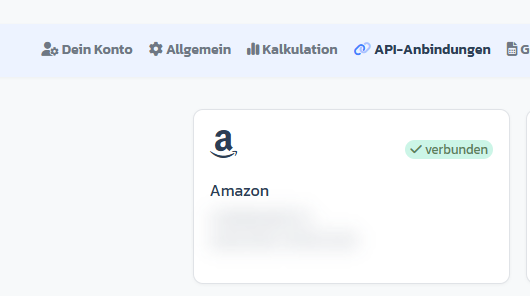
Step 2: Open the connection page and authorize
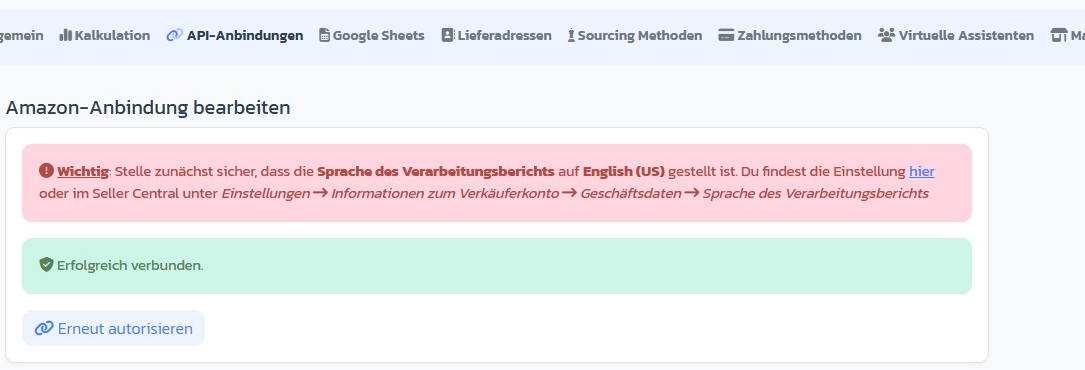
→ Open directly in the app: app.arbitrageone.de/oauth-amazon Click the Amazon card — the Edit Amazon connection page opens. Here you’ll find the Authorize now button (or Re-authorize if already connected).⚠ Important: Before that, make sure the processing report language is set to English (US) — otherwise the SP-API can’t read your reports. How to do that: SP-API Processing Report Language.
Step 3: Log in to Amazon and authorize
You’ll be redirected to Amazon. Log in with your Seller Central credentials and confirm the permissions for ArbitrageOne.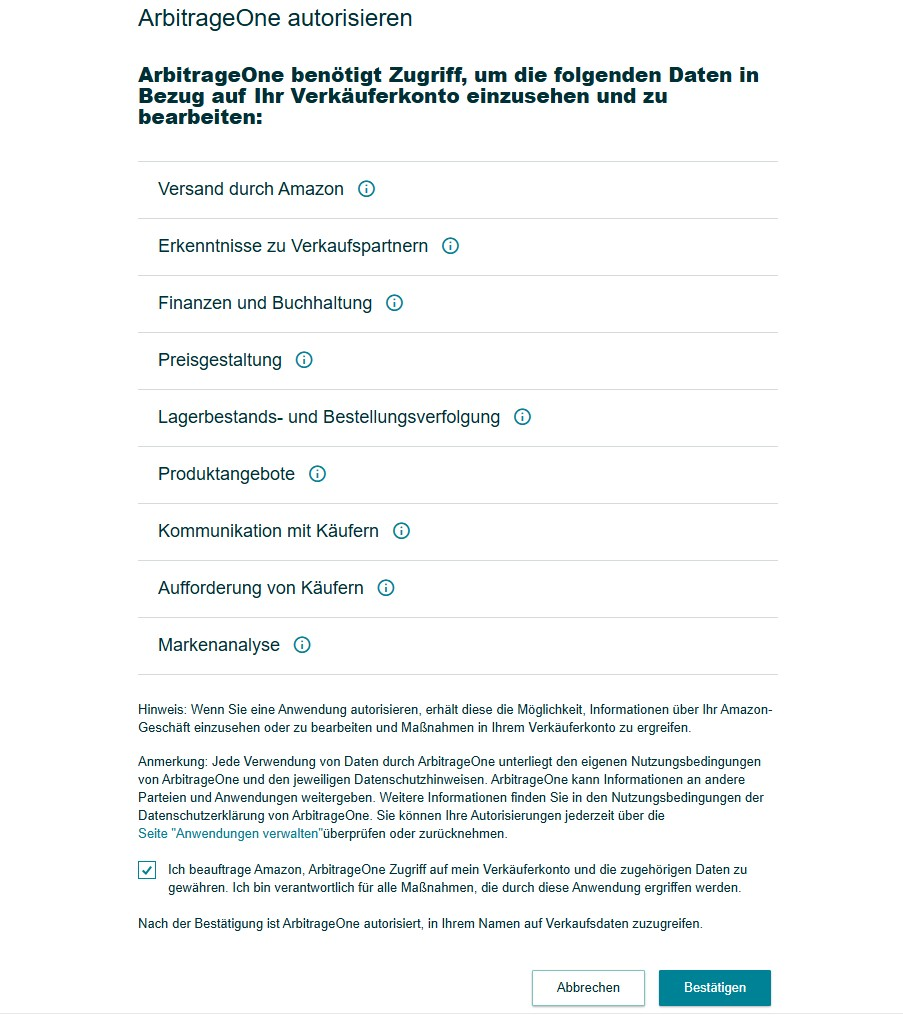
Step 4: Back to ArbitrageOne
After authorization you’re redirected back automatically. The green connected badge appears on the Amazon card and you see a success message.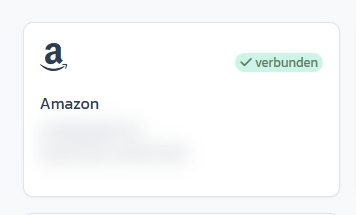
Important notes
- After a successful connection, data imports start automatically in the background. The first full sync can take a few hours.
- The processing report language must be set to English (US) — see the linked article above.