
Short description
The Analyzer is your tool for evaluating a single product in depth: Keepa price history, category, estimated sales, Ungatings status, margin calculation and direct entry into the Sourcing Sheet — all on one page.Step-by-step guide
Step 1: Open the Analyzer
→ Open directly in the app: app.arbitrageone.de/analyze Four ways:- From a sheet: click the A1-Analyzer button in a row
- Directly: menu item Sourcing → Analyzer
- With the Chrome Extension: open the Analyzer as a sidebar directly on a shop product page. The extension detects the product identifier, purchase price and source shop and passes them to the Analyzer. Set up and use the Chrome Extension
- Via URL:
/analyze?asin=B0XXXXXXXX
Step 2: Search for a product
Enter keyword, ASIN or an Amazon URL into the search field. Use the marketplace dropdown to choose the target market (e.g. Amazon.de). On an exact match the Analyzer opens the detail view directly. For multiple matches a result list appears with mini Keepa charts per marketplace — so you immediately see where the listing is active and pick the right product.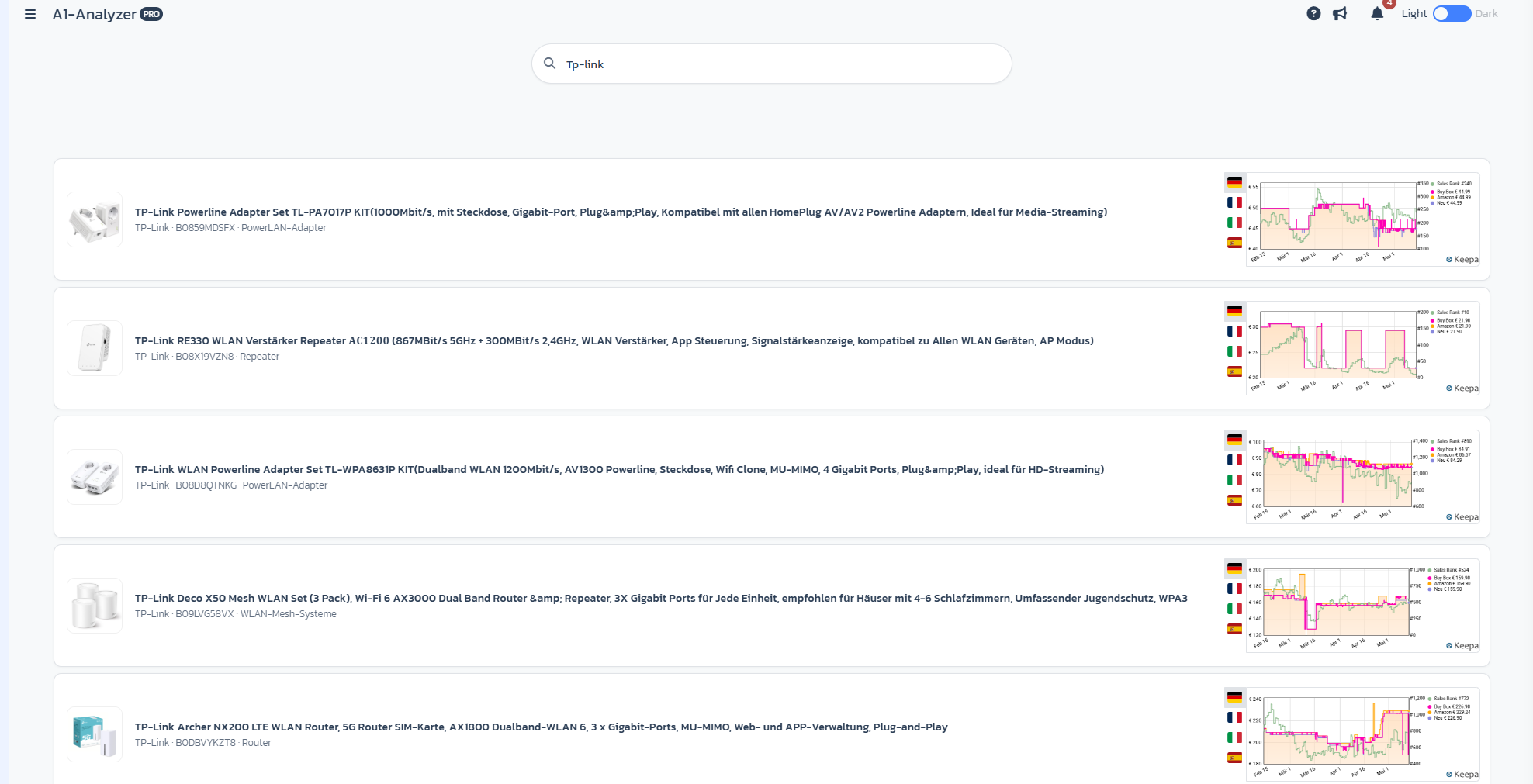
Step 3: Check product data and warning signs
After selection, the Analyzer loads all product data (image, category, brand, FBA/FBM offers, MoM drops, reviews, restrictions). Watch the warning signs in the top left: ArbitrageOne shows notices when a product is frequently returned, has oversize, is Hazmat (hazardous goods) or carries other critical attributes. You should review these warnings before every purchase decision — they can significantly reduce your margin or block the sale entirely.Step 4: Enter purchase and selling price
- Purchase price: toggle gross/net depending on what you calculate with.
- Selling price: taken from Keepa data or overwritten manually.
- Margin (%)
- ROI (%)
- Profit (€)
- Breakeven (€)
Step 5: Choose marketplace, strategy and sheet
- Target marketplace: flag dropdown
- Sourcing strategy: your pre-defined strategies (Online Arbitrage, Retail Arbitrage …)
- Sourcing Sheet: which sheet the deal is saved to
- Source URL, tags and notes — all optional and usable for filters later
Step 6: Check Keepa, approvals and Buy Box
In the analysis blocks around the target marketplace you see:- Keepa chart for the selected marketplace — price history, sales rank, Buy Box history
- Approvals per marketplace (Unlocked, Restricted, Not Eligible). A red “x” means no approval is possible.
- Buy Box statistics: share of sellers in the Buy Box over the past months. The more sellers share the Buy Box, the more intense the competition. If Amazon itself dominates the Buy Box, the deal is usually unattractive.
Step 7: Estimate Europe-wide sales
In the Sell Europe-wide block you compare SP, margin, ROI and profit per marketplace at a glance — ideal for spotting the most profitable target market.Step 8: Save or buy directly
In the Record Purchase directly? section you enter quantity, shipping costs, payment method, shipping address and purchase date, then finish with Record Purchase — or just save the deal to the sheet. The batch mode at the bottom lets you record multiple purchases in sequence without resetting the Analyzer.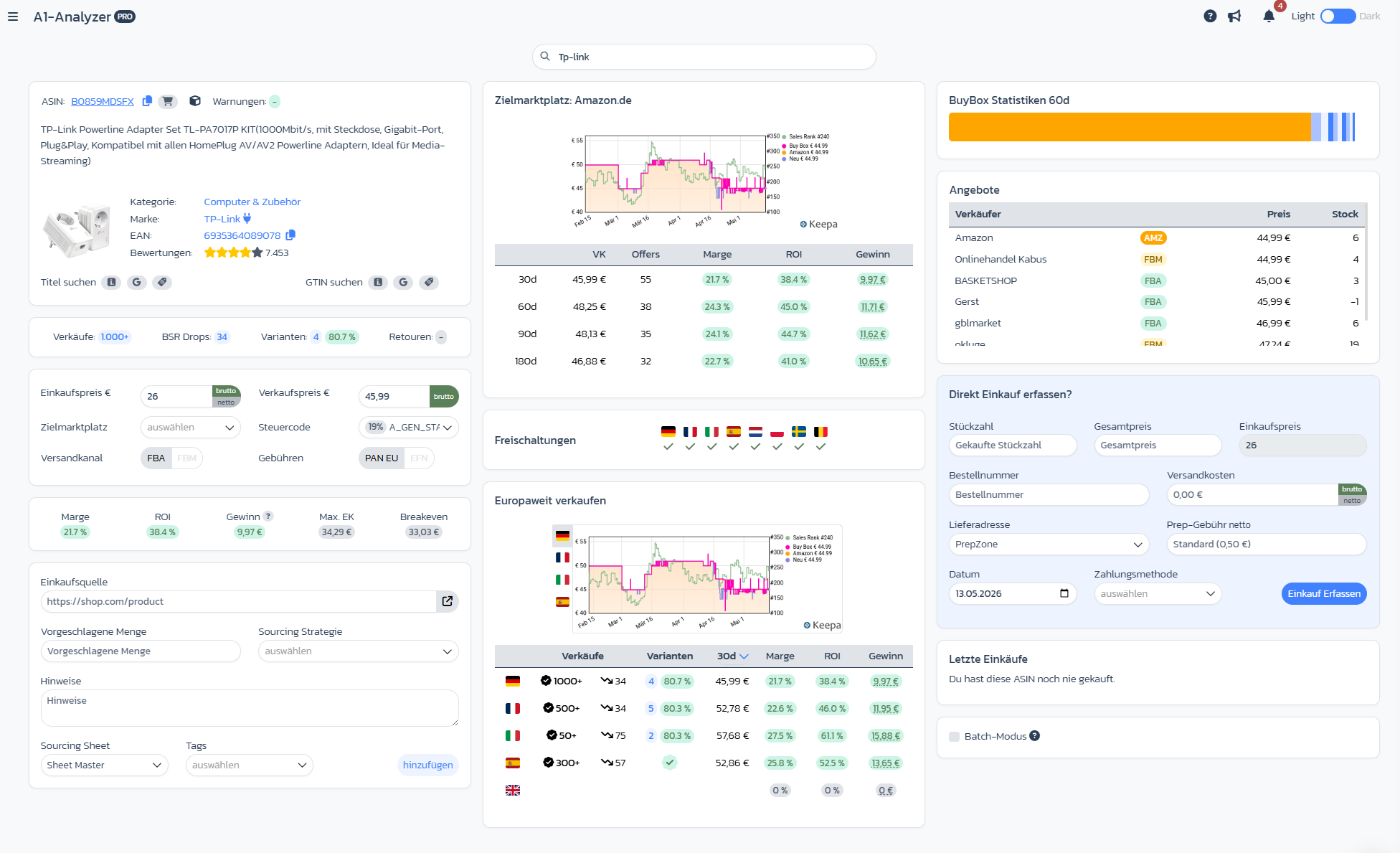
Important notes
- The Analyzer uses your current calculation basics — if fees change, it recalculates.
- The Analyzer can be opened from FlipHunter, Watchlist or externally (callback mode) — the behaviour adapts automatically.