
Short description
Under Settings → Your Account you’ll find your personal details and the Manage subscriptions section. Here you can see your active plans, add additional users, cancel a subscription or sign up for a new one.Requirements
- You must be the account owner (VA accounts don’t see this section).
Page layout
You’ll find this section under Settings → Your Account (first tab in the top tab bar).
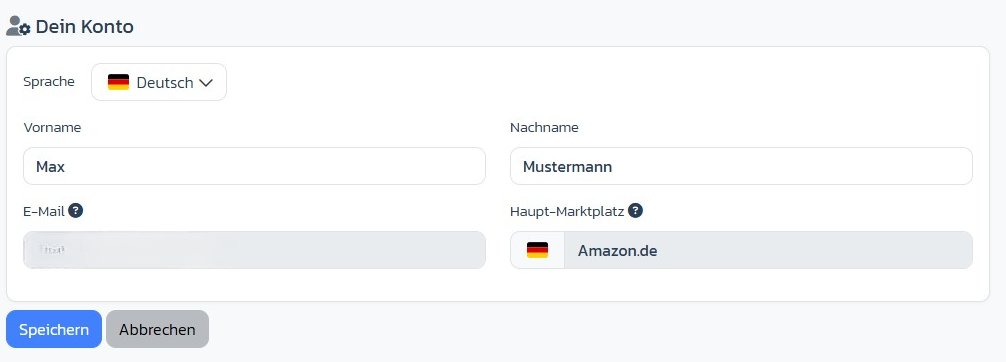
Profile data
- Language (German / English)
- First and last name
- Email address (read-only)
- Main marketplace — determines default currency and tax logic
Manage subscriptions
For each active Stripe subscription you see:- Stripe ID of the subscription
- Status badge: Active (green), Inactive (red), Cancels on [date] (yellow)
- List of included plans (e.g. ArbitrageOne Base, add-ons)
- Number of additional users (e.g. “2x”)
- Link Manage in Stripe portal (for card, invoices, cancellation)
Trial notice
While a trial is active, a yellow notice appears at the top: “Trial active until: DD.MM.YYYY”.Sign up for a new subscription
If you don’t have an active Base plan (or it has already been cancelled), the Subscribe now section with the available plans is shown at the bottom.Step-by-step: Add an additional user
Step 1: Open Your Account
→ Open directly in the app: app.arbitrageone.de/profile Go to Settings → Your Account.Step 2: Manage add-on users
Click Change next to the add-on plan (or Add if none is booked yet).Step 3: Choose the number and save
In the modal you set the desired number of add-on users. Stripe bills the difference pro rata.Step-by-step: Cancel a subscription
→ Open directly in the app: app.arbitrageone.de/subscription Click Manage in Stripe portal on the subscription. In the Stripe customer portal you can cancel, change payment methods or download invoices. After cancellation, ArbitrageOne shows the date as Cancels on.Important notes
- VA accounts are billed via the account owner.
- A cancellation takes effect at the end of the period — access remains until then.
- For add-on users, all booked seats are shown; unassigned seats are not lost.