Documentation Index

Fetch the complete documentation index at: https://docs.arbitrageone.de/llms.txt

Use this file to discover all available pages before exploring further.

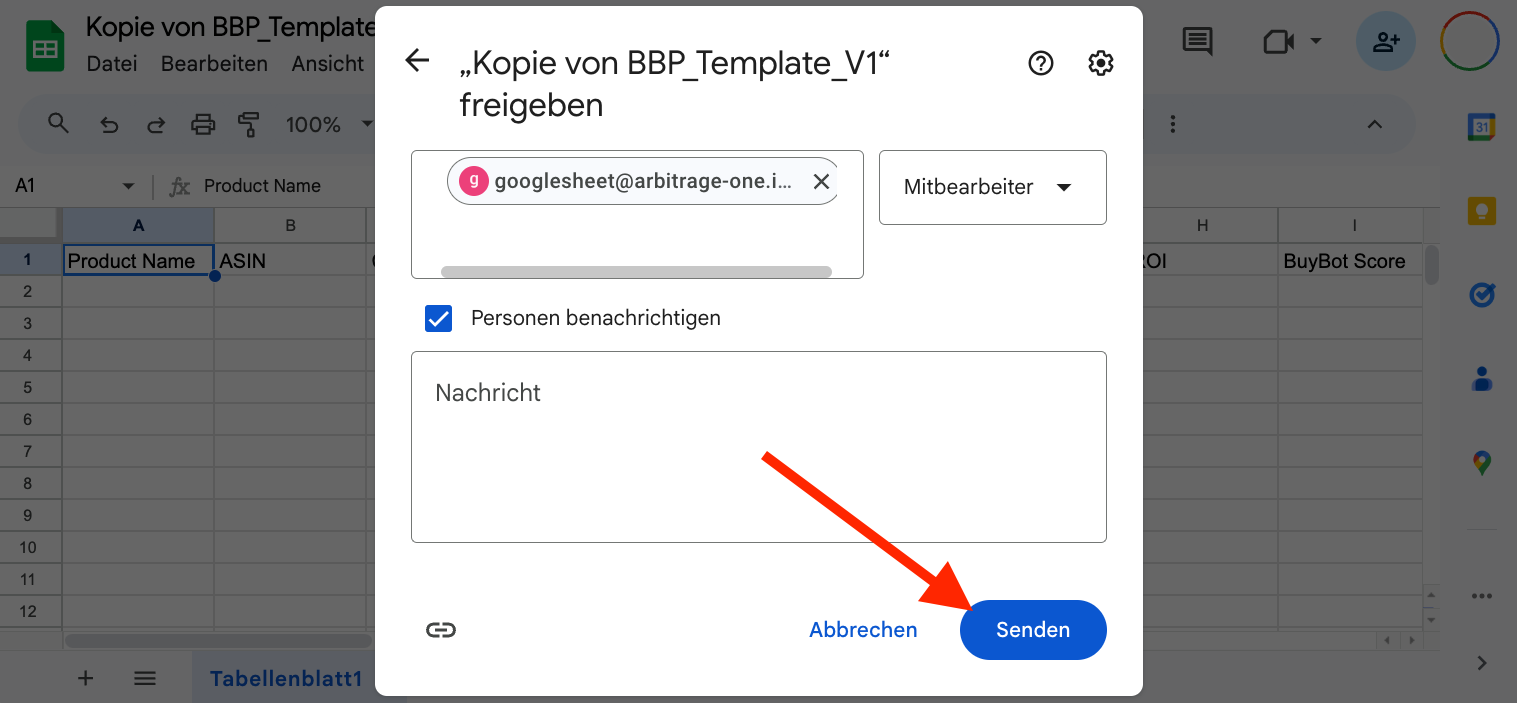
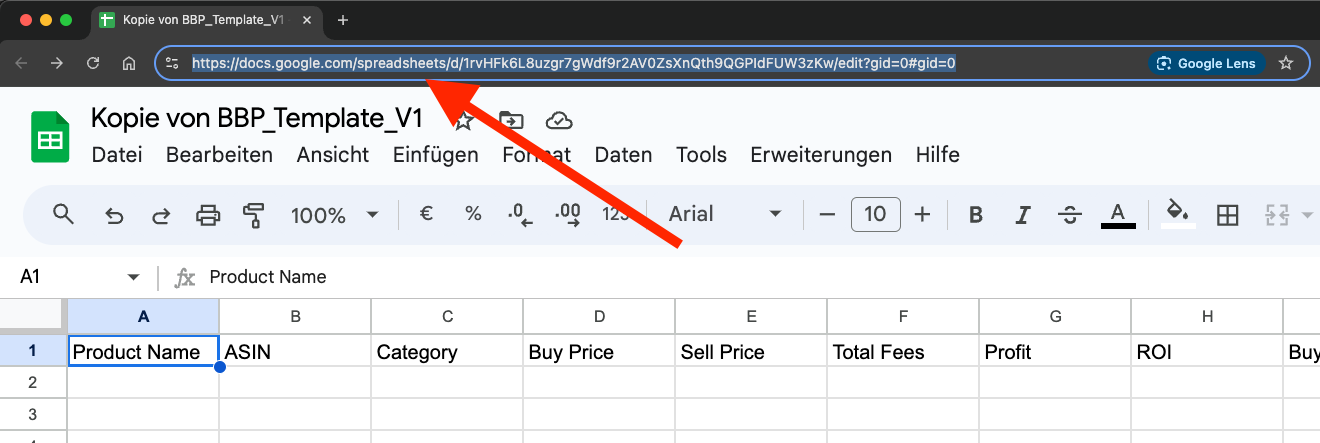
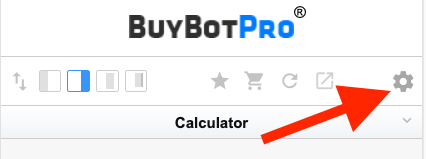
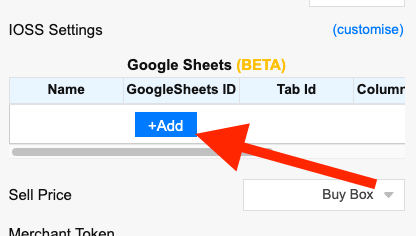
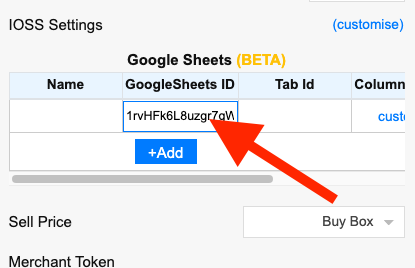
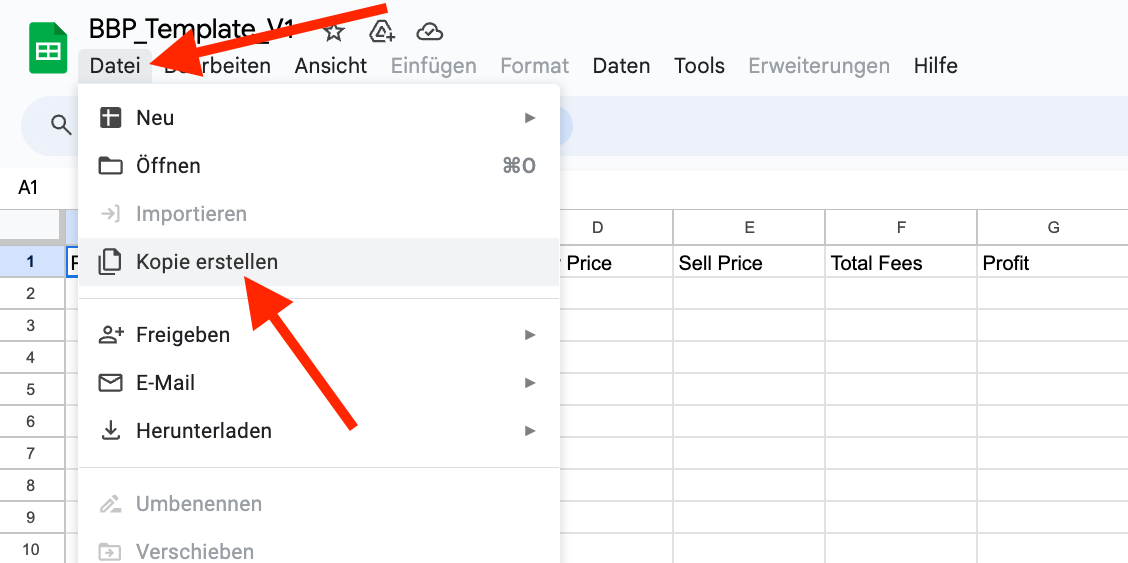
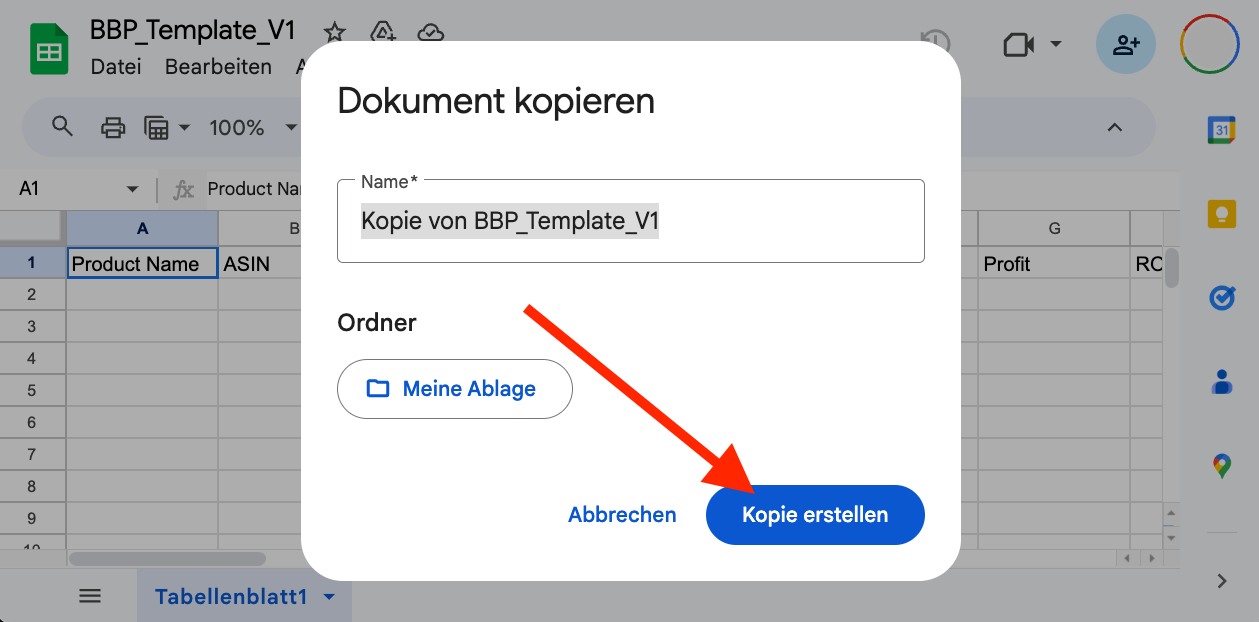
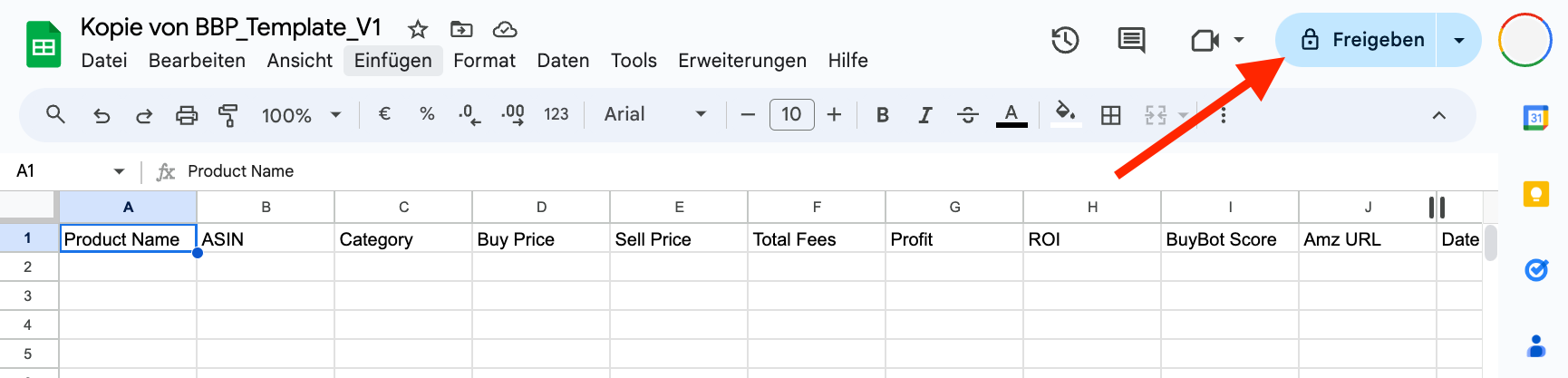
All your sourcing data is securely encrypted and can only be decrypted with your account. We never have access to your sources in plain text. Important: Once you’ve created the sheet in ArbitrageOne, do not edit the sheet or delete any rows. Step 1: Copy our BuyBotPro template Click here to open the BuyBotPro template. Then click “File” and select “Make a copy”. A window appears. Click “Make a copy” again. Step 2: Grant access A new tab with the copied sheet has opened. Click “Share” in the top right. A pop-up window appears. Add the following ArbitrageOne Service Account: googlesheet@arbitrage-one.iam.gserviceaccount.com The service account is not a regular Google account. It’s required to securely retrieve your data in encrypted form. The ArbitrageOne team cannot log into this service account or view your sheets. All your sourcing data is securely encrypted and can only be decrypted with your account. We never have access to your sources in plain text. Click “Send” to confirm. Step 3: Copy the URL Click in your browser’s address bar and select the entire URL. Copy it to your clipboard (CTRL + C or right-click > Copy). ​Step 4: Paste the URL into ArbitrageOne Paste the copied Google Sheets URL into ArbitrageOne. Step 5: Open BuyBotPro Open a new tab and navigate to any product page on Amazon. Click on the BuyBotPro settings. Step 6: Add Google Sheet In the “Google Sheets” section, click “Add”. ArbitrageOne will display a “Google Sheets ID” field. Copy this ID and paste it into the “Google Sheets ID” field in BuyBotPro. Under “Name” you can optionally enter a custom name. ⚠️ Important: Click “Save & Sync” in BuyBotPro at the bottom. Once you’ve created the sheet in ArbitrageOne, do not edit the sheet or delete any rows.