> ## Documentation Index
> Fetch the complete documentation index at: https://docs.arbitrageone.de/llms.txt
> Use this file to discover all available pages before exploring further.
# BuyBotPro: Configurare Google Sheets
> Configura Google Sheets per BuyBotPro e collegalo ad ArbitrageOne.
Tutti i tuoi dati di sourcing vengono cifrati in modo sicuro e possono essere decifrati solo con il tuo account. Non abbiamo mai accesso alle tue sorgenti in chiaro.
**Importante:** Una volta creato lo sheet in ArbitrageOne, non modificare lo sheet né eliminare righe.
**Passo 1: Copiare il nostro template BuyBotPro**
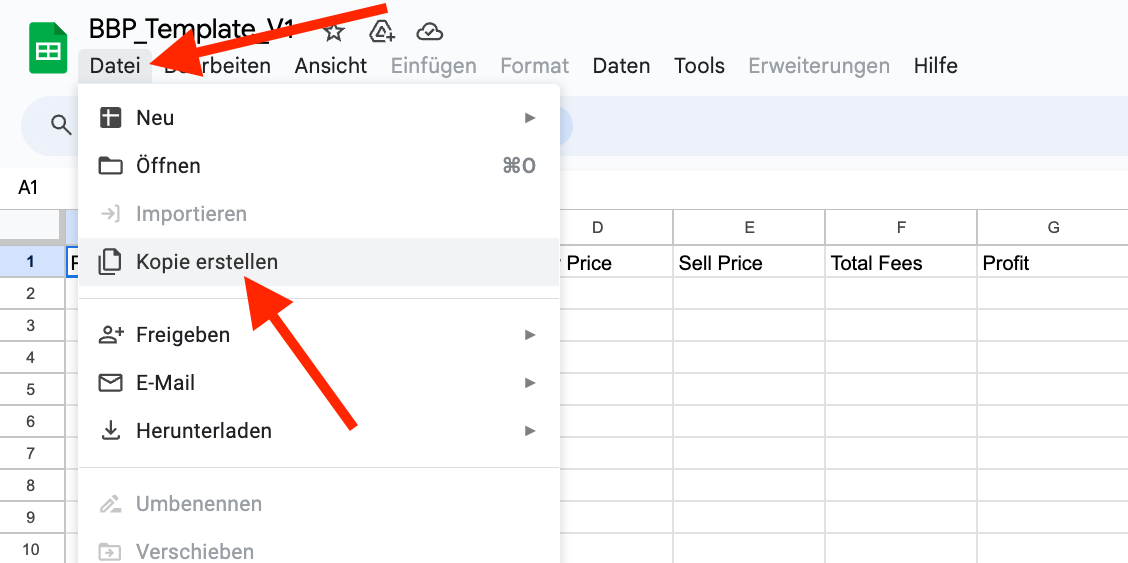
Clicca [qui](https://docs.google.com/spreadsheets/d/1Oebal-DF0Z1_k8CR65ifKhBTjXISmSYLfS73nJhxfuY/edit?gid=0#gid=0) per aprire il template BuyBotPro. Poi clicca su "File" e seleziona "Crea una copia".
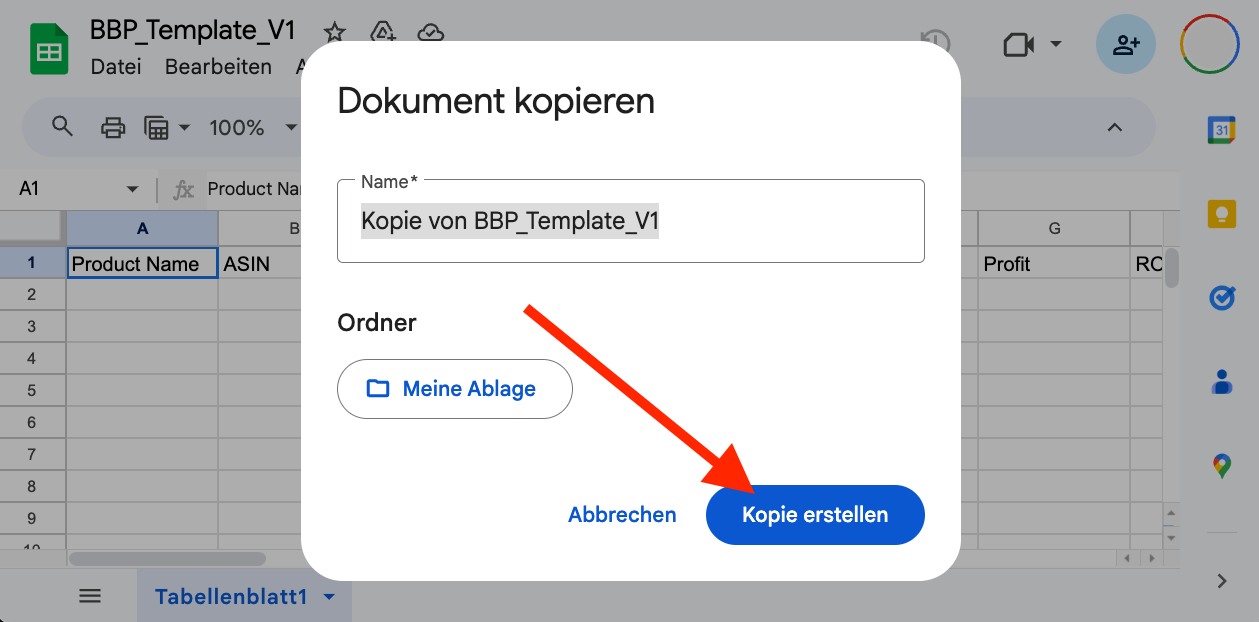
 Appare una finestra. Clicca di nuovo su "Crea una copia".
 **Passo 2: Concedere l'accesso**
Si è aperta una nuova scheda con lo sheet copiato. Clicca su "Condividi" in alto a destra.
**Passo 2: Concedere l'accesso**
Si è aperta una nuova scheda con lo sheet copiato. Clicca su "Condividi" in alto a destra.
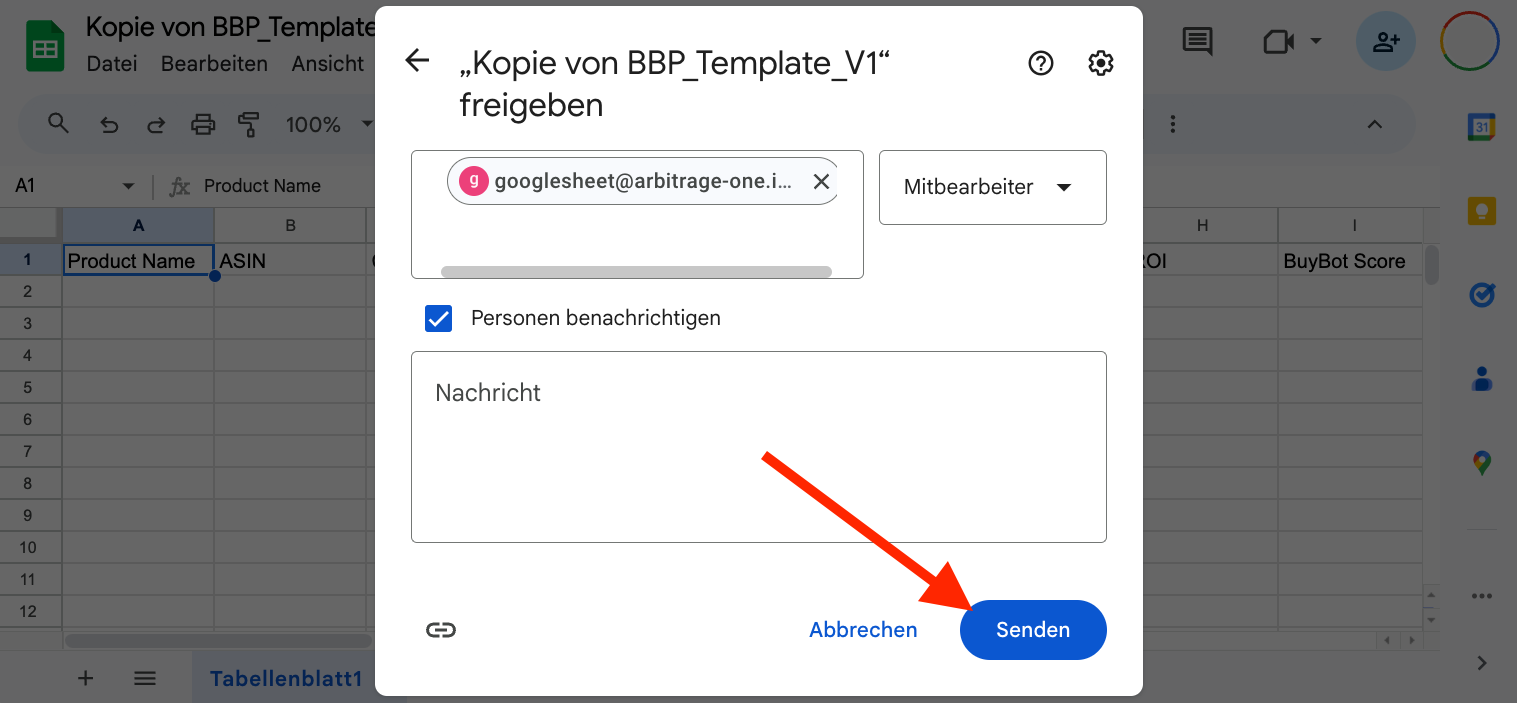
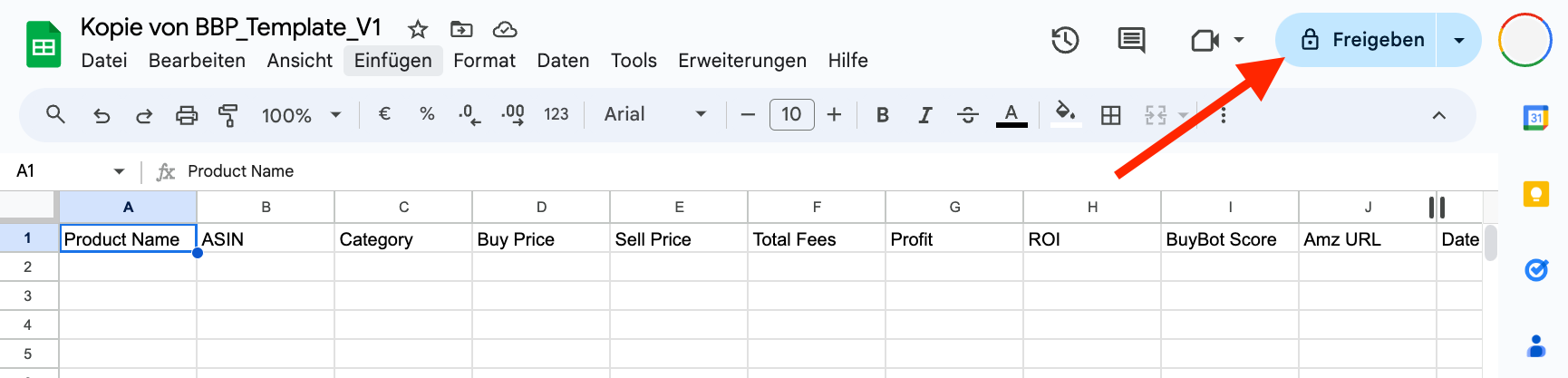 Appare una finestra pop-up. Aggiungi il seguente Service Account ArbitrageOne: ***`googlesheet@arbitrage-one.iam.gserviceaccount.com`***
Il service account **non** è un account Google ordinario. È necessario per recuperare i tuoi dati in forma cifrata. Il team ArbitrageOne **non può** accedere a questo service account né visualizzare i tuoi sheet.
Tutti i tuoi dati di sourcing vengono cifrati in modo sicuro e possono essere decifrati solo con il tuo account. Non abbiamo mai accesso alle tue sorgenti in chiaro.
Clicca su **"Invia"** per confermare.
Appare una finestra pop-up. Aggiungi il seguente Service Account ArbitrageOne: ***`googlesheet@arbitrage-one.iam.gserviceaccount.com`***
Il service account **non** è un account Google ordinario. È necessario per recuperare i tuoi dati in forma cifrata. Il team ArbitrageOne **non può** accedere a questo service account né visualizzare i tuoi sheet.
Tutti i tuoi dati di sourcing vengono cifrati in modo sicuro e possono essere decifrati solo con il tuo account. Non abbiamo mai accesso alle tue sorgenti in chiaro.
Clicca su **"Invia"** per confermare.
 **Passo 3: Copiare l'URL**
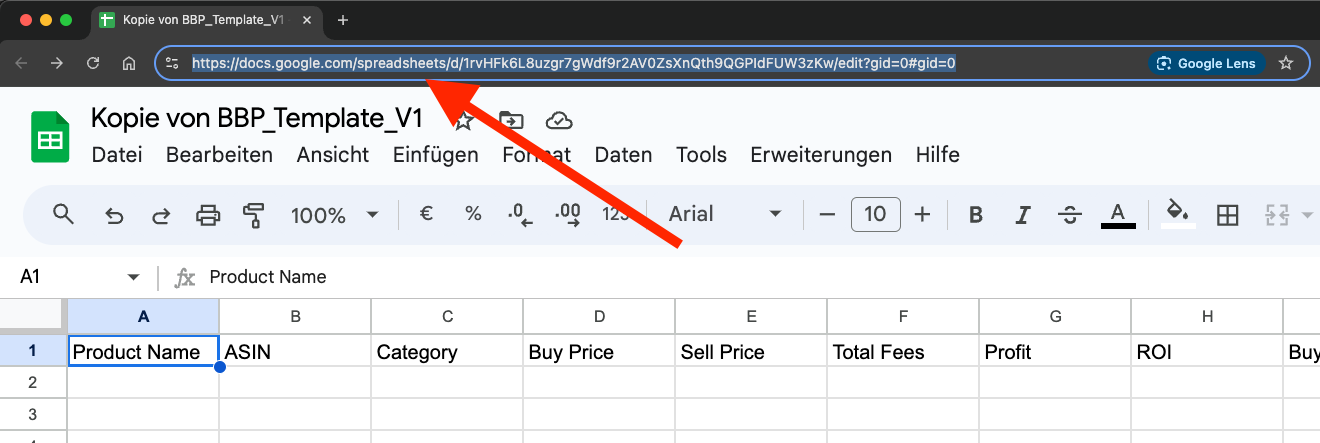
Clicca nella barra degli indirizzi del tuo browser e seleziona l'URL completo. Copialo nei tuoi appunti (CTRL + C o tasto destro > Copia).
**Passo 3: Copiare l'URL**
Clicca nella barra degli indirizzi del tuo browser e seleziona l'URL completo. Copialo nei tuoi appunti (CTRL + C o tasto destro > Copia).
 **Passo 4: Incollare l'URL in ArbitrageOne**
→ Apri direttamente nell'app: [app.arbitrageone.de/googlesheets](https://app.arbitrageone.de/googlesheets)
Incolla l'URL Google Sheets copiato in ArbitrageOne.
**Passo 5: Aprire BuyBotPro**
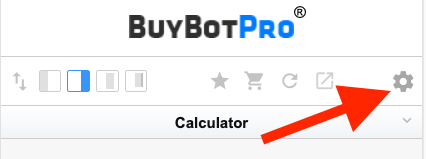
Apri una nuova scheda e vai su una qualsiasi pagina prodotto su Amazon. Clicca sulle impostazioni di BuyBotPro.
**Passo 4: Incollare l'URL in ArbitrageOne**
→ Apri direttamente nell'app: [app.arbitrageone.de/googlesheets](https://app.arbitrageone.de/googlesheets)
Incolla l'URL Google Sheets copiato in ArbitrageOne.
**Passo 5: Aprire BuyBotPro**
Apri una nuova scheda e vai su una qualsiasi pagina prodotto su Amazon. Clicca sulle impostazioni di BuyBotPro.
 **Passo 6: Aggiungere Google Sheet**
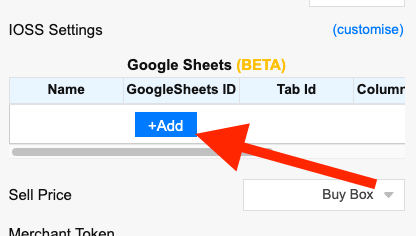
Nella sezione "Google Sheets", clicca su "Add".
**Passo 6: Aggiungere Google Sheet**
Nella sezione "Google Sheets", clicca su "Add".
 ArbitrageOne mostrerà un campo "Google Sheets ID". Copia questo ID e incollalo nel campo "Google Sheets ID" in BuyBotPro.
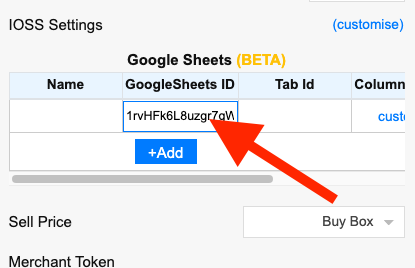 In "Name" puoi opzionalmente inserire un nome personalizzato.
**⚠️ Importante:** Clicca su "Save & Sync" in basso in BuyBotPro.
Una volta creato lo sheet in ArbitrageOne, **non modificare lo sheet né eliminare righe.**
In "Name" puoi opzionalmente inserire un nome personalizzato.
**⚠️ Importante:** Clicca su "Save & Sync" in basso in BuyBotPro.
Una volta creato lo sheet in ArbitrageOne, **non modificare lo sheet né eliminare righe.**