> ## Documentation Index
> Fetch the complete documentation index at: https://docs.arbitrageone.de/llms.txt
> Use this file to discover all available pages before exploring further.
# BuyBotPro : Configurer Google Sheets
> Configure Google Sheets pour BuyBotPro et connecte-le à ArbitrageOne.
Toutes tes données de sourcing sont chiffrées en toute sécurité et ne peuvent être déchiffrées qu'avec ton compte. Nous n'avons jamais accès à tes sources en clair.
**Important :** Une fois que tu as créé le sheet dans ArbitrageOne, ne modifie pas le sheet et ne supprime aucune ligne.
**Étape 1 : Copier notre modèle BuyBotPro**
Clique [ici](https://docs.google.com/spreadsheets/d/1Oebal-DF0Z1_k8CR65ifKhBTjXISmSYLfS73nJhxfuY/edit?gid=0#gid=0) pour ouvrir le modèle BuyBotPro. Clique ensuite sur « Fichier » et sélectionne « Créer une copie ».
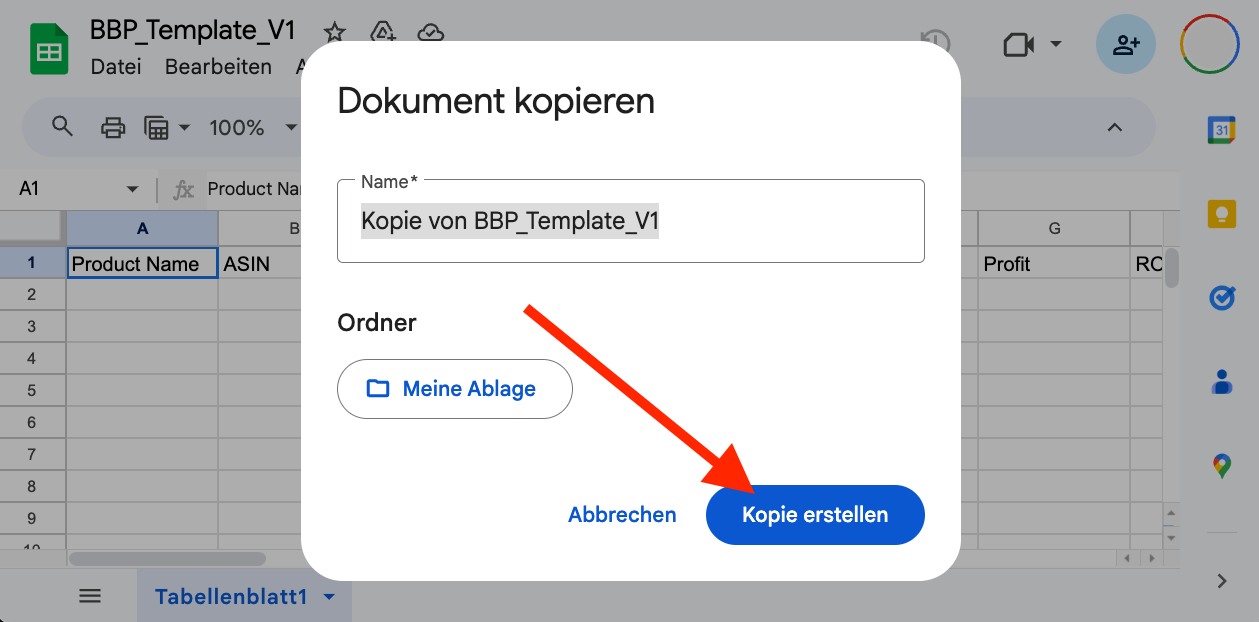
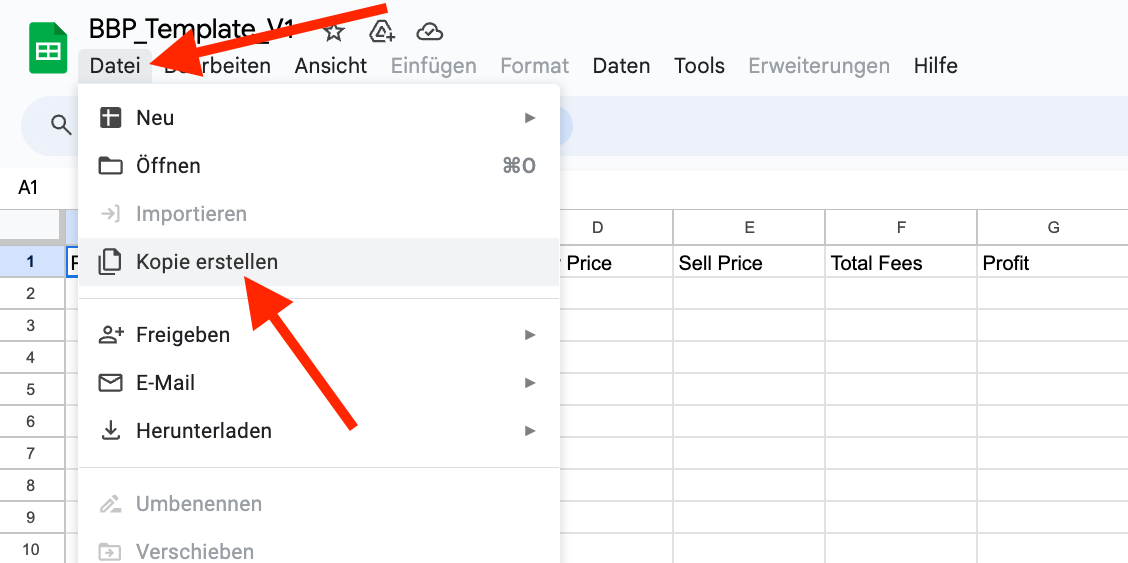 Une fenêtre apparaît. Clique à nouveau sur « Créer une copie ».
 **Étape 2 : Accorder l'accès**
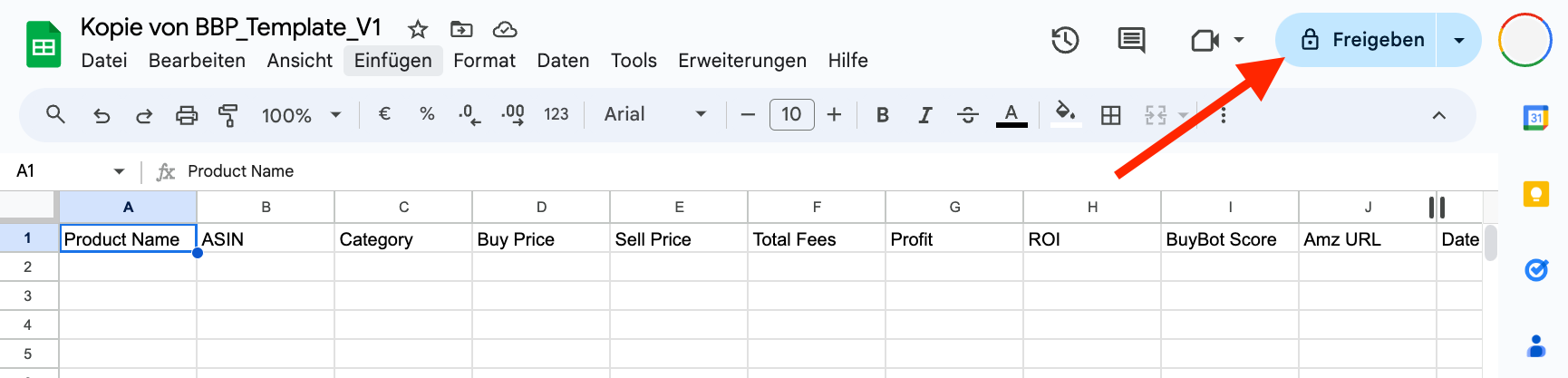
Un nouvel onglet avec le sheet copié s'ouvre. Clique sur « Partager » en haut à droite.
**Étape 2 : Accorder l'accès**
Un nouvel onglet avec le sheet copié s'ouvre. Clique sur « Partager » en haut à droite.
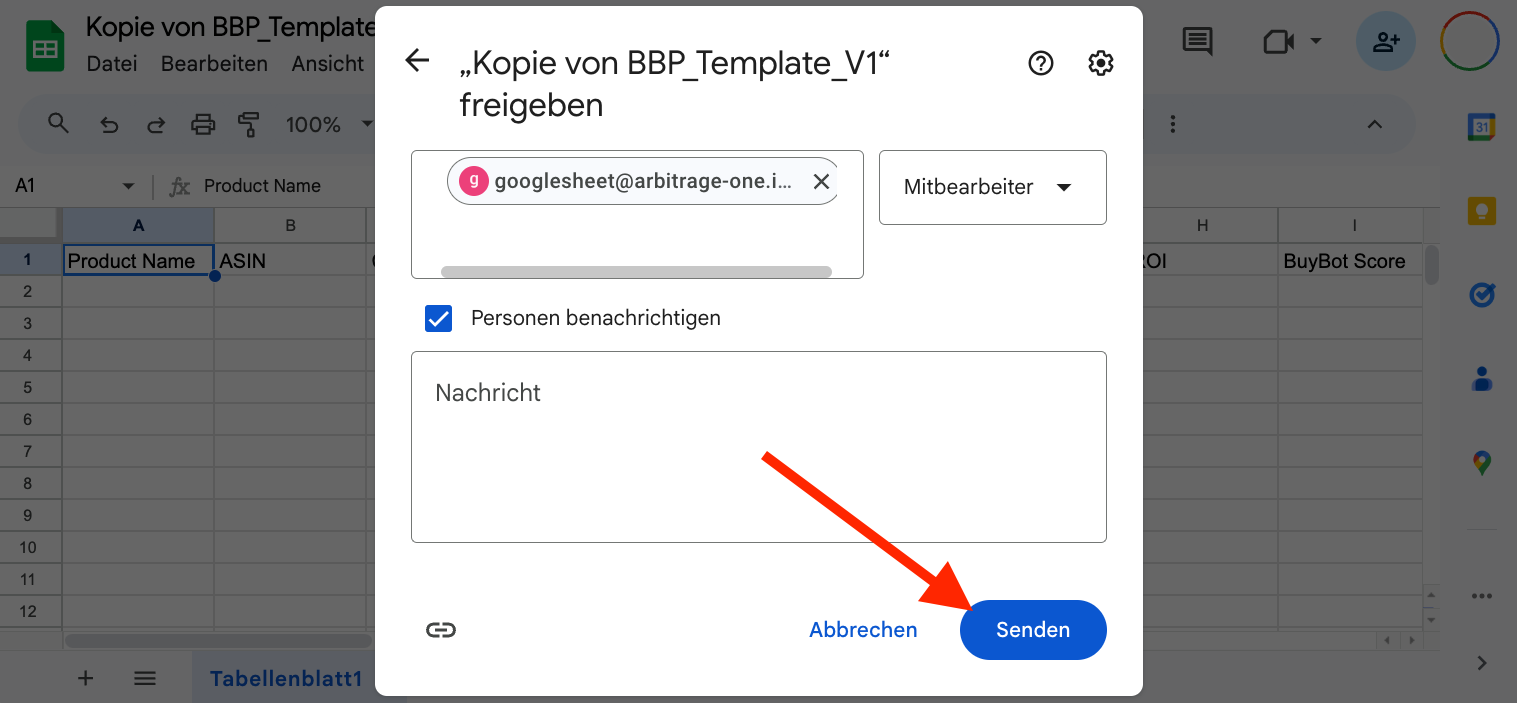
 Une fenêtre pop-up apparaît. Ajoute le service account ArbitrageOne suivant : ***`googlesheet@arbitrage-one.iam.gserviceaccount.com`***
Le service account n'est **pas** un compte Google ordinaire. Il est nécessaire pour récupérer tes données sous forme chiffrée. L'équipe ArbitrageOne **ne peut pas** se connecter à ce service account ni consulter tes sheets.
Toutes tes données de sourcing sont chiffrées en toute sécurité et ne peuvent être déchiffrées qu'avec ton compte. Nous n'avons jamais accès à tes sources en clair.
Clique sur **« Envoyer »** pour confirmer.
Une fenêtre pop-up apparaît. Ajoute le service account ArbitrageOne suivant : ***`googlesheet@arbitrage-one.iam.gserviceaccount.com`***
Le service account n'est **pas** un compte Google ordinaire. Il est nécessaire pour récupérer tes données sous forme chiffrée. L'équipe ArbitrageOne **ne peut pas** se connecter à ce service account ni consulter tes sheets.
Toutes tes données de sourcing sont chiffrées en toute sécurité et ne peuvent être déchiffrées qu'avec ton compte. Nous n'avons jamais accès à tes sources en clair.
Clique sur **« Envoyer »** pour confirmer.
 **Étape 3 : Copier l'URL**
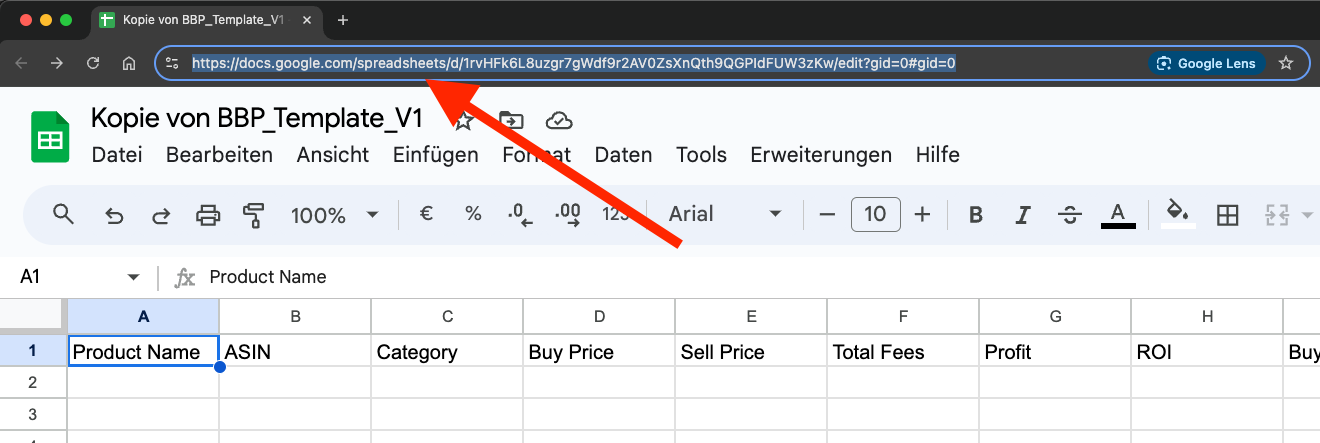
Clique dans la barre d'adresse de ton navigateur et sélectionne l'URL complète. Copie-la dans ton presse-papiers (CTRL + C ou clic droit > Copier).
**Étape 3 : Copier l'URL**
Clique dans la barre d'adresse de ton navigateur et sélectionne l'URL complète. Copie-la dans ton presse-papiers (CTRL + C ou clic droit > Copier).
 **Étape 4 : Coller l'URL dans ArbitrageOne**
→ Ouvrir directement dans l'app : [app.arbitrageone.de/googlesheets](https://app.arbitrageone.de/googlesheets)
Colle l'URL Google Sheets copiée dans ArbitrageOne.
**Étape 5 : Ouvrir BuyBotPro**
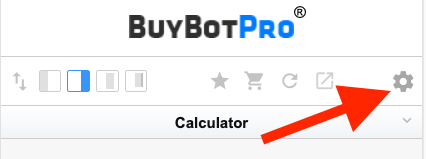
Ouvre un nouvel onglet et navigue vers n'importe quelle page produit sur Amazon. Clique sur les paramètres BuyBotPro.
**Étape 4 : Coller l'URL dans ArbitrageOne**
→ Ouvrir directement dans l'app : [app.arbitrageone.de/googlesheets](https://app.arbitrageone.de/googlesheets)
Colle l'URL Google Sheets copiée dans ArbitrageOne.
**Étape 5 : Ouvrir BuyBotPro**
Ouvre un nouvel onglet et navigue vers n'importe quelle page produit sur Amazon. Clique sur les paramètres BuyBotPro.
 **Étape 6 : Ajouter Google Sheet**
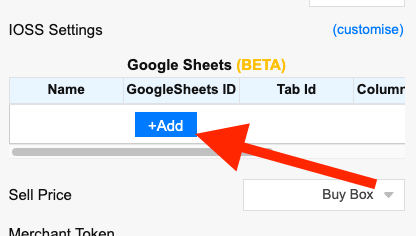
Dans la section « Google Sheets », clique sur « Add ».
**Étape 6 : Ajouter Google Sheet**
Dans la section « Google Sheets », clique sur « Add ».
 ArbitrageOne affichera un champ « Google Sheets ID ». Copie cet ID et colle-le dans le champ « Google Sheets ID » de BuyBotPro.
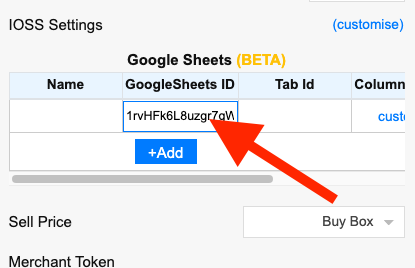 Sous « Name », tu peux optionnellement saisir un nom personnalisé.
**⚠️ Important :** Clique sur « Save & Sync » en bas dans BuyBotPro.
Une fois que tu as créé le sheet dans ArbitrageOne, **ne modifie pas le sheet et ne supprime aucune ligne.**
Sous « Name », tu peux optionnellement saisir un nom personnalisé.
**⚠️ Important :** Clique sur « Save & Sync » en bas dans BuyBotPro.
Une fois que tu as créé le sheet dans ArbitrageOne, **ne modifie pas le sheet et ne supprime aucune ligne.**