> ## Documentation Index
> Fetch the complete documentation index at: https://docs.arbitrageone.de/llms.txt
> Use this file to discover all available pages before exploring further.
# ProfitGo: Configurar un Google Sheet
> Configura un Google Sheet para ProfitGo y conéctalo con ArbitrageOne.
Todos tus datos de sourcing se almacenan de forma segura y cifrada y solo pueden descifrarse con tu cuenta. Nunca tenemos acceso a tus fuentes en texto plano.
**Importante:** Una vez creado el sheet en ArbitrageOne, no debes editar el sheet ni eliminar filas.
## Paso 1: Vincular tu cuenta Google con ProfitGo
En [Google Sheets](https://dash.profitpath.app/items/google-sheets), haz clic en Connect to Google y sigue las instrucciones para vincular ProfitGo con tu cuenta Google.
## Paso 2: Crear un nuevo Google Sheet y ajustar columnas
Haz clic en Create en [ProfitGo](https://dash.profitpath.app/items/google-sheets).
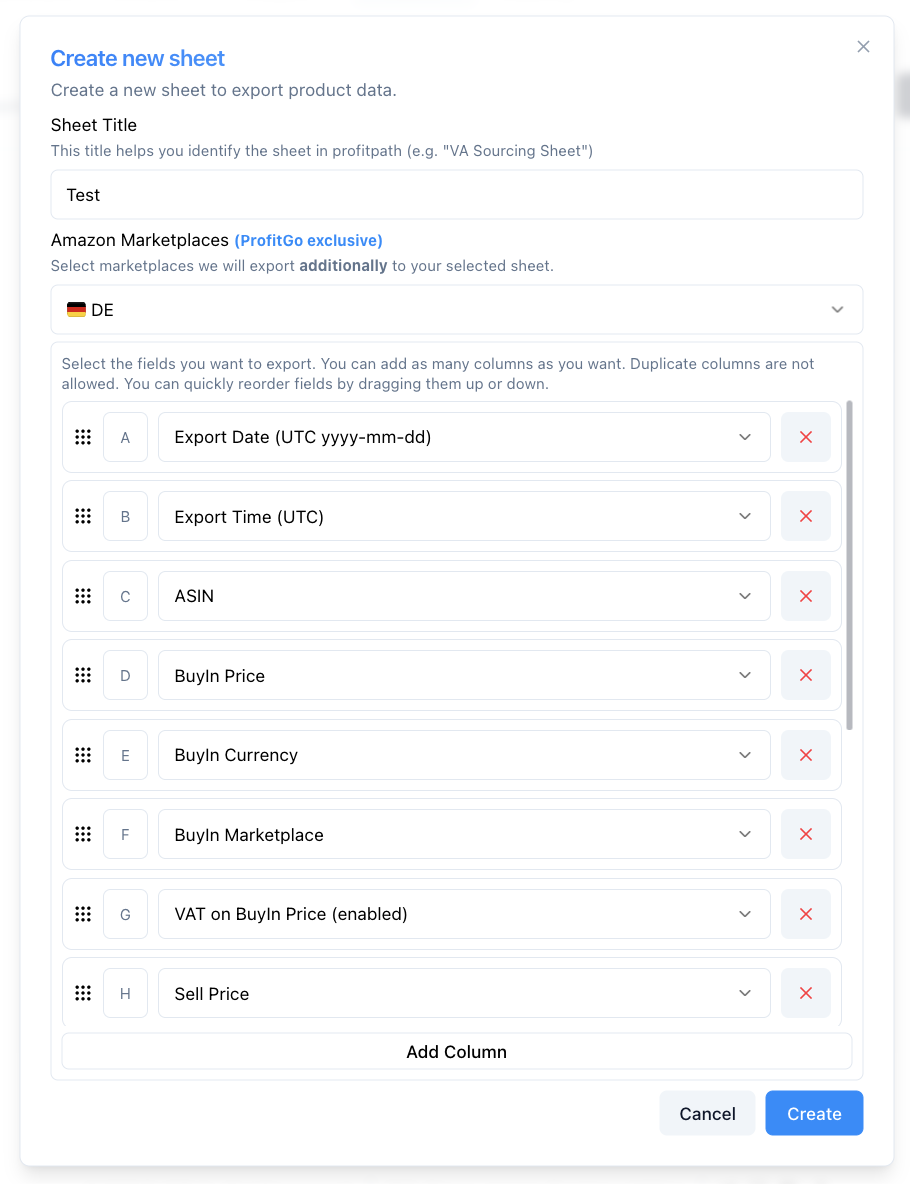
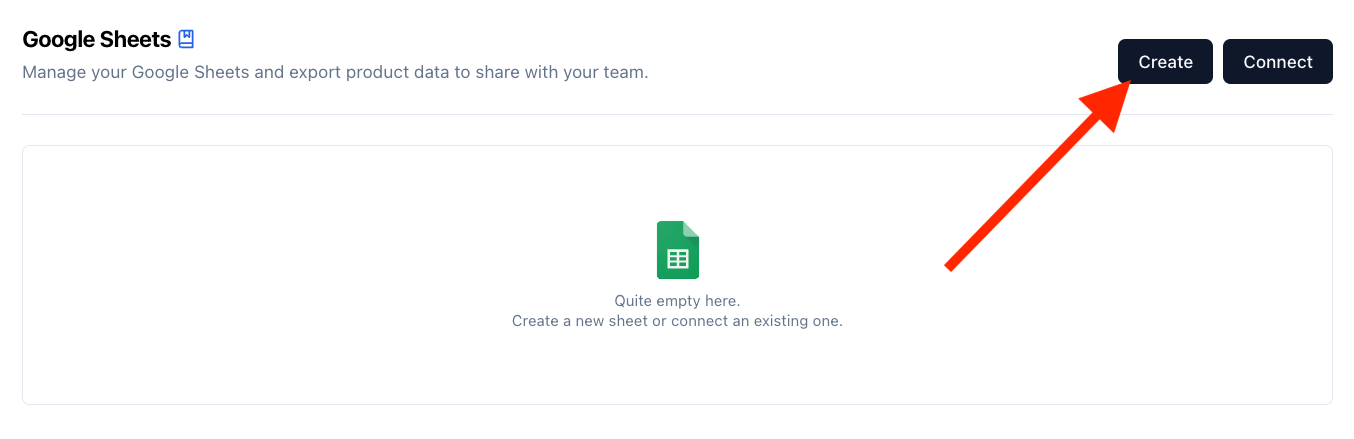 Asegúrate de que todas las columnas listadas abajo están seleccionadas.
* Export Date (**UTC** yyyy-mm-dd)
* Export Time (**UTC**)
* ASIN
* BuyIn Price
* BuyIn Currency
* BuyIn Marketplace
* VAT on BuyIn Price (activado)
* Sell Price
* Sell Currency
* Sell Marketplace
* VAT on Sell Price (activado)
* Supplier URL
* Source URL
* Quantity
* Estimated Sales
* Groups
Luego haz clic en Create.
Asegúrate de que todas las columnas listadas abajo están seleccionadas.
* Export Date (**UTC** yyyy-mm-dd)
* Export Time (**UTC**)
* ASIN
* BuyIn Price
* BuyIn Currency
* BuyIn Marketplace
* VAT on BuyIn Price (activado)
* Sell Price
* Sell Currency
* Sell Marketplace
* VAT on Sell Price (activado)
* Supplier URL
* Source URL
* Quantity
* Estimated Sales
* Groups
Luego haz clic en Create.
 ## Paso 3: Abrir Google Sheet
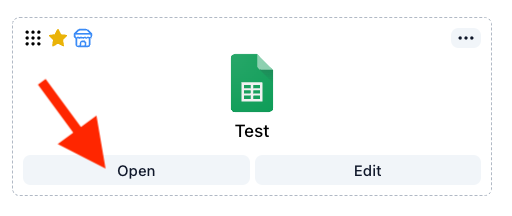
Haz clic en "Open" para abrir tu Google Sheet recién creado.
## Paso 3: Abrir Google Sheet
Haz clic en "Open" para abrir tu Google Sheet recién creado.
 ## Paso 4: Conceder acceso
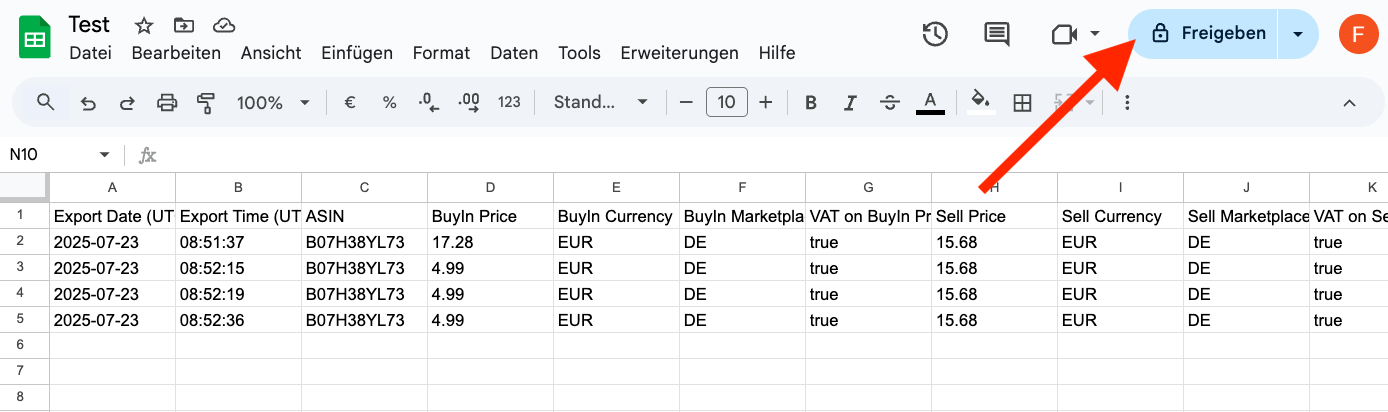
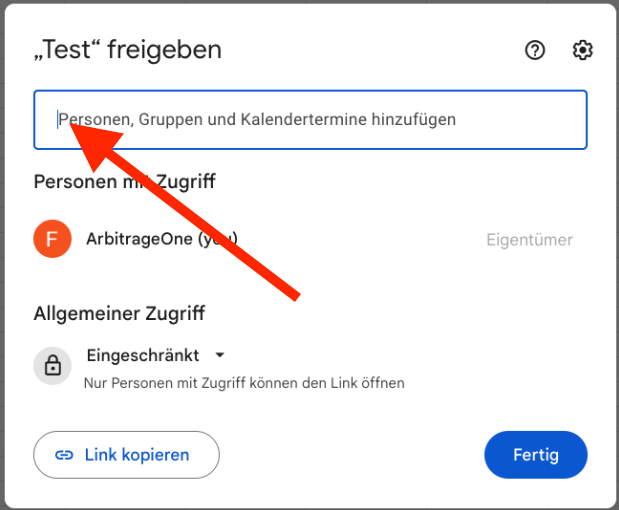
Se abre una nueva pestaña. Haz clic en "Compartir" arriba a la derecha.
## Paso 4: Conceder acceso
Se abre una nueva pestaña. Haz clic en "Compartir" arriba a la derecha.
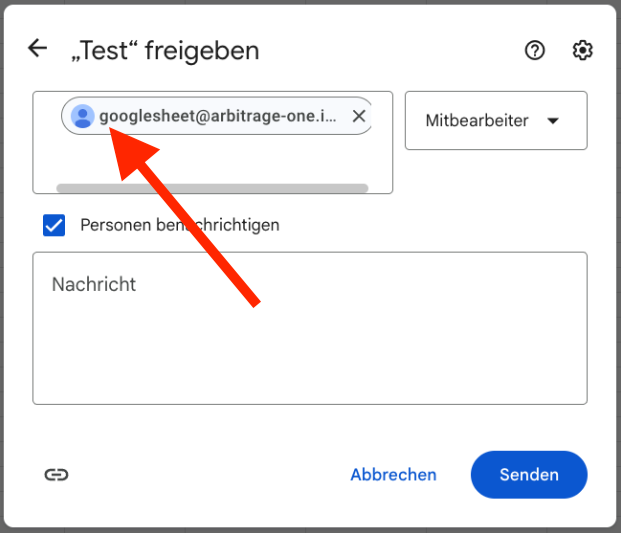
 Aparece una ventana pop-up. Añade el siguiente Service Account de ArbitrageOne:
***`googlesheet@arbitrage-one.iam.gserviceaccount.com`***
Nota: el service account no es una cuenta Google ordinaria. Es necesario para recuperar tus datos de forma segura y cifrada. El equipo de ArbitrageOne no puede iniciar sesión en este service account ni ver tus sheets.
Todos tus datos de sourcing están cifrados de forma segura y solo pueden descifrarse con tu cuenta. Nunca tenemos acceso a tus fuentes en texto plano.
Aparece una ventana pop-up. Añade el siguiente Service Account de ArbitrageOne:
***`googlesheet@arbitrage-one.iam.gserviceaccount.com`***
Nota: el service account no es una cuenta Google ordinaria. Es necesario para recuperar tus datos de forma segura y cifrada. El equipo de ArbitrageOne no puede iniciar sesión en este service account ni ver tus sheets.
Todos tus datos de sourcing están cifrados de forma segura y solo pueden descifrarse con tu cuenta. Nunca tenemos acceso a tus fuentes en texto plano.
 Haz clic en "Enviar" para confirmar.
## Paso 5: Copiar la URL
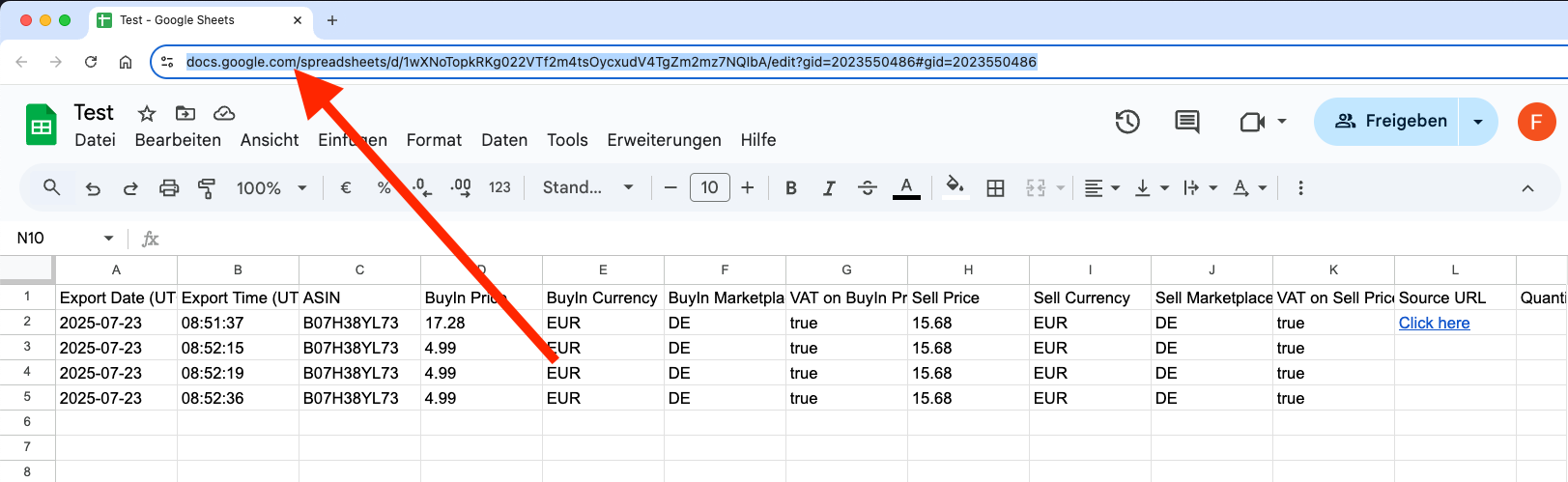
Haz clic en la barra de direcciones de tu navegador y selecciona la URL completa. Cópiala a tu portapapeles (CTRL + C o clic derecho > Copiar).
Haz clic en "Enviar" para confirmar.
## Paso 5: Copiar la URL
Haz clic en la barra de direcciones de tu navegador y selecciona la URL completa. Cópiala a tu portapapeles (CTRL + C o clic derecho > Copiar).
 ## Paso 8: Pegar la URL en ArbitrageOne
→ Abrir directamente en la app: [app.arbitrageone.de/googlesheets](https://app.arbitrageone.de/googlesheets)
Pega la URL del Google Sheet en ArbitrageOne.
**Importante:** Una vez añadido el sheet a ArbitrageOne, no edites el sheet ni elimines ninguna fila.
## Paso 8: Pegar la URL en ArbitrageOne
→ Abrir directamente en la app: [app.arbitrageone.de/googlesheets](https://app.arbitrageone.de/googlesheets)
Pega la URL del Google Sheet en ArbitrageOne.
**Importante:** Una vez añadido el sheet a ArbitrageOne, no edites el sheet ni elimines ninguna fila.