> ## Documentation Index
> Fetch the complete documentation index at: https://docs.arbitrageone.de/llms.txt
> Use this file to discover all available pages before exploring further.
# How do I create a virtual assistant and manage their permissions?
> Create VAs in ArbitrageOne, configure salary, permissions and onboarding.
## Short description
With Virtual Assistants (VAs) you split work in ArbitrageOne — e.g. sourcing, purchase processing or returns handling — without sharing your credentials. Every VA gets their own account with individually assigned permissions, an optional salary model incl. bonus and is tracked separately in all modules.
## Requirements
* Your **plan** must allow VA management.
* The maximum number of VAs depends on your tariff — when reached, a **lock icon** appears instead of the add button.
## Step-by-step guide
### Step 1: Open the VA overview
→ Open directly in the app: [app.arbitrageone.de/virtualassistants](https://app.arbitrageone.de/virtualassistants)
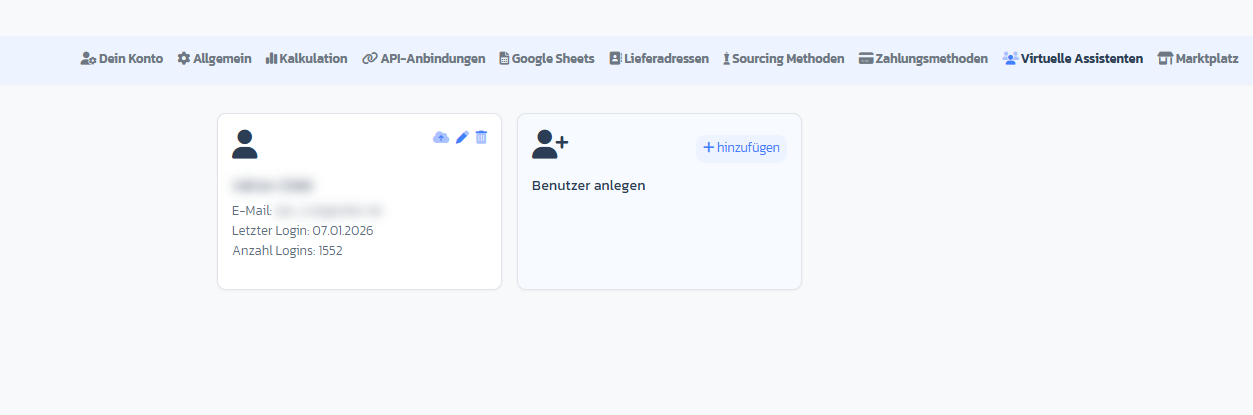
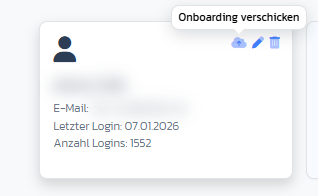
Go to **Settings → Virtual Assistants**. You'll see a card overview of all existing VAs with name, email, last login and login counter.
 ### Step 2: Create a new VA
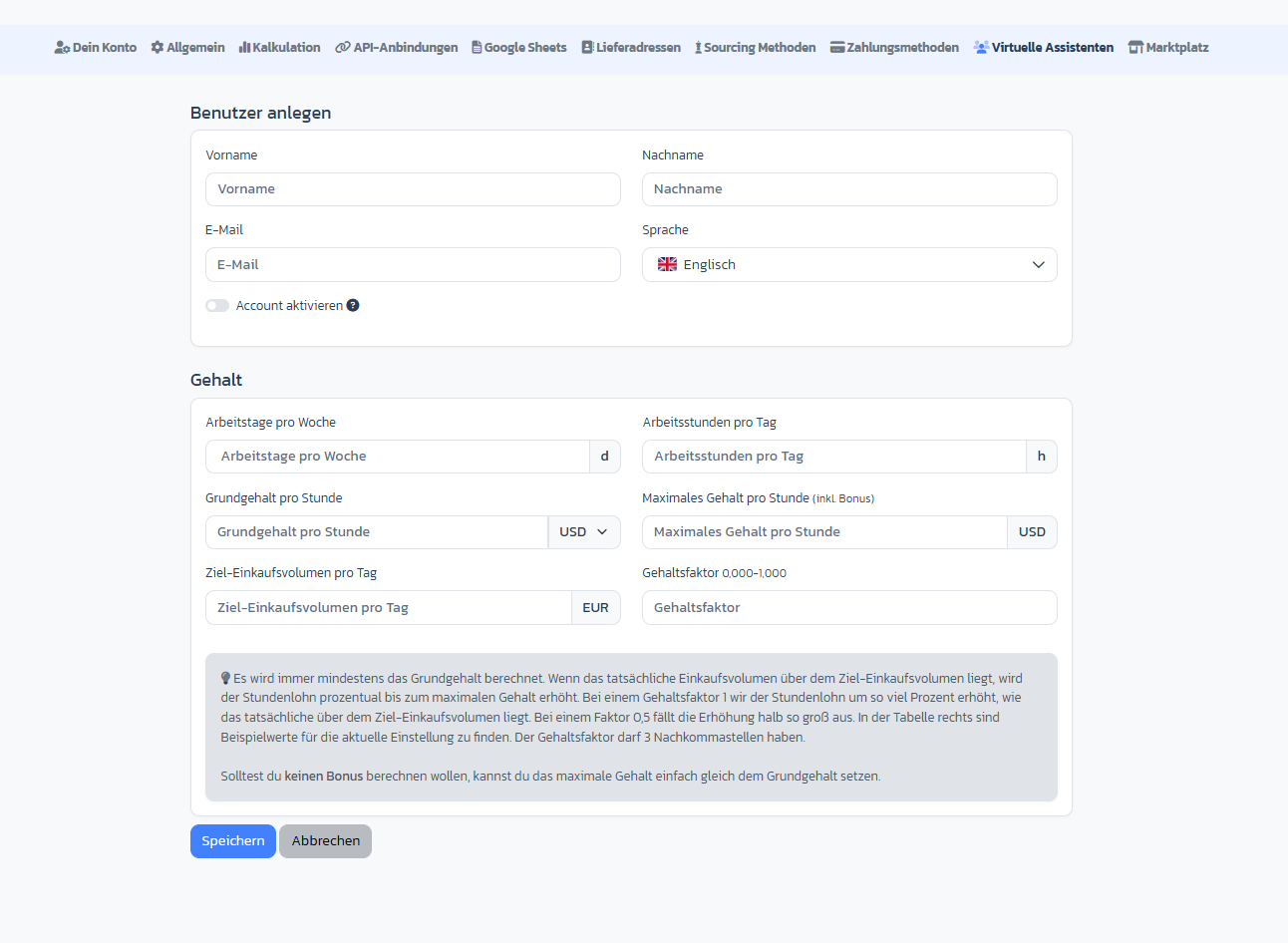
Click the **+** symbol in the **Create user** card. You land in the creation form.
Required fields:
* **First name** and **last name**
* **Email address** — the onboarding link goes here later
* **Language** — DE or EN (also determines the language of the onboarding email)
### Step 2: Create a new VA
Click the **+** symbol in the **Create user** card. You land in the creation form.
Required fields:
* **First name** and **last name**
* **Email address** — the onboarding link goes here later
* **Language** — DE or EN (also determines the language of the onboarding email)
 ### Step 3: Configure salary & bonus (optional)
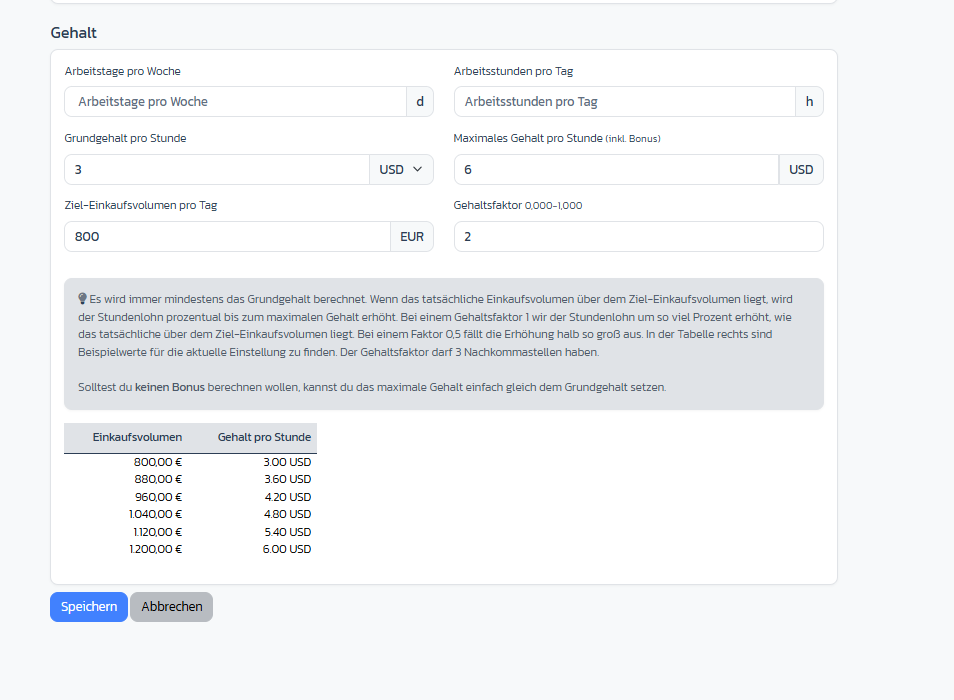
In the **Salary** section you can store the salary model of your VA directly:
* **Working days per week** / **working hours per day**
* **Base salary per hour** with currency (USD, EUR, PHP, GBP)
* **Max salary per hour** (incl. bonus)
* **Target purchase volume per day** — threshold at which the bonus kicks in
* **Salary factor** (0.000 – 1.000) — how strongly more volume increases the salary
ArbitrageOne shows you a **live bonus table** of how the hourly wage rises with increasing purchase volume.
### Step 3: Configure salary & bonus (optional)
In the **Salary** section you can store the salary model of your VA directly:
* **Working days per week** / **working hours per day**
* **Base salary per hour** with currency (USD, EUR, PHP, GBP)
* **Max salary per hour** (incl. bonus)
* **Target purchase volume per day** — threshold at which the bonus kicks in
* **Salary factor** (0.000 – 1.000) — how strongly more volume increases the salary
ArbitrageOne shows you a **live bonus table** of how the hourly wage rises with increasing purchase volume.
 ### Step 4: Activate account and save
Set the toggle **Activate account** if the VA should be able to log in directly. Click **Save** — you land in the edit view, which now also shows the **permissions section**.
### Step 5: Assign global permissions
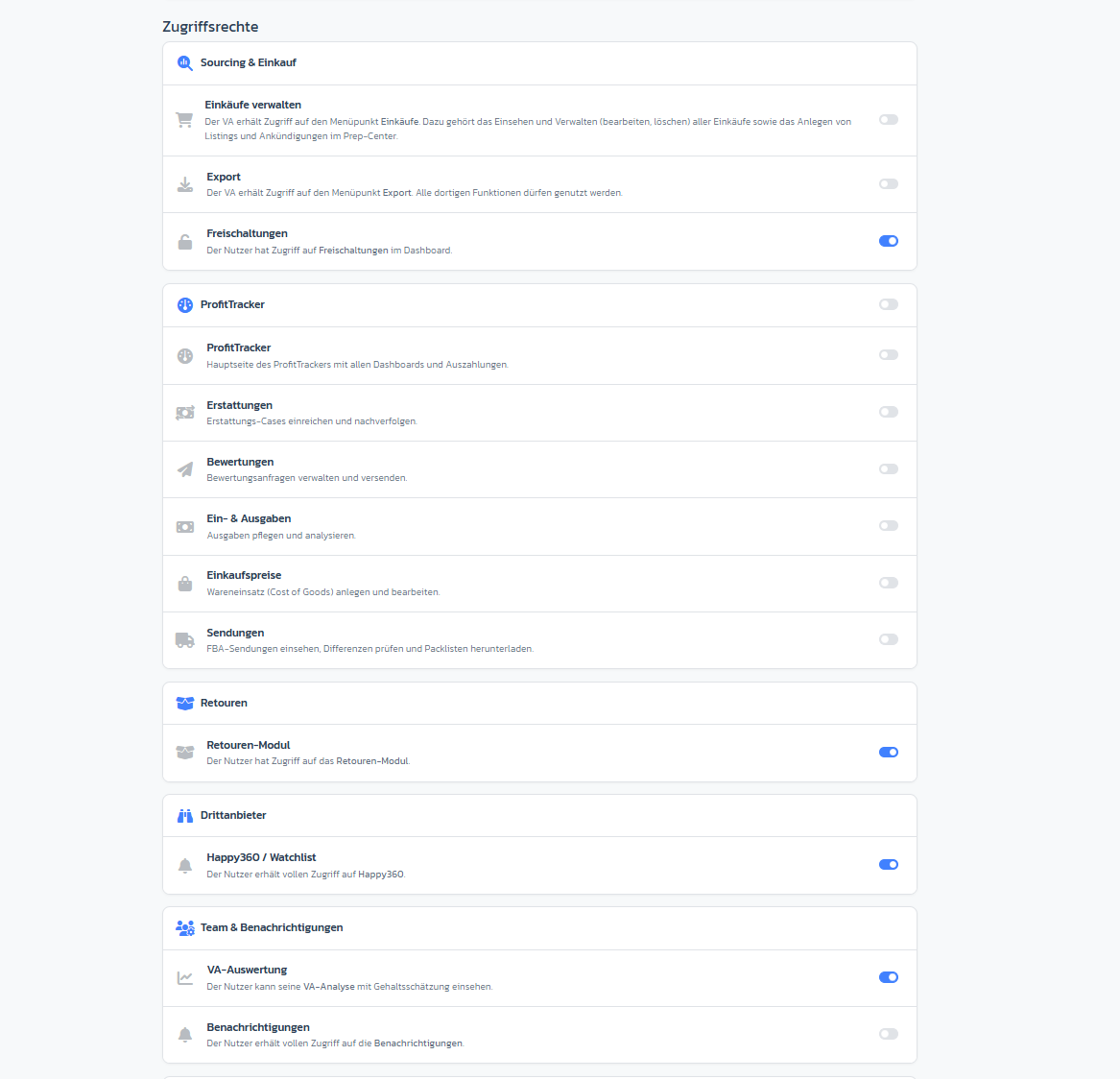
In the **Access rights** block you see toggles for entire modules:
* **Manage purchases** — access to Purchases
* **Manage export** — run exports
* **Watchlist access** — FlipHunter / Watchlist (only if licensed)
* **See Ungatings** — check restrictions status
* **Returns access** — handle Amazon returns (only if module is active)
* **VA analysis** — own performance report for the VA
* **Notifications** — receive Discord / email alerts
### Step 4: Activate account and save
Set the toggle **Activate account** if the VA should be able to log in directly. Click **Save** — you land in the edit view, which now also shows the **permissions section**.
### Step 5: Assign global permissions
In the **Access rights** block you see toggles for entire modules:
* **Manage purchases** — access to Purchases
* **Manage export** — run exports
* **Watchlist access** — FlipHunter / Watchlist (only if licensed)
* **See Ungatings** — check restrictions status
* **Returns access** — handle Amazon returns (only if module is active)
* **VA analysis** — own performance report for the VA
* **Notifications** — receive Discord / email alerts
 ### Step 6: Set sheet permissions
The **sheet permissions table** controls what the VA may do per Sourcing Sheet. Per sheet you can enable individually:
* **View** — see the sheet
* **Add Product** — add new products
* **Edit** — edit existing rows
* **See Ungatings** — see restrictions per row
* **View Purchases** / **Track Purchase** — see / record purchases
* **View Rating** / **Edit Rating** — see / assign ratings
* **View Analysis** — analytics of the sheet
**Main sheet**: You can mark exactly **one sheet** as the VA's "main sheet" (checkbox in the first column). From then on, the rights **View, Add Product, Edit and View Rating are automatically set and locked** for this sheet — all other sheets lose the main-sheet option. This way every VA clearly sees where they primarily work.
### Step 6: Set sheet permissions
The **sheet permissions table** controls what the VA may do per Sourcing Sheet. Per sheet you can enable individually:
* **View** — see the sheet
* **Add Product** — add new products
* **Edit** — edit existing rows
* **See Ungatings** — see restrictions per row
* **View Purchases** / **Track Purchase** — see / record purchases
* **View Rating** / **Edit Rating** — see / assign ratings
* **View Analysis** — analytics of the sheet
**Main sheet**: You can mark exactly **one sheet** as the VA's "main sheet" (checkbox in the first column). From then on, the rights **View, Add Product, Edit and View Rating are automatically set and locked** for this sheet — all other sheets lose the main-sheet option. This way every VA clearly sees where they primarily work.
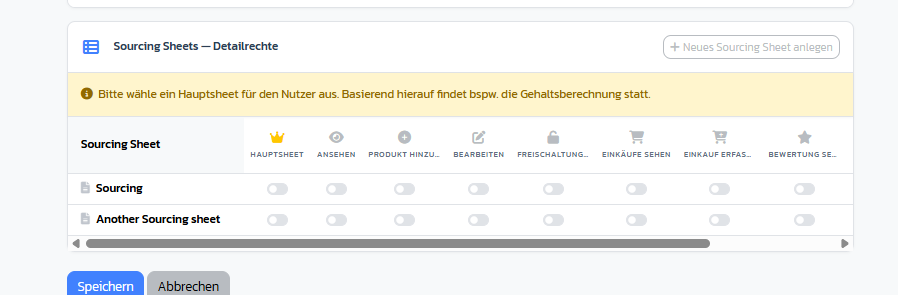 Need a new sheet specifically for the VA? Directly below the table you click **Create Sourcing Sheet** — the modal opens without leaving the page.
### Step 7: Send onboarding email
Back in the VA overview you click the **cloud upload icon** on the VA card. A modal opens with a pre-prepared onboarding email (German or English depending on the language setting).
Need a new sheet specifically for the VA? Directly below the table you click **Create Sourcing Sheet** — the modal opens without leaving the page.
### Step 7: Send onboarding email
Back in the VA overview you click the **cloud upload icon** on the VA card. A modal opens with a pre-prepared onboarding email (German or English depending on the language setting).
 What happens when sending:
* The VA account is **automatically activated**.
* The VA receives an email with a **password setup link** (valid for 24 hours).
* Your email address is stored as the **reply-to address**.
You can **freely adjust subject and body** before sending.
## Monitor activity
On the VA card you see at any time:
* **Last login** — when the VA was last active
* **Login counter** — how often the VA has logged in in total
For deeper performance reports (purchase volume per VA, bonus achievement) use **VA analysis** under **Virtual Assistants → Analysis**. → Open directly in the app: [app.arbitrageone.de/virtualassistants/analysis](https://app.arbitrageone.de/virtualassistants/analysis)
## Edit or delete a VA
* **Edit**: click the **pencil icon** on the VA card → you land in the edit view with all fields.
* **Delete**: click the **trash icon** → after confirmation, the VA account is deactivated. Their existing entries (purchases, ratings) are kept.
## Important notes
* **Main sheet** is an exclusive concept — you can choose only one per VA. If the VA should work as primary owner on multiple sheets, simply create them with full rights **without** marking a main sheet.
* If a sheet is already assigned to another VA as their main sheet, you'll see a **lock icon** instead of the checkbox — only the account owner can change the assignment.
* **The onboarding link expires after 24 hours**. If the VA doesn't make it in time, they can request a new link via "Forgot password".
* The **bonus model** only affects the display in the VA analysis — it doesn't trigger automatic payments.
## Common issues
**Issue:** "Maximum number of users reached"
**Solution:** Your plan limits the number of VAs. Either delete an existing VA or upgrade your plan.
**Issue:** VA can't log in
**Solution:** Check that the **Activate account** toggle is set. The onboarding email only activates the account once it's actually been sent.
**Issue:** VA doesn't see a sheet despite having permissions
**Solution:** In the sheet permissions table, **View** must be active. Without View, the other permissions have no effect.
**Issue:** Main-sheet checkbox is greyed out
**Solution:** Either another sheet is already marked as main (only one at a time possible) or the sheet already has another VA as main user. Remove the existing assignment first.
**Issue:** Permission changes don't take effect immediately
**Solution:** The VA has to **log out and back in** once for new permissions to become active.
## Related articles
* [How do I create a Sourcing Sheet?](../sourcing/sourcing-sheet-anlegen)
What happens when sending:
* The VA account is **automatically activated**.
* The VA receives an email with a **password setup link** (valid for 24 hours).
* Your email address is stored as the **reply-to address**.
You can **freely adjust subject and body** before sending.
## Monitor activity
On the VA card you see at any time:
* **Last login** — when the VA was last active
* **Login counter** — how often the VA has logged in in total
For deeper performance reports (purchase volume per VA, bonus achievement) use **VA analysis** under **Virtual Assistants → Analysis**. → Open directly in the app: [app.arbitrageone.de/virtualassistants/analysis](https://app.arbitrageone.de/virtualassistants/analysis)
## Edit or delete a VA
* **Edit**: click the **pencil icon** on the VA card → you land in the edit view with all fields.
* **Delete**: click the **trash icon** → after confirmation, the VA account is deactivated. Their existing entries (purchases, ratings) are kept.
## Important notes
* **Main sheet** is an exclusive concept — you can choose only one per VA. If the VA should work as primary owner on multiple sheets, simply create them with full rights **without** marking a main sheet.
* If a sheet is already assigned to another VA as their main sheet, you'll see a **lock icon** instead of the checkbox — only the account owner can change the assignment.
* **The onboarding link expires after 24 hours**. If the VA doesn't make it in time, they can request a new link via "Forgot password".
* The **bonus model** only affects the display in the VA analysis — it doesn't trigger automatic payments.
## Common issues
**Issue:** "Maximum number of users reached"
**Solution:** Your plan limits the number of VAs. Either delete an existing VA or upgrade your plan.
**Issue:** VA can't log in
**Solution:** Check that the **Activate account** toggle is set. The onboarding email only activates the account once it's actually been sent.
**Issue:** VA doesn't see a sheet despite having permissions
**Solution:** In the sheet permissions table, **View** must be active. Without View, the other permissions have no effect.
**Issue:** Main-sheet checkbox is greyed out
**Solution:** Either another sheet is already marked as main (only one at a time possible) or the sheet already has another VA as main user. Remove the existing assignment first.
**Issue:** Permission changes don't take effect immediately
**Solution:** The VA has to **log out and back in** once for new permissions to become active.
## Related articles
* [How do I create a Sourcing Sheet?](../sourcing/sourcing-sheet-anlegen)