> ## Documentation Index
> Fetch the complete documentation index at: https://docs.arbitrageone.de/llms.txt
> Use this file to discover all available pages before exploring further.
# How do I create a Sourcing Sheet?
> Create Sourcing Sheets to organize deals by source, category or VA in ArbitrageOne.
## Short description
Sourcing Sheets are your individual deal collections — for example one per source (Rossmann, Müller, Idealo), per category (toys, beauty) or per VA. Every sheet automatically shows up in the Sourcing Mastersheet, unless you explicitly exclude it.
## Requirements
* Logged-in ArbitrageOne account
* **Google Sheets / Sourcing** permission on your plan
## Step-by-step guide
### Step 1: Open the overview
→ Open directly in the app: [app.arbitrageone.de/productsheets](https://app.arbitrageone.de/productsheets)
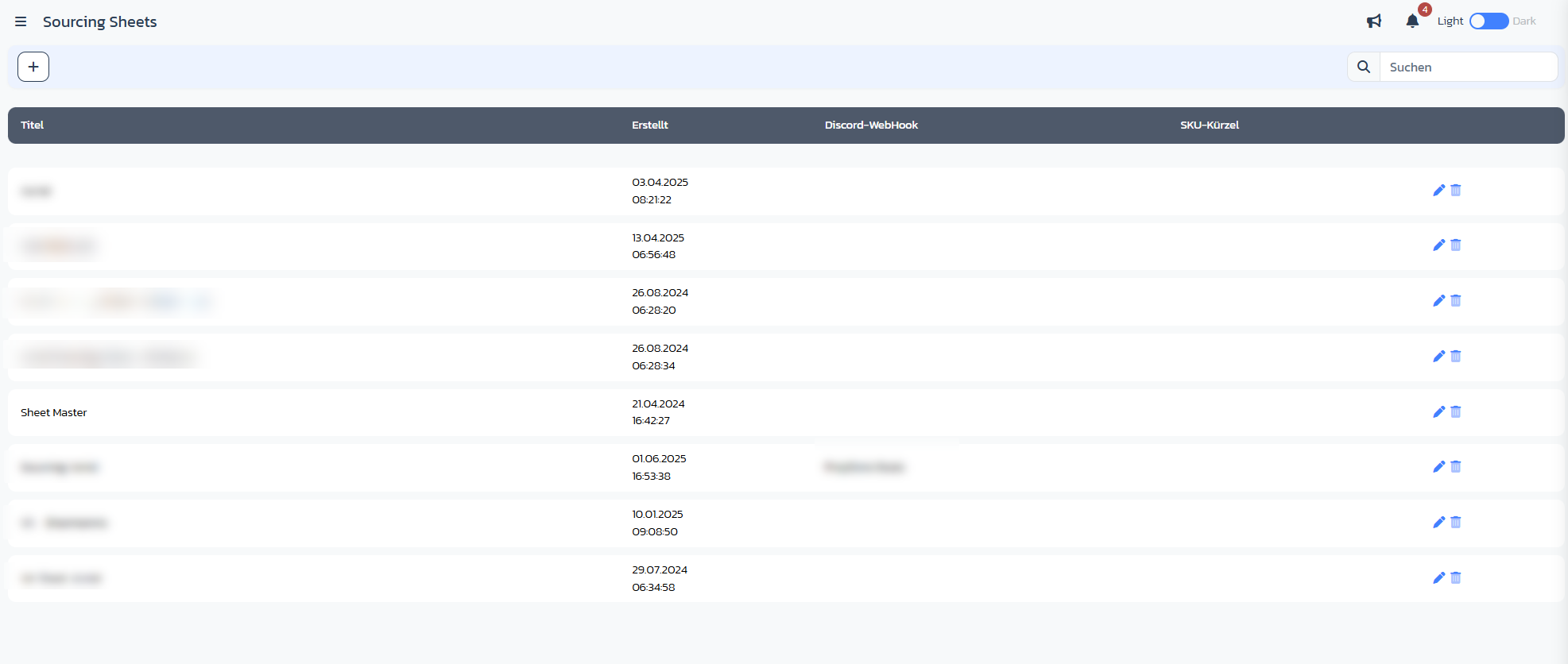
Navigate to **Sourcing → Sheets**. You'll see a table of all existing sheets with **Title**, **Created**, **Discord webhook** and **SKU prefix**. Use the search field at the top right to find sheets by name.
 ### Step 2: Create a new sheet
Click the **+** symbol at the top left. The **Create new Sourcing Sheet** modal opens.
### Step 2: Create a new sheet
Click the **+** symbol at the top left. The **Create new Sourcing Sheet** modal opens.
 ### Step 3: Fill in required fields
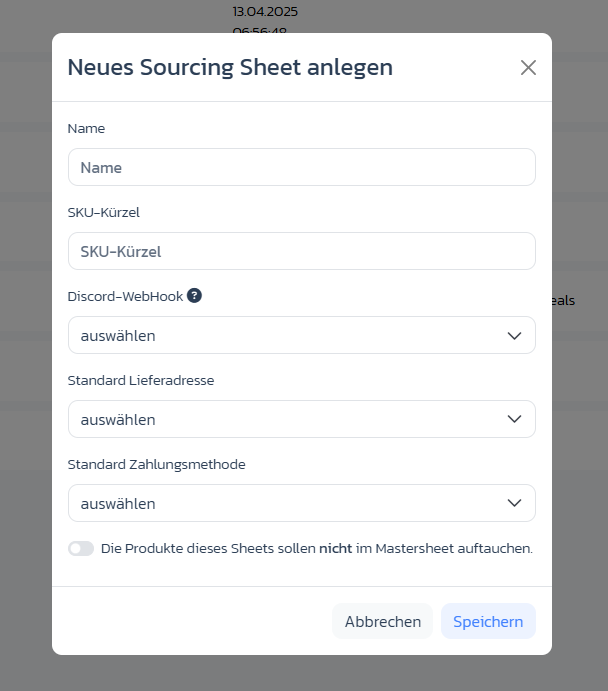
* **Name**: meaningful title (e.g. "Rossmann DE October")
* **SKU prefix**: max. 3 alphanumeric characters (e.g. `ROS`) — becomes part of your generated SKUs so you can identify the origin later
### Step 4: Set optional fields
* **Discord webhook**: which Discord channel gets notified for new deals in this sheet
* **Default shipping address**: pre-set shipping address for purchases from this sheet
* **Default payment method**: pre-set payment method when recording a purchase
* Toggle **"Products from this sheet should not appear in the Mastersheet"**: enable if the sheet should be excluded from the Mastersheet view
### Step 5: Save
Click **Save**. You're returned to the overview and see your new sheet in the list. Click the title to open it.
## Important notes
* The **SKU prefix** cannot be changed once rows exist in the sheet — choose it deliberately.
* **Deleting** works cleanly only for empty sheets. If deals are inside, exclude the sheet from the Mastersheet view via the Mastersheet toggle instead.
* There's no fixed hierarchy between sheets — structure them via **naming conventions** and **SKU prefixes**.
## Common issues
**Issue:** "SKU prefix already in use"
**Solution:** The SKU prefix must be unique within your account. Choose 3 different characters.
**Issue:** Sheet doesn't appear in the overview after saving
**Solution:** Reload the page. If it's still missing, check your user rights (VAs may only have access to assigned sheets).
**Issue:** My created deals end up in the wrong sheet
**Solution:** In Record Purchase or the Analyzer dialog, explicitly select the target sheet in the **Sourcing Sheet** dropdown.
## Related articles
* [How do I use the Analyzer for product evaluation?](analyzer-nutzen)
### Step 3: Fill in required fields
* **Name**: meaningful title (e.g. "Rossmann DE October")
* **SKU prefix**: max. 3 alphanumeric characters (e.g. `ROS`) — becomes part of your generated SKUs so you can identify the origin later
### Step 4: Set optional fields
* **Discord webhook**: which Discord channel gets notified for new deals in this sheet
* **Default shipping address**: pre-set shipping address for purchases from this sheet
* **Default payment method**: pre-set payment method when recording a purchase
* Toggle **"Products from this sheet should not appear in the Mastersheet"**: enable if the sheet should be excluded from the Mastersheet view
### Step 5: Save
Click **Save**. You're returned to the overview and see your new sheet in the list. Click the title to open it.
## Important notes
* The **SKU prefix** cannot be changed once rows exist in the sheet — choose it deliberately.
* **Deleting** works cleanly only for empty sheets. If deals are inside, exclude the sheet from the Mastersheet view via the Mastersheet toggle instead.
* There's no fixed hierarchy between sheets — structure them via **naming conventions** and **SKU prefixes**.
## Common issues
**Issue:** "SKU prefix already in use"
**Solution:** The SKU prefix must be unique within your account. Choose 3 different characters.
**Issue:** Sheet doesn't appear in the overview after saving
**Solution:** Reload the page. If it's still missing, check your user rights (VAs may only have access to assigned sheets).
**Issue:** My created deals end up in the wrong sheet
**Solution:** In Record Purchase or the Analyzer dialog, explicitly select the target sheet in the **Sourcing Sheet** dropdown.
## Related articles
* [How do I use the Analyzer for product evaluation?](analyzer-nutzen)