> ## Documentation Index
> Fetch the complete documentation index at: https://docs.arbitrageone.de/llms.txt
> Use this file to discover all available pages before exploring further.
# How does the Returns module work?
> Manage customer returns, todos and analysis for Amazon FBA returns in ArbitrageOne.
## Short description
In the Returns module you stay on top of all customer returns from Amazon FBA — from announcement through processing to restocking or disposal. You create tasks (todos), upgrade defective items for reuse and analyze your return rate.
## Requirements
* Active Amazon SP-API connection
* Optional: linked solution provider for return processing
## The three sections at a glance
### 1. Returns
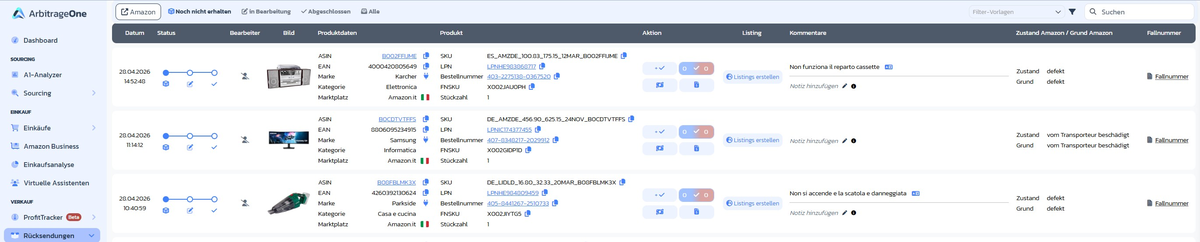
List of all returns announced and received by Amazon. The tabs at the top filter:
* **Amazon** — marketplace filter (shows only returns from this marketplace)
* **Not yet received** — announced but not yet at the warehouse
* **In progress** — received, waiting to be processed or in progress
* **Completed** — fully processed (upgraded, sent back or disposed)
* **All** — full history
Per row you see:
* **Date & status** — 3-step progress (announced → received → processed)
* **Handler** — who processes the return (you or your solution provider, e.g. PrepZone)
* **Image** and **product data** (ASIN, EAN, brand, category, marketplace)
* **Product** (Seller SKU, LPN, order number, FNSKU, units)
* **Action** — quick buttons (✓ upgrade / 0 dispose)
* **Listing** — *Create listings* button for resellable items
* **Comments** — note with language badge (e.g. *IT*)
* **Amazon condition / Amazon reason** — e.g. *defective*, *damaged by carrier*
* **Case number** — Amazon case number (inline editable)
Via the **filter icon** at the top right you expand advanced filters (e.g. *Hide blocked*, *Show resellable*, *Show overdue*, date range). Via **Filter templates** you save frequently used combinations.
 #### Handler avatar and "Repeated return" badge
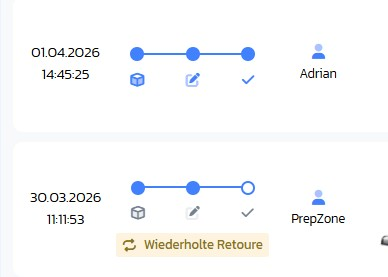
In the status area the avatar shows you who's responsible for the return. If the customer **already returned the same SKU before**, a yellow **Repeated return** badge appears as well — a typical warning sign for possible return fraud or a product issue.
#### Handler avatar and "Repeated return" badge
In the status area the avatar shows you who's responsible for the return. If the customer **already returned the same SKU before**, a yellow **Repeated return** badge appears as well — a typical warning sign for possible return fraud or a product issue.
 ### 2. Returns todos
Here you manage concrete work steps for each return. Filter tabs: **From you** / **For you** / **All** / **Archived**. Per entry you see creation date, From/For, product, type, serial number, notes and status.
### 2. Returns todos
Here you manage concrete work steps for each return. Filter tabs: **From you** / **For you** / **All** / **Archived**. Per entry you see creation date, From/For, product, type, serial number, notes and status.
 #### Create a task
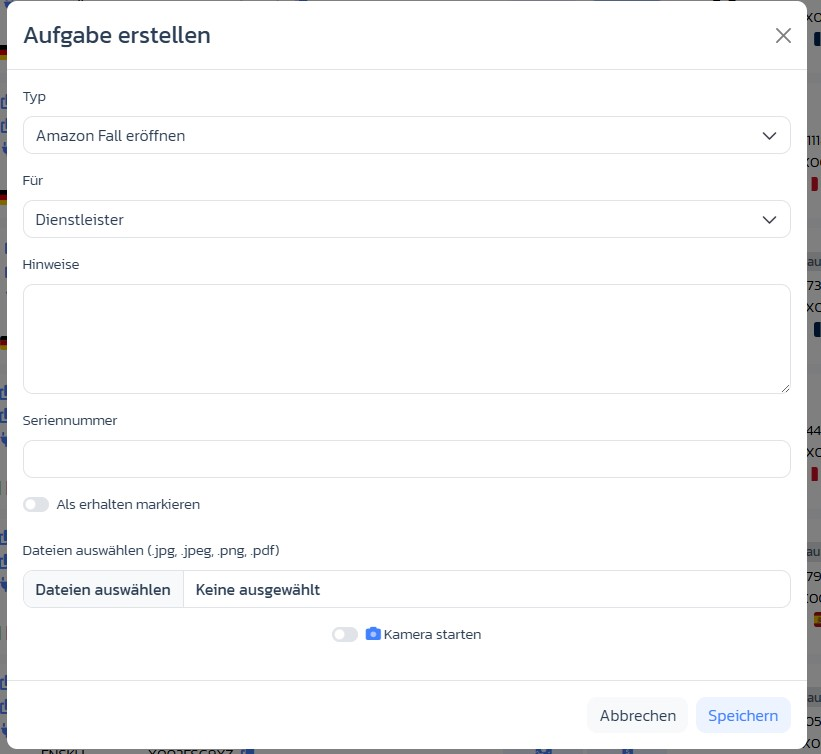
Via **Create task** you open the modal with:
* **Type** — *Open Amazon case*, *Open warranty case*, *Send to seller*, *Send photos*, *Dispose*, *Other*
* **For** — *Service provider* (your solution provider) or *yourself*
* **Notes** — free text for context / instructions
* **Serial number** — if relevant for warranty/complaint cases
* **Mark as received** — toggle, if the return has already arrived
* **Select files** or **Start camera** — attach photos directly
#### Create a task
Via **Create task** you open the modal with:
* **Type** — *Open Amazon case*, *Open warranty case*, *Send to seller*, *Send photos*, *Dispose*, *Other*
* **For** — *Service provider* (your solution provider) or *yourself*
* **Notes** — free text for context / instructions
* **Serial number** — if relevant for warranty/complaint cases
* **Mark as received** — toggle, if the return has already arrived
* **Select files** or **Start camera** — attach photos directly
 #### "Request reimbursement now" modal (Amazon case)
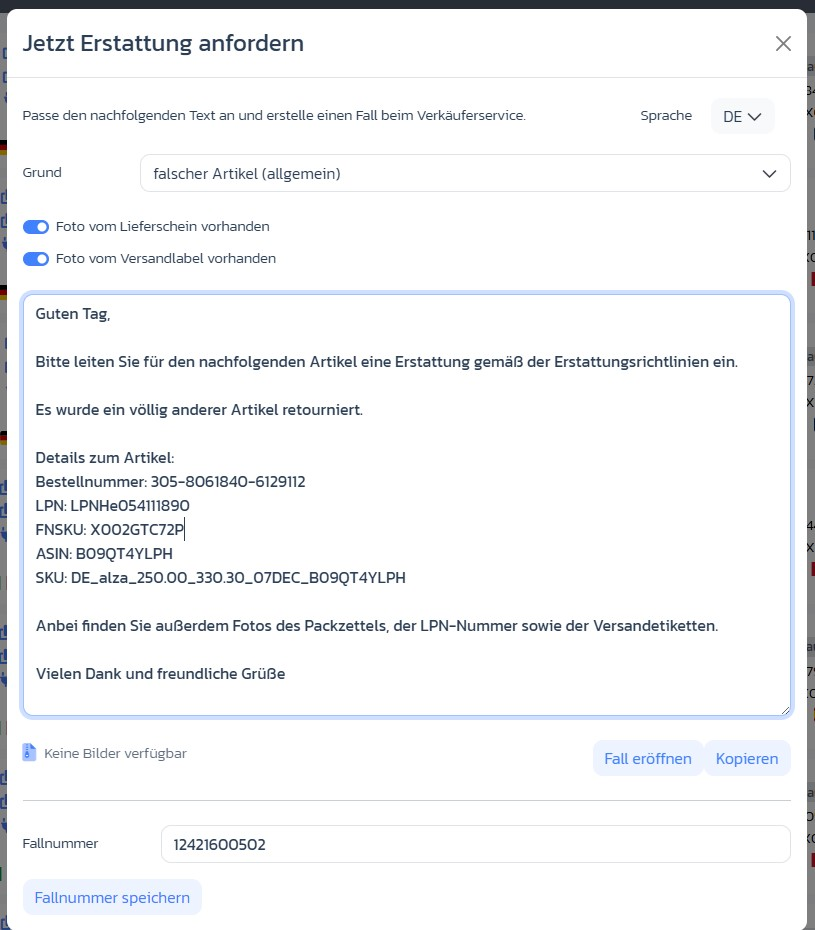
For todos of type *Open Amazon case*, a pre-written message opens automatically:
* **Reason** — e.g. *wrong item (general)*, *defective*, *missing parts*
* **Photo toggles** — *Photo of packing slip available* / *Photo of shipping label available*
* **Language** — DE / EN / FR / IT / ES (adapts the message)
* **Message** — pre-filled with order number, LPN, FNSKU, ASIN, SKU
* Buttons **Open case** (to Amazon) and **Copy**
* Field **Case number** + **Save case number** for later documentation
#### "Request reimbursement now" modal (Amazon case)
For todos of type *Open Amazon case*, a pre-written message opens automatically:
* **Reason** — e.g. *wrong item (general)*, *defective*, *missing parts*
* **Photo toggles** — *Photo of packing slip available* / *Photo of shipping label available*
* **Language** — DE / EN / FR / IT / ES (adapts the message)
* **Message** — pre-filled with order number, LPN, FNSKU, ASIN, SKU
* Buttons **Open case** (to Amazon) and **Copy**
* Field **Case number** + **Save case number** for later documentation
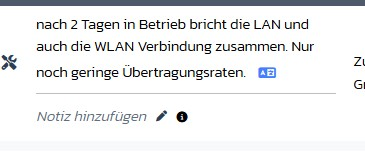
 #### Notes directly in the table
You maintain notes inline per return via *Add note* (pencil icon). The ℹ button shows the history of existing notes.
#### Notes directly in the table
You maintain notes inline per return via *Add note* (pencil icon). The ℹ button shows the history of existing notes.
 ### 3. Returns settings
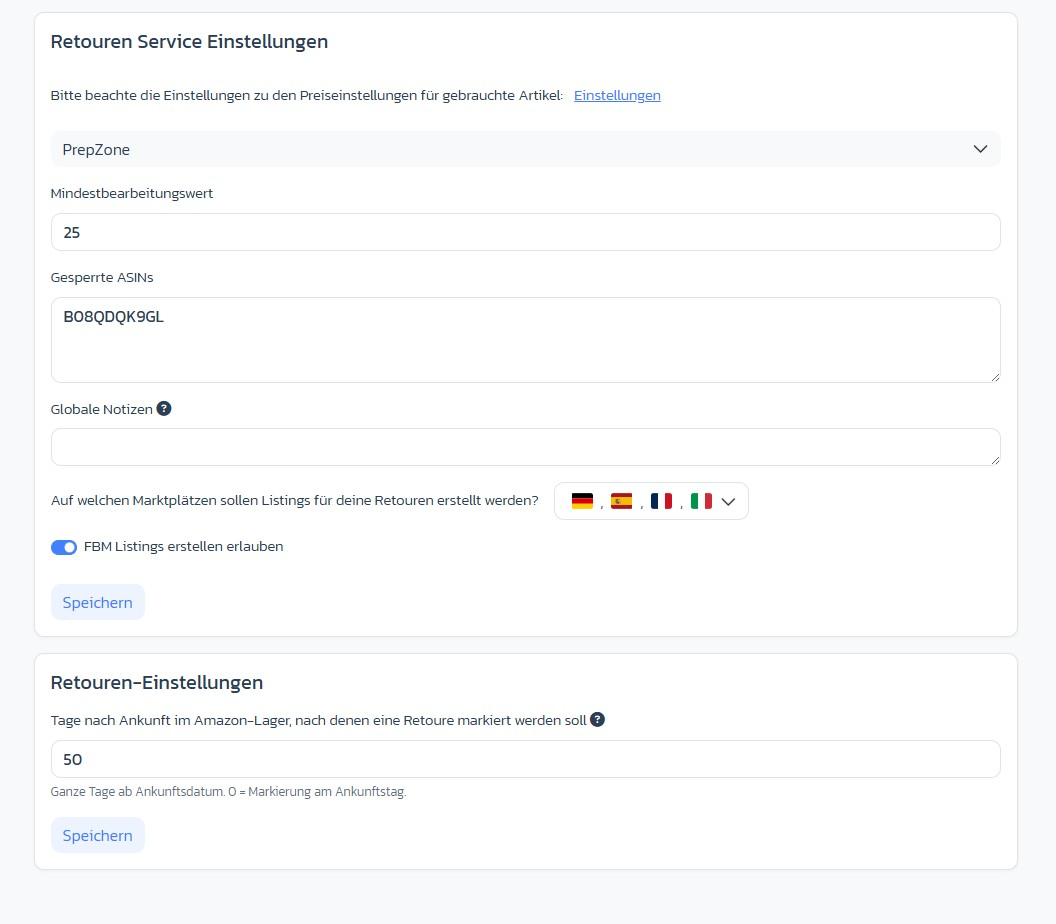
Under *Returns settings* there are two separate cards:
**Returns service settings** (per solution provider):
* **Provider selection** — dropdown with all connected providers
* **Minimum processing value (€)** — anything below is not processed
* **Blocked ASINs** — excluded from processing
* **Global notes** — apply to all return documents from this provider
* **Marketplaces for listings** — multi-select with country flags
* **Allow creating FBM listings** — toggle
**Returns settings** (account-wide):
* **Days after arrival at the Amazon warehouse before a return is flagged** — default 50, 0 = immediately on arrival
### 3. Returns settings
Under *Returns settings* there are two separate cards:
**Returns service settings** (per solution provider):
* **Provider selection** — dropdown with all connected providers
* **Minimum processing value (€)** — anything below is not processed
* **Blocked ASINs** — excluded from processing
* **Global notes** — apply to all return documents from this provider
* **Marketplaces for listings** — multi-select with country flags
* **Allow creating FBM listings** — toggle
**Returns settings** (account-wide):
* **Days after arrival at the Amazon warehouse before a return is flagged** — default 50, 0 = immediately on arrival
 ## Step-by-step: Process a return
### Step 1: Find the return
Go to **Returns** and filter via the **In progress** tab or search at the top right for the LPN printed on the return.
### Step 2 (optional): Create a task
Click *Create task*, choose the appropriate type (e.g. *Send photos*, *Open Amazon case*) and upload images or the serial number if needed.
### Step 3: Create listing
Once the return has been checked and deemed resellable, click **Create listings**. The return gets a **new dedicated SKU** by default — please keep it that way, since a dedicated SKU is important for the profit calculation of the return.
### Step 4: Finalize processing
Once the item is checked, set the todo to *Done*. For resellable items, ArbitrageOne automatically creates a new listing in the configured marketplaces.
## Important notes
* The LPN is the key for uniquely identifying a return.
* Settings like "Minimum processing value" and "Blocked ASINs" are for processing by prep centers — you don't see this in the dashboard.
* Only returns that have already arrived at the Amazon warehouse are shown.
* Resellable returns can be shown via the filters but are hidden by default.
## Common issues
**Issue:** "A return doesn't show up in *Open* even though it arrived."
**Solution:** Check the tab *Not yet received* and whether Amazon has confirmed the arrival. For older entries, the *Show overdue* filter helps.
**Issue:** "Todo status can't be set to *Done*."
**Solution:** As a solution provider, the status is locked until the return has been received.
## Related articles
* [Configure returns settings](../returns/retouren-einstellungen)
* [Create todos for returns](../returns/retouren-todos)
* [Understand returns analysis](../returns/retouren-analyse)
## Step-by-step: Process a return
### Step 1: Find the return
Go to **Returns** and filter via the **In progress** tab or search at the top right for the LPN printed on the return.
### Step 2 (optional): Create a task
Click *Create task*, choose the appropriate type (e.g. *Send photos*, *Open Amazon case*) and upload images or the serial number if needed.
### Step 3: Create listing
Once the return has been checked and deemed resellable, click **Create listings**. The return gets a **new dedicated SKU** by default — please keep it that way, since a dedicated SKU is important for the profit calculation of the return.
### Step 4: Finalize processing
Once the item is checked, set the todo to *Done*. For resellable items, ArbitrageOne automatically creates a new listing in the configured marketplaces.
## Important notes
* The LPN is the key for uniquely identifying a return.
* Settings like "Minimum processing value" and "Blocked ASINs" are for processing by prep centers — you don't see this in the dashboard.
* Only returns that have already arrived at the Amazon warehouse are shown.
* Resellable returns can be shown via the filters but are hidden by default.
## Common issues
**Issue:** "A return doesn't show up in *Open* even though it arrived."
**Solution:** Check the tab *Not yet received* and whether Amazon has confirmed the arrival. For older entries, the *Show overdue* filter helps.
**Issue:** "Todo status can't be set to *Done*."
**Solution:** As a solution provider, the status is locked until the return has been received.
## Related articles
* [Configure returns settings](../returns/retouren-einstellungen)
* [Create todos for returns](../returns/retouren-todos)
* [Understand returns analysis](../returns/retouren-analyse)