> ## Documentation Index
> Fetch the complete documentation index at: https://docs.arbitrageone.de/llms.txt
> Use this file to discover all available pages before exploring further.
# BuyBotPro Setup
> Set up BuyBotPro for use with ArbitrageOne.
All your purchase sources are stored encrypted and can only be decrypted with your account. We never have access to your sources in plain text.
**Important:** After you've created the sheet in ArbitrageOne, you must not edit the sheet or delete any rows.
## **Step 1: Connect your Google account to BuyBotPro**
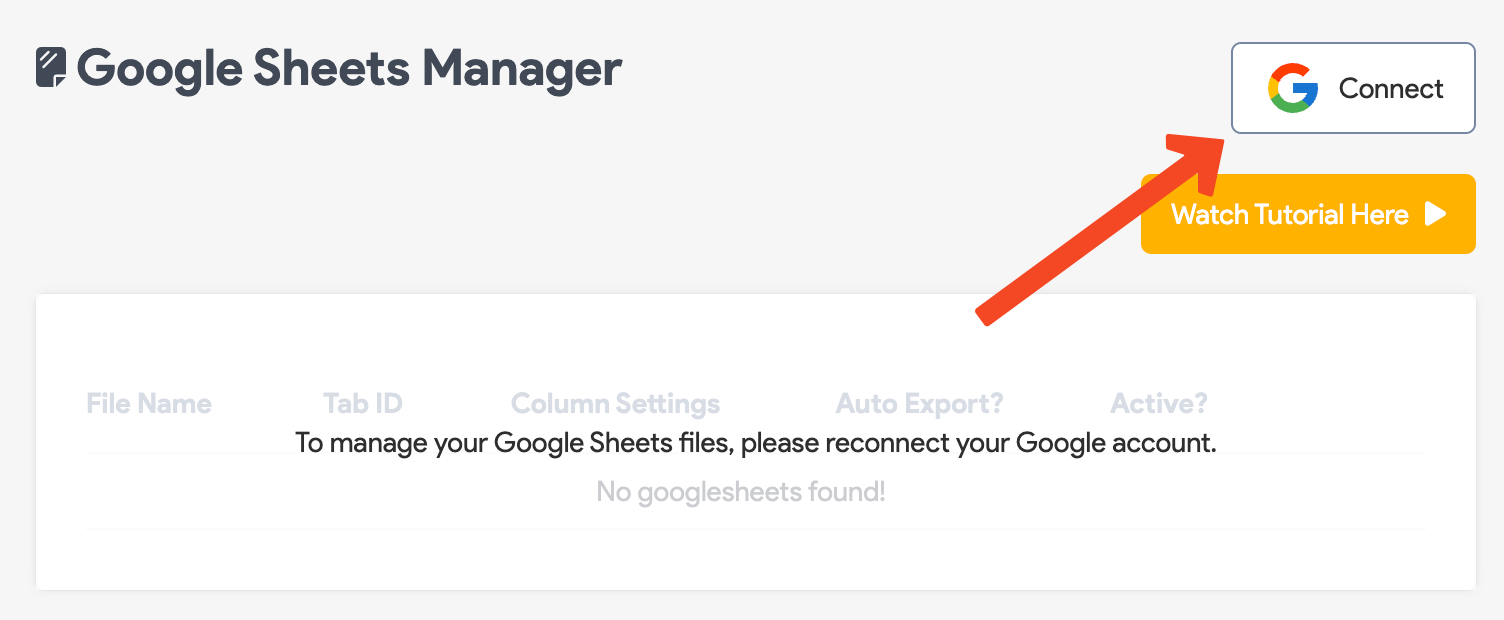
Click **Connect** and follow the instructions to link BuyBotPro to your Google account.
 ## **Step 2: Create a Google Sheet**
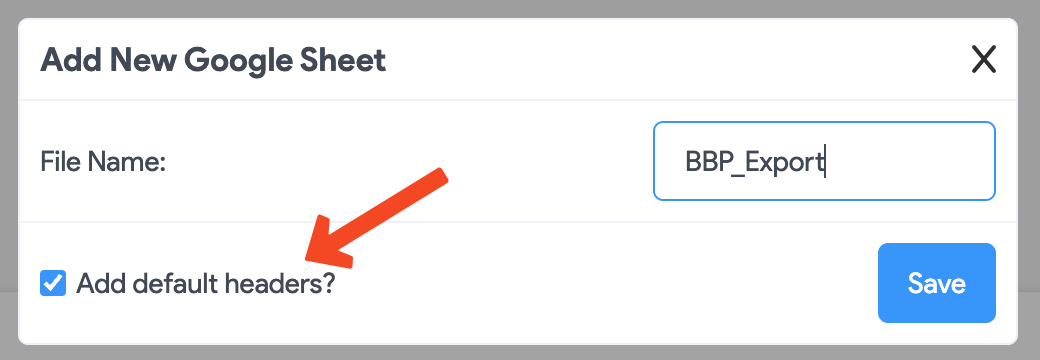
Click **"Add default headers?"** and then **Save**.
## **Step 2: Create a Google Sheet**
Click **"Add default headers?"** and then **Save**.
 **Open the Google Sheet in a new tab. Click the following button to do so.**
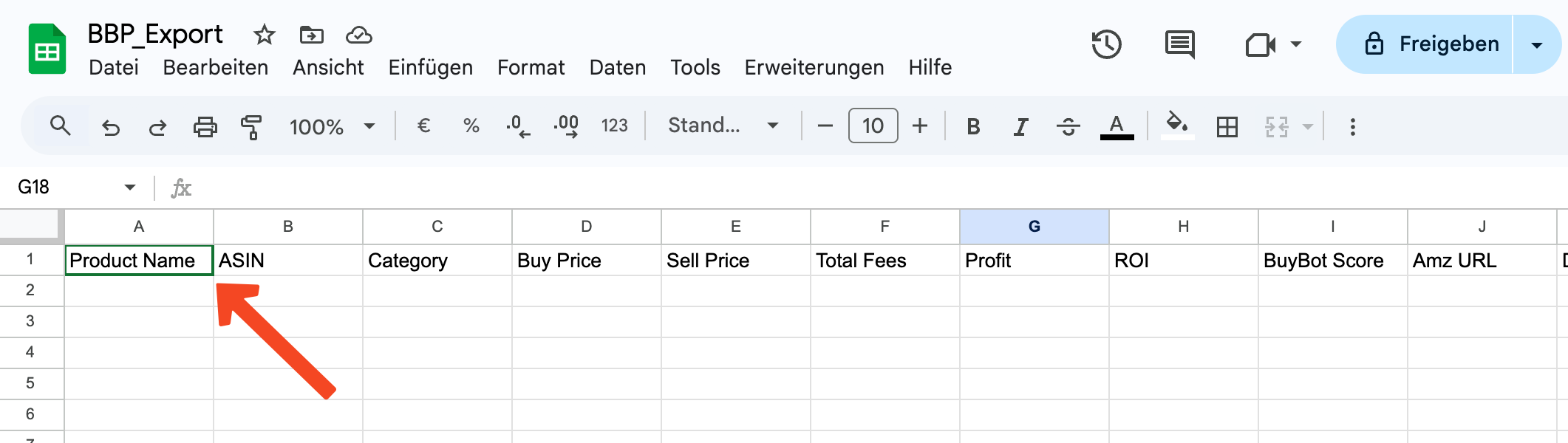
**IMPORTANT: Check that the headers are present in the first row. If not, ArbitrageOne can't import the data.**
**Before you share the Google Sheet with ArbitrageOne and BuyBotPro, it should look like this.**
**Open the Google Sheet in a new tab. Click the following button to do so.**
**IMPORTANT: Check that the headers are present in the first row. If not, ArbitrageOne can't import the data.**
**Before you share the Google Sheet with ArbitrageOne and BuyBotPro, it should look like this.**
 **If the headers are missing, click [here](https://docs.google.com/spreadsheets/d/1Oebal-DF0Z1_k8CR65ifKhBTjXISmSYLfS73nJhxfuY/edit?gid=0#gid=0) to open the BuyBotPro template.**
**Copy the first row from the template below and paste it into the first row of your Google Sheet.**
## **Step 3: Share the Google Sheet**
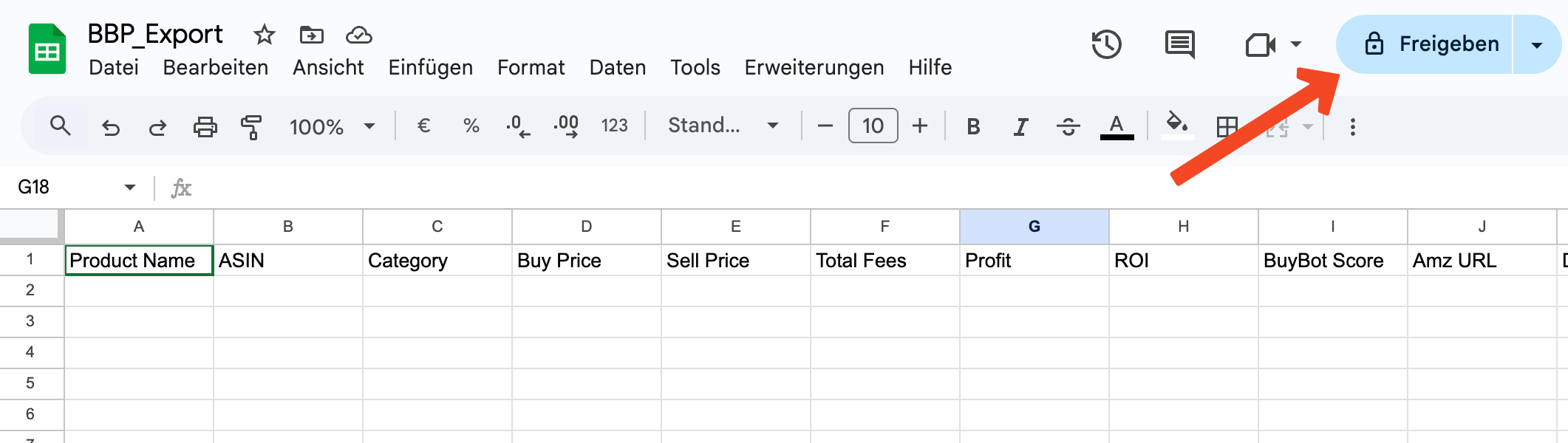
Click *Share* here.
**If the headers are missing, click [here](https://docs.google.com/spreadsheets/d/1Oebal-DF0Z1_k8CR65ifKhBTjXISmSYLfS73nJhxfuY/edit?gid=0#gid=0) to open the BuyBotPro template.**
**Copy the first row from the template below and paste it into the first row of your Google Sheet.**
## **Step 3: Share the Google Sheet**
Click *Share* here.
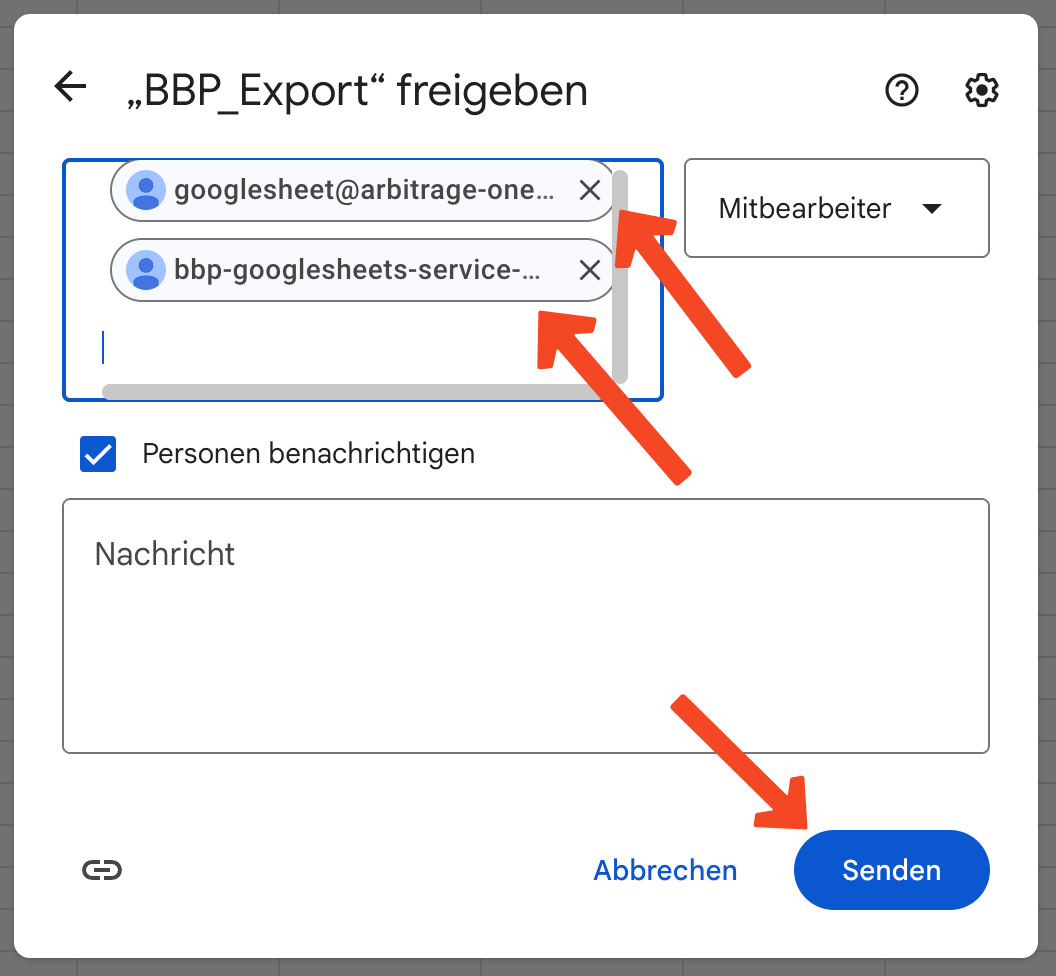
 An overlay opens. Add the ArbitrageOne service accounts here:
[googlesheet@arbitrage-one.iam.gserviceaccount.com](mailto:googlesheet@arbitrage-one.iam.gserviceaccount.com)
[bbp-googlesheets-service-acc@buybotpro-bbp.iam.gserviceaccount.com](mailto:bbp-googlesheets-service-acc@buybotpro-bbp.iam.gserviceaccount.com)
Note: The service account is not a regular Google account. It's needed to retrieve the data in encrypted form. The ArbitrageOne team cannot log into the service account or view the sheets.
All your purchase sources are stored encrypted and can only be decrypted with your account. We never have access to your sources in plain text.
Then click *Send*.
An overlay opens. Add the ArbitrageOne service accounts here:
[googlesheet@arbitrage-one.iam.gserviceaccount.com](mailto:googlesheet@arbitrage-one.iam.gserviceaccount.com)
[bbp-googlesheets-service-acc@buybotpro-bbp.iam.gserviceaccount.com](mailto:bbp-googlesheets-service-acc@buybotpro-bbp.iam.gserviceaccount.com)
Note: The service account is not a regular Google account. It's needed to retrieve the data in encrypted form. The ArbitrageOne team cannot log into the service account or view the sheets.
All your purchase sources are stored encrypted and can only be decrypted with your account. We never have access to your sources in plain text.
Then click *Send*.
 ## **Step 4: Copy the URL**
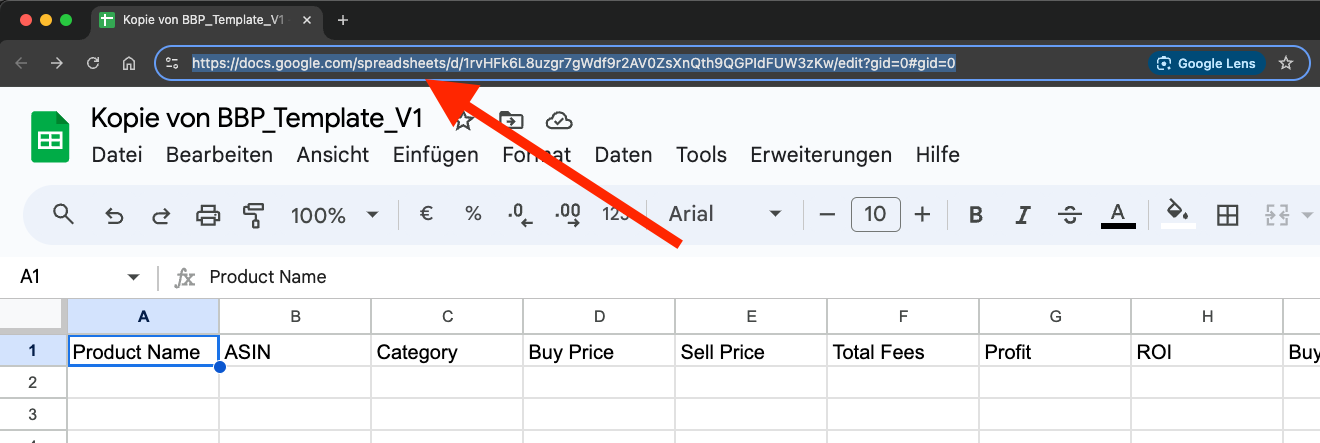
Click into the browser's address bar and select the full URL. Copy it to the clipboard (CTRL + C or right-click > Copy).
## **Step 4: Copy the URL**
Click into the browser's address bar and select the full URL. Copy it to the clipboard (CTRL + C or right-click > Copy).
 ## **Step 5: Paste the URL into ArbitrageOne**
→ Open directly in the app: [app.arbitrageone.de/googlesheets](https://app.arbitrageone.de/googlesheets)
Now paste the URL of the Google Sheet into ArbitrageOne.
## **Step 5: Paste the URL into ArbitrageOne**
→ Open directly in the app: [app.arbitrageone.de/googlesheets](https://app.arbitrageone.de/googlesheets)
Now paste the URL of the Google Sheet into ArbitrageOne.