> ## Documentation Index
> Fetch the complete documentation index at: https://docs.arbitrageone.de/llms.txt
> Use this file to discover all available pages before exploring further.
# How do I use Purchase Analysis?
> Analyze purchase volume by category, brand, source, sourcing method and sheet.
## Short description
Purchase Analysis shows you at a glance how much you purchased in a period — broken down by category, brand, purchase source, sourcing method and sheet. You can immediately spot which areas dominate your purchase volume and where focus is shifting.
## Requirements
* *Google Sheets* permission (for sharing with family members)
* At least one **Sourcing Mastersheet** with recorded purchases
## Overview page layout
Purchase Analysis consists of several cards, all evaluating the same time range and the same sheet.
### Filter bar at the top
* **Sheet selection** — choose a single Sourcing Mastersheet or *all sheets*
* **Date range** — quick selection or custom range
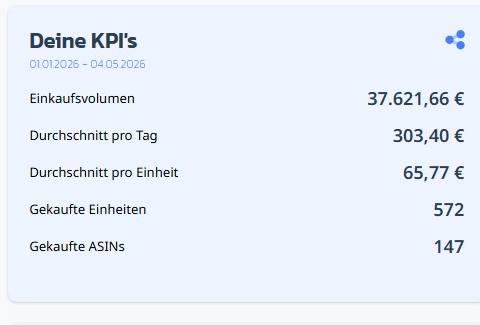
 ### "Your KPIs" card
Shows the key metrics for the selected time range:
* **Purchase volume** — total of all purchases
* **Average per day** — volume divided by days
* **Average per unit** — volume per purchased unit
* **Units purchased**
* **Purchased ASINs** — number of distinct products
Via the **share icon** at the top right you open the share overlay (see below).
### "Your KPIs" card
Shows the key metrics for the selected time range:
* **Purchase volume** — total of all purchases
* **Average per day** — volume divided by days
* **Average per unit** — volume per purchased unit
* **Units purchased**
* **Purchased ASINs** — number of distinct products
Via the **share icon** at the top right you open the share overlay (see below).
 ### Top cards
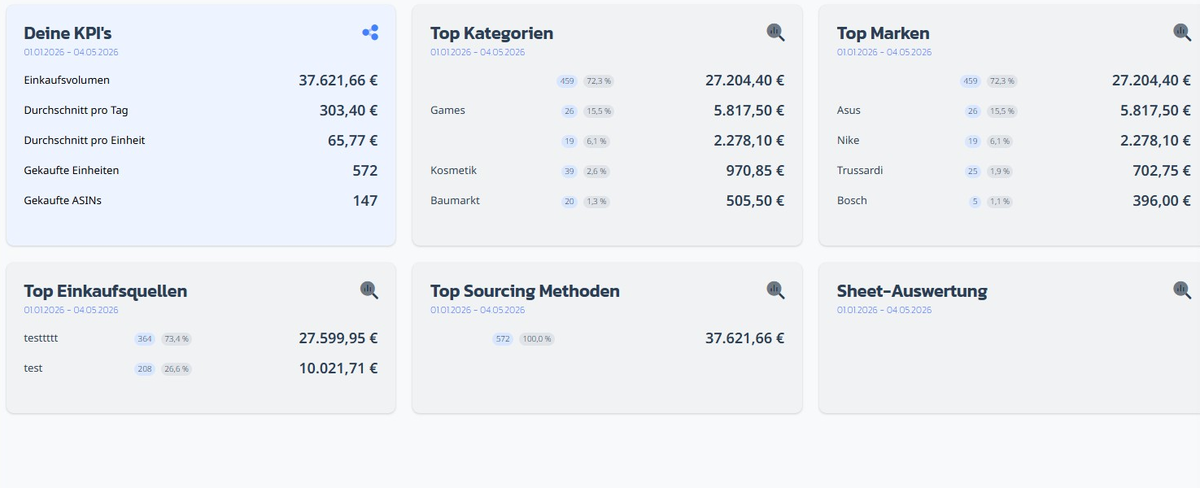
Per card you see name, units purchased, percentage share of purchase volume and euro amount:
* **Top categories** — grouped by product category
* **Top brands** — grouped by brand
* **Top purchase sources** — where you bought from (source shop)
* **Top sourcing methods** — which strategy led to the purchase
* **Sheet analysis** — purchase volume per Sourcing Mastersheet
Clicking the **magnifying glass icon** in a card opens the detail page with the full list.
### Top cards
Per card you see name, units purchased, percentage share of purchase volume and euro amount:
* **Top categories** — grouped by product category
* **Top brands** — grouped by brand
* **Top purchase sources** — where you bought from (source shop)
* **Top sourcing methods** — which strategy led to the purchase
* **Sheet analysis** — purchase volume per Sourcing Mastersheet
Clicking the **magnifying glass icon** in a card opens the detail page with the full list.
 ## Detail page (PRO)
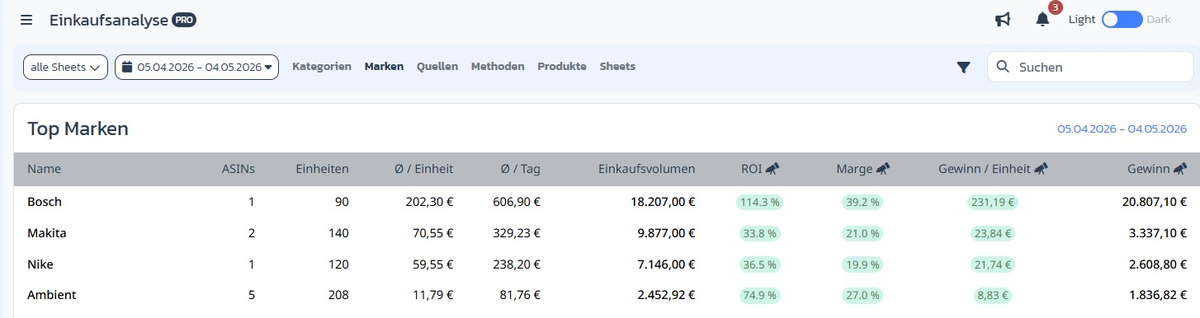
When you click the magnifying glass icon, you land on the corresponding detail page. At the top you see the **sub-navigation** with all dimensions — *Categories*, *Brands*, *Sources*, *Methods*, *Products*, *Sheets* — and can jump between them directly.
The detail table extends the overview with profit KPIs (PRO feature, recognizable by the 🚀 symbol):
* **ASINs**, **Units**, **Ø / unit**, **Ø / day**, **Purchase volume**
* **ROI %**, **Margin %**, **Profit / unit**, **Profit** (total)
Via **Search** and the filter icon you narrow the list further.
## Detail page (PRO)
When you click the magnifying glass icon, you land on the corresponding detail page. At the top you see the **sub-navigation** with all dimensions — *Categories*, *Brands*, *Sources*, *Methods*, *Products*, *Sheets* — and can jump between them directly.
The detail table extends the overview with profit KPIs (PRO feature, recognizable by the 🚀 symbol):
* **ASINs**, **Units**, **Ø / unit**, **Ø / day**, **Purchase volume**
* **ROI %**, **Margin %**, **Profit / unit**, **Profit** (total)
Via **Search** and the filter icon you narrow the list further.
 ## Share / download KPIs
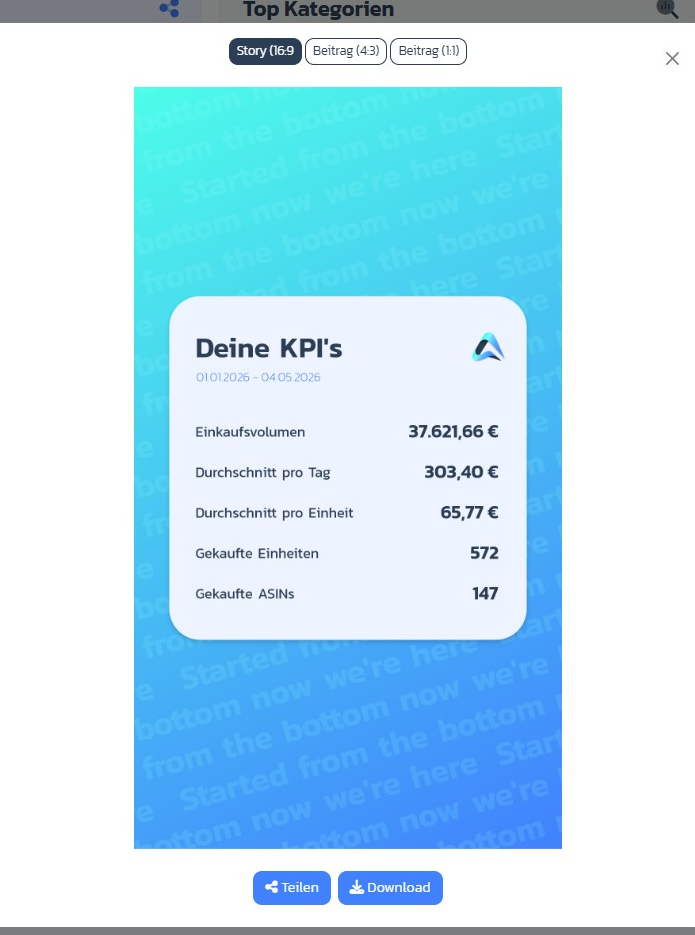
Via the share icon on the KPI card you open the **share overlay**. Choose a format and click **Share** (system share dialog) or **Download** (PNG):
* **Story (16:9)** — for Instagram/TikTok stories
* **Post (4:3)** — standard social posts
* **Post (1:1)** — square (Instagram feed)
## Share / download KPIs
Via the share icon on the KPI card you open the **share overlay**. Choose a format and click **Share** (system share dialog) or **Download** (PNG):
* **Story (16:9)** — for Instagram/TikTok stories
* **Post (4:3)** — standard social posts
* **Post (1:1)** — square (Instagram feed)
 ## Step-by-step: Purchase analysis for a time range
### Step 1: Open the module
→ Open directly in the app: [app.arbitrageone.de/purchaseanalysis](https://app.arbitrageone.de/purchaseanalysis)
In the navigation, go to **Purchase Analysis**.
### Step 2: Select sheet
At the top left choose the desired Sourcing Mastersheet — or *all sheets* to see everything aggregated.
### Step 3: Set time range
Click the date button and choose a quick range or a custom range.
### Step 4: Open the detail view
Click the magnifying glass icon on one of the top cards to see the full list with all brands, categories, sources, methods, products or sheets — including profit KPIs (PRO).
## Important notes
* Data is based on **Record Purchases** from your Sourcing Mastersheets — only recorded purchases flow into the KPIs.
* Values are shown in the currency of your home marketplace.
* VAs only see the sheets they have the *view\_analysis* right for.
## Common issues
**Issue:** "Purchase volume is 0 even though I recorded purchases."
**Solution:** Check that the date range covers the purchase days and that you selected the right sheet.
**Issue:** "A brand / source doesn't appear in the top list."
**Solution:** The overview only shows the top entries. Via the magnifying glass icon, open the detail page with the full list.
## Step-by-step: Purchase analysis for a time range
### Step 1: Open the module
→ Open directly in the app: [app.arbitrageone.de/purchaseanalysis](https://app.arbitrageone.de/purchaseanalysis)
In the navigation, go to **Purchase Analysis**.
### Step 2: Select sheet
At the top left choose the desired Sourcing Mastersheet — or *all sheets* to see everything aggregated.
### Step 3: Set time range
Click the date button and choose a quick range or a custom range.
### Step 4: Open the detail view
Click the magnifying glass icon on one of the top cards to see the full list with all brands, categories, sources, methods, products or sheets — including profit KPIs (PRO).
## Important notes
* Data is based on **Record Purchases** from your Sourcing Mastersheets — only recorded purchases flow into the KPIs.
* Values are shown in the currency of your home marketplace.
* VAs only see the sheets they have the *view\_analysis* right for.
## Common issues
**Issue:** "Purchase volume is 0 even though I recorded purchases."
**Solution:** Check that the date range covers the purchase days and that you selected the right sheet.
**Issue:** "A brand / source doesn't appear in the top list."
**Solution:** The overview only shows the top entries. Via the magnifying glass icon, open the detail page with the full list.