> ## Documentation Index
> Fetch the complete documentation index at: https://docs.arbitrageone.de/llms.txt
> Use this file to discover all available pages before exploring further.
# How do I find lost units in my FBA shipments?
> Spot lost units in FBA inbound shipments and file a reimbursement case with Amazon.
## Short description
In the *Shipments* section you see every FBA inbound shipment with the comparison **sent vs. received**. Discrepancies show you immediately where Amazon checked in fewer units than you sent — the typical *Lost Shipments* for which you can request a reimbursement.
## Page layout
### KPI cards at the top
* **Total shipments**
* **Shipments with discrepancies** + count of missing units
* **Open cases**
### Filters
* **Status selection** (multi): WORKING, READY\_TO\_SHIP, SHIPPED, IN\_TRANSIT, RECEIVING, DELIVERED, CHECKED\_IN, CLOSED
* **Only with discrepancies** — shows only shipments with missing units
* **Packing List Settings** — settings for generating the packing list.
### Table
| Column | Content |
| ----------------- | ----------------------------------------------- |
| Shipment ID | Amazon ID |
| Created / Updated | timestamps |
| Name | your shipment name |
| Status | coloured badge |
| FC | Fulfillment Center, e.g. *HAJ1*, *DTM1*, *XPO1* |
| SKUs | number of distinct SKUs |
| Sent / Received | unit counts |
| **Discrepancy** | highlighted red when > 0 |
| Case | case number (inline editable) |
Clicking a row opens the **item detail view** with an FNSKU-level breakdown: sent, received and discrepancy.
 ## Step-by-step: File a lost-shipment case
### Step 1: Apply the discrepancy filter
→ Open directly in the app: [app.arbitrageone.de/amzshipments](https://app.arbitrageone.de/amzshipments)
Click **Only with discrepancies** — the list shows only shipments with missing units.
### Step 2: Open the case creation modal
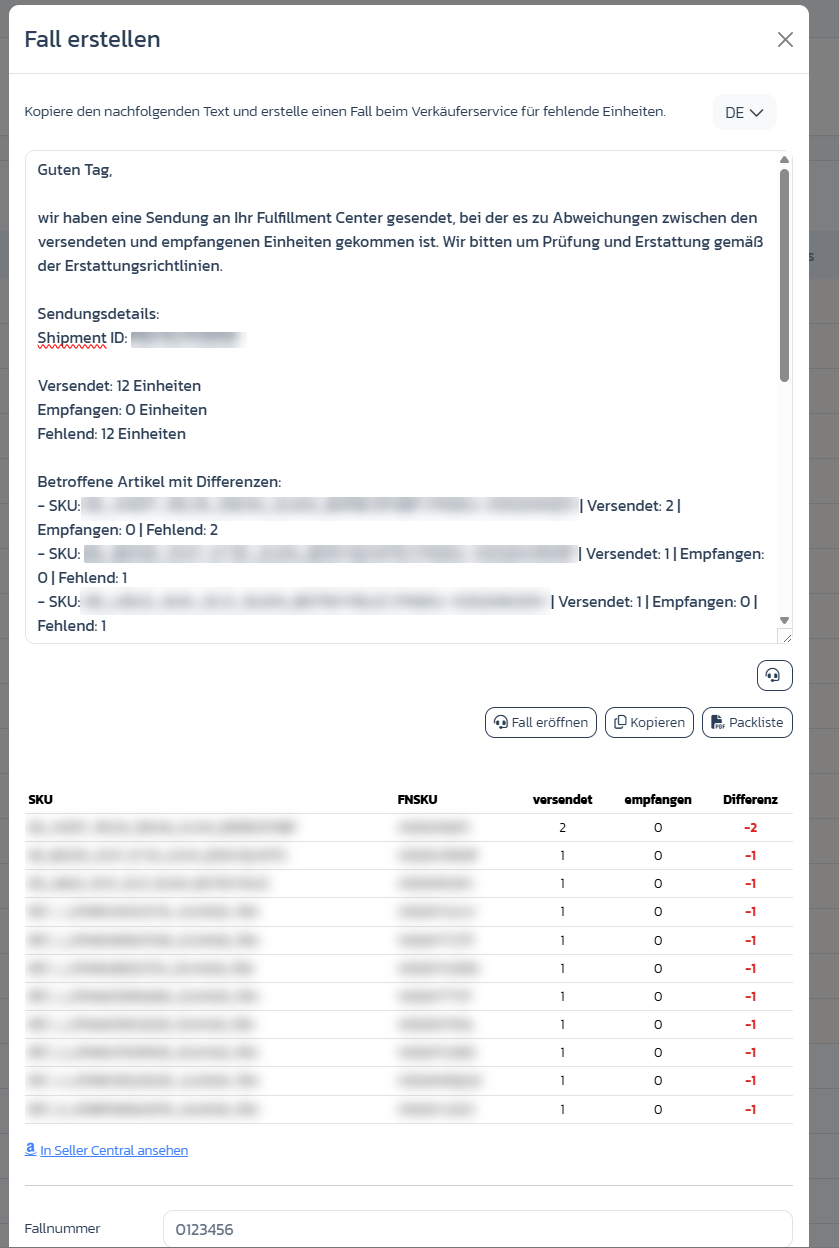
Click the row (or the action icon) — the **Create case** modal opens with:
* pre-written message (copyable, language switchable)
* list of affected items with SKU, FNSKU, sent/received/discrepancy
* buttons **Open case** (to Amazon), **Copy** (text to clipboard), **Packing list** (PDF)
* field **Case number** to save
## Step-by-step: File a lost-shipment case
### Step 1: Apply the discrepancy filter
→ Open directly in the app: [app.arbitrageone.de/amzshipments](https://app.arbitrageone.de/amzshipments)
Click **Only with discrepancies** — the list shows only shipments with missing units.
### Step 2: Open the case creation modal
Click the row (or the action icon) — the **Create case** modal opens with:
* pre-written message (copyable, language switchable)
* list of affected items with SKU, FNSKU, sent/received/discrepancy
* buttons **Open case** (to Amazon), **Copy** (text to clipboard), **Packing list** (PDF)
* field **Case number** to save
 ### Step 3: Generate the packing list
In the modal you create a PDF via **Packing list** with shipment ID, FNSKUs and sent quantities. Format and content are controlled in the filter area via **Packing list settings**.
### Step 4: Open the case with Amazon
In the modal click **Copy** (puts the message in the clipboard) and then **Open case** — you land in Seller Central in the seller support help flow. A step-by-step guide for this is in the next section.
### Step 5: Store the case number
Enter Amazon's case number in the modal field **Case number** and click **Save case number**. It then appears in the overview table.
### Step 6: Add a note
Use **Notes** to record when Amazon last responded or what deadline is set.
## Opening the case with Amazon — how it works
After clicking **Open case** you land in Amazon seller support (*"Get help and additional information"*). There are two paths:
### Standard path: "My issue isn't listed"
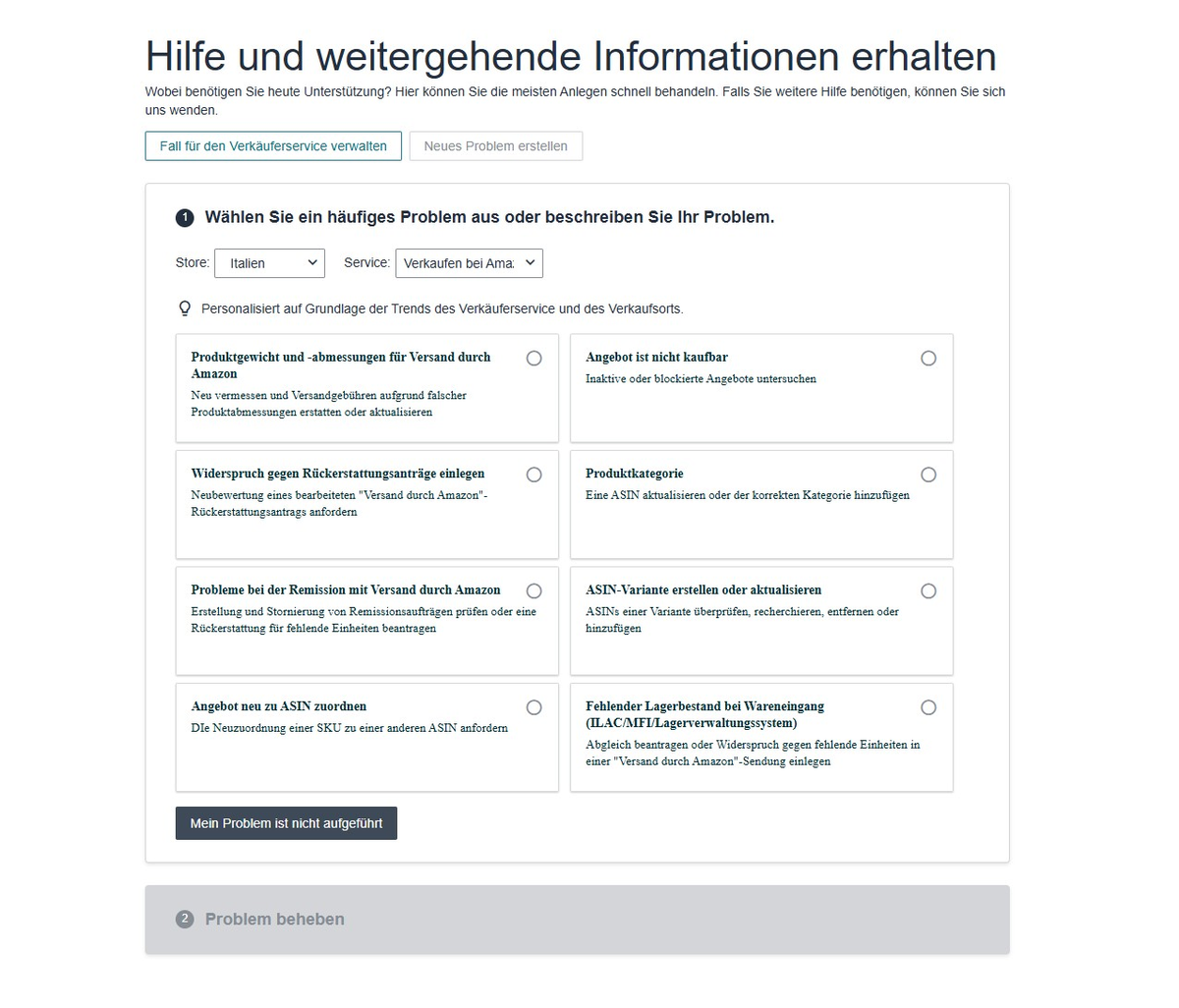
1. **Check the store at the top** — it must be set to the marketplace of the shipment (e.g. Germany, Italy). If the wrong store is set, the case will fail.
2. You'll see a selection of common issues. None of them matches missing inbound units directly — so click **My issue isn't listed** at the bottom.
### Step 3: Generate the packing list
In the modal you create a PDF via **Packing list** with shipment ID, FNSKUs and sent quantities. Format and content are controlled in the filter area via **Packing list settings**.
### Step 4: Open the case with Amazon
In the modal click **Copy** (puts the message in the clipboard) and then **Open case** — you land in Seller Central in the seller support help flow. A step-by-step guide for this is in the next section.
### Step 5: Store the case number
Enter Amazon's case number in the modal field **Case number** and click **Save case number**. It then appears in the overview table.
### Step 6: Add a note
Use **Notes** to record when Amazon last responded or what deadline is set.
## Opening the case with Amazon — how it works
After clicking **Open case** you land in Amazon seller support (*"Get help and additional information"*). There are two paths:
### Standard path: "My issue isn't listed"
1. **Check the store at the top** — it must be set to the marketplace of the shipment (e.g. Germany, Italy). If the wrong store is set, the case will fail.
2. You'll see a selection of common issues. None of them matches missing inbound units directly — so click **My issue isn't listed** at the bottom.
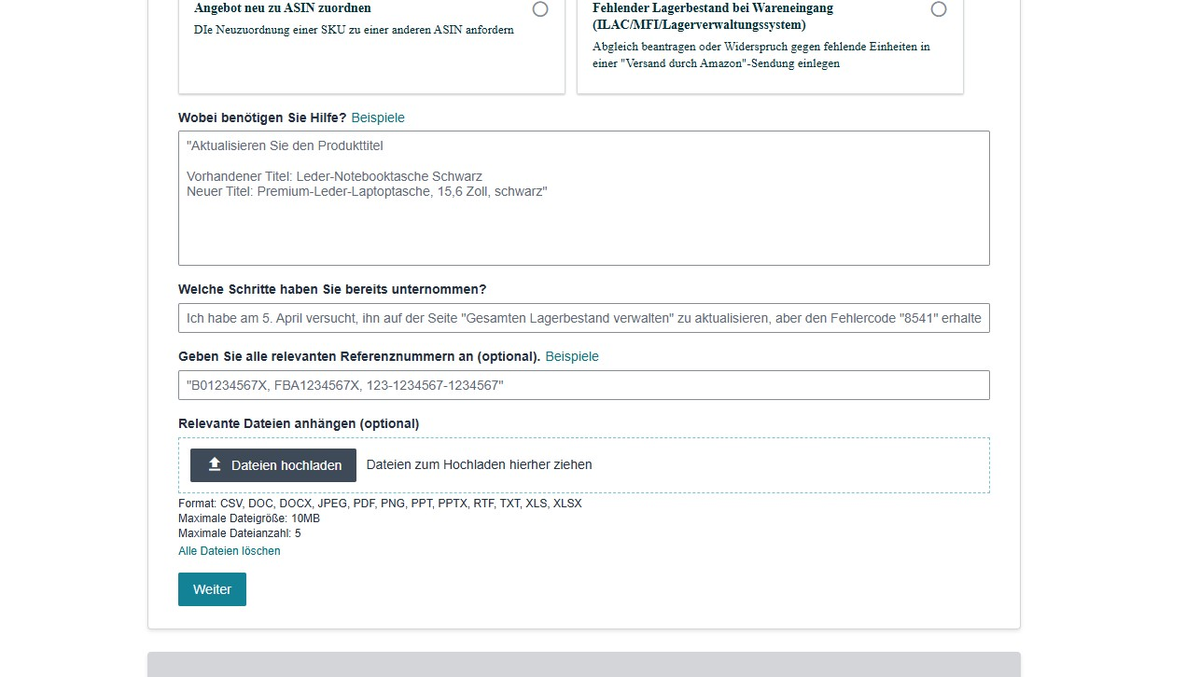
 3. A free-text form opens. Under **What do you need help with?** paste your prepared message from the case modal (copy it to the clipboard first using the **Copy** button). Under **Attach relevant files** upload the generated **packing list** — that significantly increases your success rate.
4. Click **Continue** and finish the case.
3. A free-text form opens. Under **What do you need help with?** paste your prepared message from the case modal (copy it to the clipboard first using the **Copy** button). Under **Attach relevant files** upload the generated **packing list** — that significantly increases your success rate.
4. Click **Continue** and finish the case.
 ### Alternative path: "Issues with FBA reimbursement"
Also works — but asks more from you.
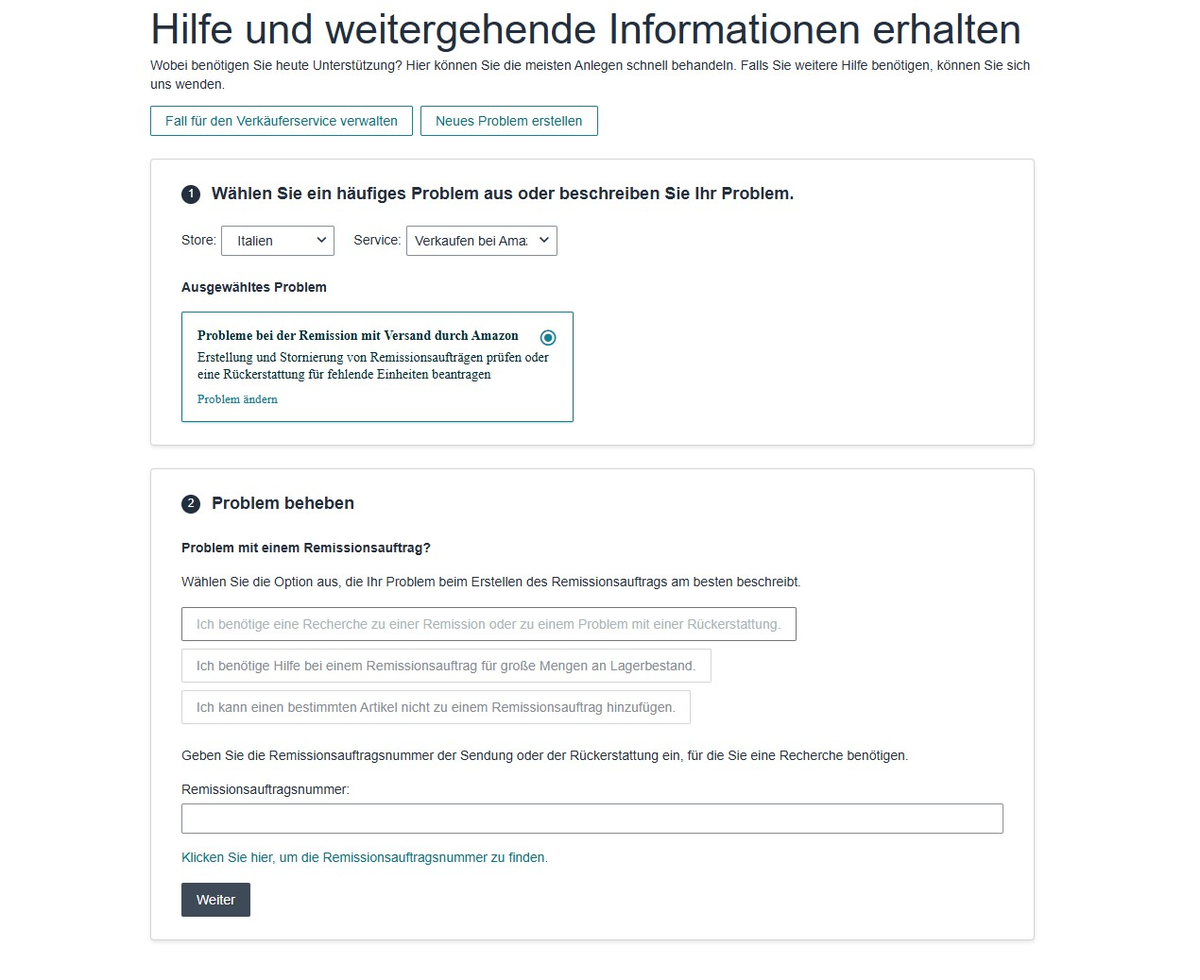
1. Choose **Issues with FBA reimbursement** in the issue selection.
2. In the next step choose **I need an investigation into a reimbursement or a refund issue**.
3. Enter the **reimbursement order number** (Amazon provides a helper via link if you don't know it).
### Alternative path: "Issues with FBA reimbursement"
Also works — but asks more from you.
1. Choose **Issues with FBA reimbursement** in the issue selection.
2. In the next step choose **I need an investigation into a reimbursement or a refund issue**.
3. Enter the **reimbursement order number** (Amazon provides a helper via link if you don't know it).
 You can use this path if the standard path is rejected by the bot/support or you explicitly want to dispute an existing reimbursement.
## Important notes
* Amazon keeps looking for missing units for 30 days after warehouse check-in. Only after that does opening the case make sense.
* *Status* `RECEIVING` means: Amazon is still checking in — the discrepancy may not be final yet.
* Reimbursed units appear in the Reimbursements overview (see related articles).
## Common issues
**Issue:** "Discrepancy is > 0 even though Amazon closed the case."
**Solution:** Check the reimbursement — it's quite possible you already received an inventory reimbursement and the shipment discrepancy is just historical now.
**Issue:** "I don't see my new shipment."
**Solution:** Shipments are synced via SP-API (cron job). Right after creation it can take a few minutes.
## Related articles
* [Reconcile reimbursements](../profittracker/erstattungen)
You can use this path if the standard path is rejected by the bot/support or you explicitly want to dispute an existing reimbursement.
## Important notes
* Amazon keeps looking for missing units for 30 days after warehouse check-in. Only after that does opening the case make sense.
* *Status* `RECEIVING` means: Amazon is still checking in — the discrepancy may not be final yet.
* Reimbursed units appear in the Reimbursements overview (see related articles).
## Common issues
**Issue:** "Discrepancy is > 0 even though Amazon closed the case."
**Solution:** Check the reimbursement — it's quite possible you already received an inventory reimbursement and the shipment discrepancy is just historical now.
**Issue:** "I don't see my new shipment."
**Solution:** Shipments are synced via SP-API (cron job). Right after creation it can take a few minutes.
## Related articles
* [Reconcile reimbursements](../profittracker/erstattungen)