> ## Documentation Index
> Fetch the complete documentation index at: https://docs.arbitrageone.de/llms.txt
> Use this file to discover all available pages before exploring further.
# How do I maintain CoG (Cost of Goods) in ProfitTracker?
> Store, batch-upload or import Cost of Goods per SKU in ArbitrageOne's ProfitTracker.
## Short description
**CoG** (Cost of Goods) is the purchase price ArbitrageOne uses to calculate your profit. By default the system uses the values from your recorded purchases. For SKUs without a purchase entry — e.g. from old stock or Sellerboard imports — you can store the CoG here manually.
## Page layout
### Notice at the top
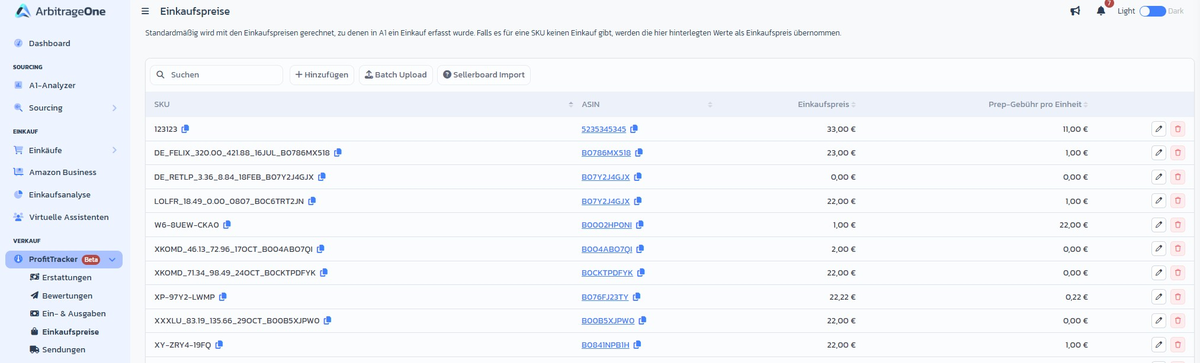
> By default, calculation uses the purchase prices for which a purchase has been recorded in A1. If no purchase exists for an SKU, the values stored here are used as the purchase price.
### Table
| Column | Content |
| ----------------- | --------------------------------- |
| SKU | Seller SKU |
| ASIN | links to Amazon |
| Purchase price | current CoG |
| Prep fee per unit | for multipacks or prep surcharges |
### Buttons in the top right
* **Add** — manual entry per SKU
* **Batch Upload** — upload CSV with SKU → price
* **Sellerboard Import** — tutorial link for migration
 ## Step-by-step: Set a single CoG
### Step 1: Find the SKU
→ Open directly in the app: [app.arbitrageone.de/cog](https://app.arbitrageone.de/cog)
Use the DataTable search field at the top left to find the SKU.
### Step 2: Add
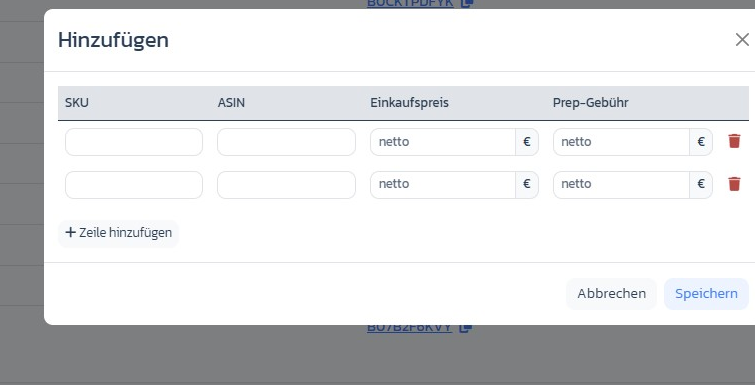
Click **Add** (or the edit button in the row) and enter SKU, ASIN, purchase price (net) and prep fee (net). Via **+ Add row** you can enter multiple SKUs in one go.
## Step-by-step: Set a single CoG
### Step 1: Find the SKU
→ Open directly in the app: [app.arbitrageone.de/cog](https://app.arbitrageone.de/cog)
Use the DataTable search field at the top left to find the SKU.
### Step 2: Add
Click **Add** (or the edit button in the row) and enter SKU, ASIN, purchase price (net) and prep fee (net). Via **+ Add row** you can enter multiple SKUs in one go.
 ### Step 3: Save
Saving applies the value immediately to all future profit calculations.
## Step-by-step: Batch upload
### Step 1: Prepare CSV
Create a CSV with the columns `seller_sku;cost`. The decimal separator is a dot (e.g. `12.50`).
### Step 2: Upload the file
Click **Batch Upload** and choose your file. You'll see a preview before the values are applied.
### Step 3: Apply
Confirm — existing entries are overwritten, new ones are created.
## Important notes
* Values from *Record Purchase* take **priority** over manually stored CoGs. Recorded purchases don't overwrite the manual value, they are used directly.
* CoG is stored in the currency of your home marketplace.
* Sellerboard migration: export the SKU/CoG list there as CSV and use the batch upload.
## Common issues
**Issue:** "My CoG is ignored in ProfitTracker."
**Solution:** A recorded purchase probably exists for the SKU — it takes priority. Check your purchases or delete the wrong entry there.
**Issue:** "Batch upload throws an error."
**Solution:** Often the wrong separator or a comma as the decimal separator. Check the format with a text editor.
## Related articles
* [ProfitTracker: Reconcile reimbursements](../profittracker/erstattungen)
### Step 3: Save
Saving applies the value immediately to all future profit calculations.
## Step-by-step: Batch upload
### Step 1: Prepare CSV
Create a CSV with the columns `seller_sku;cost`. The decimal separator is a dot (e.g. `12.50`).
### Step 2: Upload the file
Click **Batch Upload** and choose your file. You'll see a preview before the values are applied.
### Step 3: Apply
Confirm — existing entries are overwritten, new ones are created.
## Important notes
* Values from *Record Purchase* take **priority** over manually stored CoGs. Recorded purchases don't overwrite the manual value, they are used directly.
* CoG is stored in the currency of your home marketplace.
* Sellerboard migration: export the SKU/CoG list there as CSV and use the batch upload.
## Common issues
**Issue:** "My CoG is ignored in ProfitTracker."
**Solution:** A recorded purchase probably exists for the SKU — it takes priority. Check your purchases or delete the wrong entry there.
**Issue:** "Batch upload throws an error."
**Solution:** Often the wrong separator or a comma as the decimal separator. Check the format with a text editor.
## Related articles
* [ProfitTracker: Reconcile reimbursements](../profittracker/erstattungen)