> ## Documentation Index
> Fetch the complete documentation index at: https://docs.arbitrageone.de/llms.txt
> Use this file to discover all available pages before exploring further.
# How do I set up my marketplaces and services?
> Configure marketplaces, Amazon programs, Prep Center and notifications in ArbitrageOne.
## Short description
The marketplace page is your central dashboard for connecting all external services to ArbitrageOne: Amazon Seller Central, Prep Center, returns service, Google Sheets, deal finders and notification channels.
## Step-by-step guide
### Step 1: Open the marketplace overview
→ Open directly in the app: [app.arbitrageone.de/apiconnections](https://app.arbitrageone.de/apiconnections)
In the main menu under **Settings → API connections** you'll see a grid of all available services, grouped by category: **Amazon**, **Prep Center** and more.
### Step 2: Connect Amazon Seller Central
Under **API connections** you'll find the Amazon card. Click **Authorize** to connect your Seller account via SP-API.
→ Detailed guide: [How do I connect my Amazon account to ArbitrageOne?](amazon_konto_verbinden)
> **ℹ Note:** An **Amazon Seller Account** (Seller Central — for **selling**) is **not the same** as an **Amazon Business Account** (B2B **purchasing** on Amazon Business). Both are connected via separate cards under **API connections**.
### Step 3: Configure marketplaces and Amazon programs
→ Open directly in the app: [app.arbitrageone.de/marketplace](https://app.arbitrageone.de/marketplace)
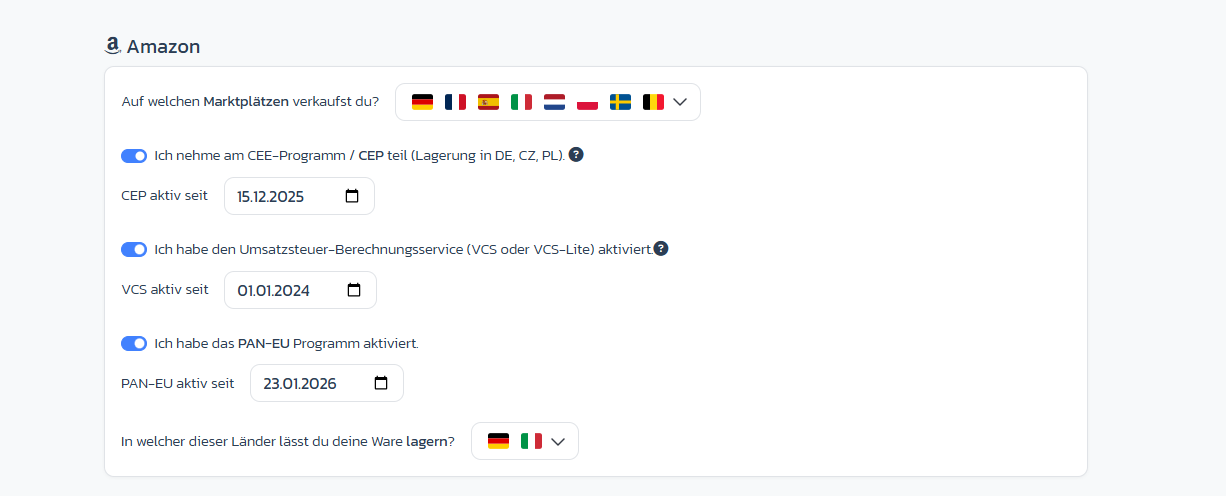
On the Amazon card you define **which marketplaces** you sell on (DE, FR, ES, IT, NL, PL, SE, BE …) and which Amazon programs you use. For each program you record the **activation date**, so that fees and calculations run correctly retroactively:
* **CEE program / CEP** (storage in DE, CZ, PL) — toggle + date field **CEP active since**
* **VAT Calculation Service (VCS or VCS-Lite)** — toggle + date field **VCS active since**
* **PAN-EU program** — toggle + date field **PAN-EU active since**
* **Storage countries**: "In which of these countries do you allow your goods to be stored?" — multi-select via the flags
 ### Step 4: Add Prep Center (optional)
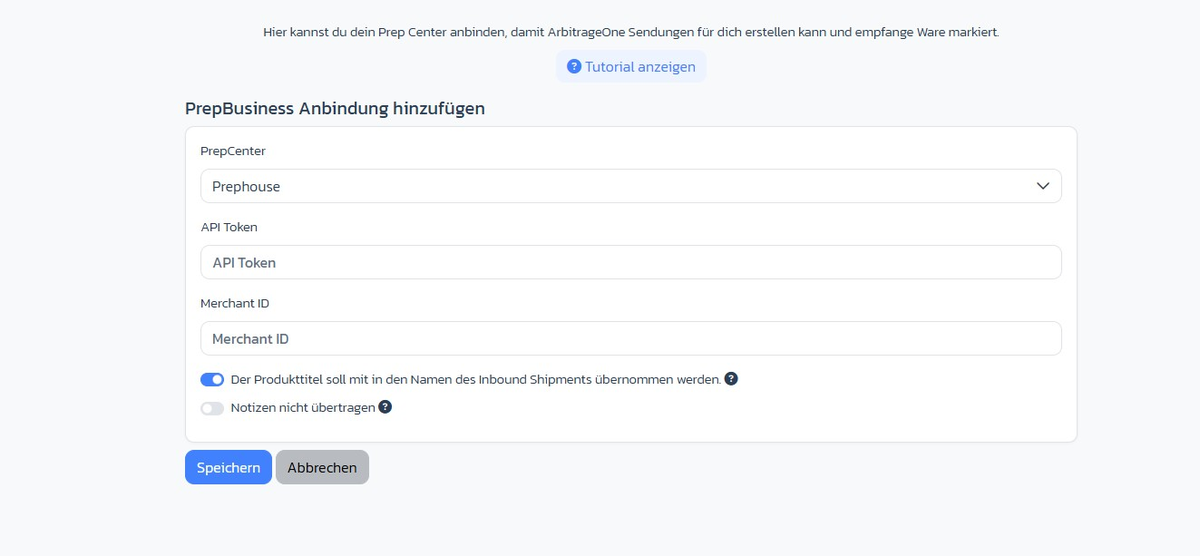
Under **Prep Center** you click **Add Prep Center**. The **Add PrepBusiness connection** form opens:
* **Prep Center** — select provider (e.g. *Prephouse*)
* **API Token** — from your Prep Center
* **Merchant ID** — from your Prep Center
* **Include product title in the name of the inbound shipment** — toggle (default on), helps the Prep Center with assignment
* **Don't transfer notes** — toggle, if you don't want internal sourcing notes sent to the Prep Center
### Step 4: Add Prep Center (optional)
Under **Prep Center** you click **Add Prep Center**. The **Add PrepBusiness connection** form opens:
* **Prep Center** — select provider (e.g. *Prephouse*)
* **API Token** — from your Prep Center
* **Merchant ID** — from your Prep Center
* **Include product title in the name of the inbound shipment** — toggle (default on), helps the Prep Center with assignment
* **Don't transfer notes** — toggle, if you don't want internal sourcing notes sent to the Prep Center
 ### Step 5: Connect returns service (optional)
Under **Marketplace** you see your connected returns provider. To connect a new one, you'll receive a link from your provider/Prep Center.
### Step 6: Set up notifications
Under **API connections** you connect Discord webhooks or email channels through which ArbitrageOne notifies you about important events.
## Important notes
* The **status** of each service is indicated by a coloured dot: green = connected, red = connection error, grey = not yet set up.
* Use the **search field** at the top to filter cards in real time.
* Edit services via the edit icon or disconnect them via the trash icon (with confirmation).
## Common issues
**Issue:** A service card shows a red status dot
**Solution:** Click the card and then **Re-authorize**. For external services, check that your credentials are still valid.
**Issue:** A service doesn't appear in my overview
**Solution:** Some services are tied to your plan. Check in your subscription whether the module is included in your current tariff.
## Related articles
* [How do I connect my Amazon account to ArbitrageOne?](amazon_konto_verbinden)
### Step 5: Connect returns service (optional)
Under **Marketplace** you see your connected returns provider. To connect a new one, you'll receive a link from your provider/Prep Center.
### Step 6: Set up notifications
Under **API connections** you connect Discord webhooks or email channels through which ArbitrageOne notifies you about important events.
## Important notes
* The **status** of each service is indicated by a coloured dot: green = connected, red = connection error, grey = not yet set up.
* Use the **search field** at the top to filter cards in real time.
* Edit services via the edit icon or disconnect them via the trash icon (with confirmation).
## Common issues
**Issue:** A service card shows a red status dot
**Solution:** Click the card and then **Re-authorize**. For external services, check that your credentials are still valid.
**Issue:** A service doesn't appear in my overview
**Solution:** Some services are tied to your plan. Check in your subscription whether the module is included in your current tariff.
## Related articles
* [How do I connect my Amazon account to ArbitrageOne?](amazon_konto_verbinden)