> ## Documentation Index
> Fetch the complete documentation index at: https://docs.arbitrageone.de/llms.txt
> Use this file to discover all available pages before exploring further.
# How do I set up my calculation basics?
> Configure fees, tax settings and thresholds for profit, margin and ROI calculation in ArbitrageOne.
## Short description
The calculation settings are the basis for all Profit, Margin and ROI calculations in ArbitrageOne. Here you define which fees, tax rules and thresholds are applied to every deal.
## Requirements
* Clarity about your Amazon fee structure
* Your VAT model (standard rate, not registered, small business …)
## Step-by-step guide
### Step 1: Open the calculation page
→ Open directly in the app: [app.arbitrageone.de/settings/calculation](https://app.arbitrageone.de/settings/calculation)
Navigate to **Settings → Calculation**. The page is split into several sections: **Calculation** (with thresholds), **Tax settings**, **Max Cost** and **Fees**.
 ### Step 2: Choose the calculation basis
Under **Calculation** you select:
* **ROI basis**: Net or gross purchase price — determines what your ROI is calculated against.
* **Average price**: Which reference price (e.g. 30/60/90/180-day average) is used by default for the calculation.
### Step 2: Choose the calculation basis
Under **Calculation** you select:
* **ROI basis**: Net or gross purchase price — determines what your ROI is calculated against.
* **Average price**: Which reference price (e.g. 30/60/90/180-day average) is used by default for the calculation.
 ### Step 3: Configure taxes
Under **Tax settings** you choose your **tax registration**:
* Standard taxation / Standard Rate
* Not registered (e.g. small business)
* Not applicable
* Flat (with additional percentage field)
### Step 3: Configure taxes
Under **Tax settings** you choose your **tax registration**:
* Standard taxation / Standard Rate
* Not registered (e.g. small business)
* Not applicable
* Flat (with additional percentage field)
 ### Step 4: Define thresholds for good deals
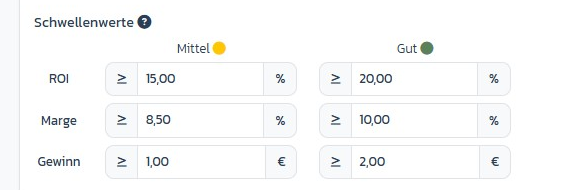
Within the calculation card you define two tiers under **Thresholds** (**Medium** and **Good**) for **ROI %**, **Margin %** and **Profit (€)**. ArbitrageOne colour-codes deals in the sheet accordingly.
### Step 4: Define thresholds for good deals
Within the calculation card you define two tiers under **Thresholds** (**Medium** and **Good**) for **ROI %**, **Margin %** and **Profit (€)**. ArbitrageOne colour-codes deals in the sheet accordingly.
 ### Step 5: Define Max Cost
**Max Cost** is the maximum cost per unit at which a deal is still worthwhile. Enter the three minimum values (Minimum ROI, Minimum Margin, Minimum Profit) and choose via radio button whether **all criteria (AND)** or **at least one (OR)** must be met. Values of 0 are ignored.
### Step 5: Define Max Cost
**Max Cost** is the maximum cost per unit at which a deal is still worthwhile. Enter the three minimum values (Minimum ROI, Minimum Margin, Minimum Profit) and choose via radio button whether **all criteria (AND)** or **at least one (OR)** must be met. Values of 0 are ignored.
 ### Step 6: Enter fees
In the **Fees** section you add:
* **Other fees per unit net**: Flat extra costs per unit (e.g. labeling)
* **Other fees per unit in percent**: Percentage surcharge (e.g. payment processor)
* **Default FBM fee net**: Default shipping cost for FBM listings
> 💡 **Note from the UI:** **Prep fees** are not entered here but in the [shipping addresses](lieferadressen-verwalten). In sourcing, the prep fees of the default shipping address are applied.
### Step 6: Enter fees
In the **Fees** section you add:
* **Other fees per unit net**: Flat extra costs per unit (e.g. labeling)
* **Other fees per unit in percent**: Percentage surcharge (e.g. payment processor)
* **Default FBM fee net**: Default shipping cost for FBM listings
> 💡 **Note from the UI:** **Prep fees** are not entered here but in the [shipping addresses](lieferadressen-verwalten). In sourcing, the prep fees of the default shipping address are applied.
 ### Step 7: Cost of Goods (optional)
On the separate **Purchase prices** page (inside ProfitTracker) you store fixed CoG values per SKU or ASIN — useful for private label or constant purchase prices.
## Important notes
* Changes apply **retroactively** to the display of all existing deals, but **not** to historical purchases in ProfitTracker.
* The Max Cost logic is also used in the Sourcing Mastersheet and in FlipHunter.
## Common issues
**Issue:** My ROI values in the sheet look too high or too low
**Solution:** Check the **ROI basis** (net vs. gross purchase price).
**Issue:** Deals aren't marked as "Good" despite high margin
**Solution:** Check your thresholds — the limits may be set too strictly.
**Issue:** Max Cost shows €0
**Solution:** At least one of the three minimum criteria (Minimum ROI, Minimum Margin, Minimum Profit) must have a value > 0. If all are 0, no Max Cost can be calculated — or the entry is skipped under "AND".
## Related articles
* [How do I connect my Amazon account to ArbitrageOne?](amazon_konto_verbinden)
* [How do I set up my marketplaces and services?](marktplaetze-einstellen)
* [How do I filter deals by ROI, margin and SAS?](../sourcing/deals-filtern)
### Step 7: Cost of Goods (optional)
On the separate **Purchase prices** page (inside ProfitTracker) you store fixed CoG values per SKU or ASIN — useful for private label or constant purchase prices.
## Important notes
* Changes apply **retroactively** to the display of all existing deals, but **not** to historical purchases in ProfitTracker.
* The Max Cost logic is also used in the Sourcing Mastersheet and in FlipHunter.
## Common issues
**Issue:** My ROI values in the sheet look too high or too low
**Solution:** Check the **ROI basis** (net vs. gross purchase price).
**Issue:** Deals aren't marked as "Good" despite high margin
**Solution:** Check your thresholds — the limits may be set too strictly.
**Issue:** Max Cost shows €0
**Solution:** At least one of the three minimum criteria (Minimum ROI, Minimum Margin, Minimum Profit) must have a value > 0. If all are 0, no Max Cost can be calculated — or the entry is skipped under "AND".
## Related articles
* [How do I connect my Amazon account to ArbitrageOne?](amazon_konto_verbinden)
* [How do I set up my marketplaces and services?](marktplaetze-einstellen)
* [How do I filter deals by ROI, margin and SAS?](../sourcing/deals-filtern)