> ## Documentation Index
> Fetch the complete documentation index at: https://docs.arbitrageone.de/llms.txt
> Use this file to discover all available pages before exploring further.
# Connecting a "PrepBusiness" Prep Center to ArbitrageOne
> Connect PrepBusiness as a Prep Center to ArbitrageOne.
**Step 1: Log in to the Prep Center portal**
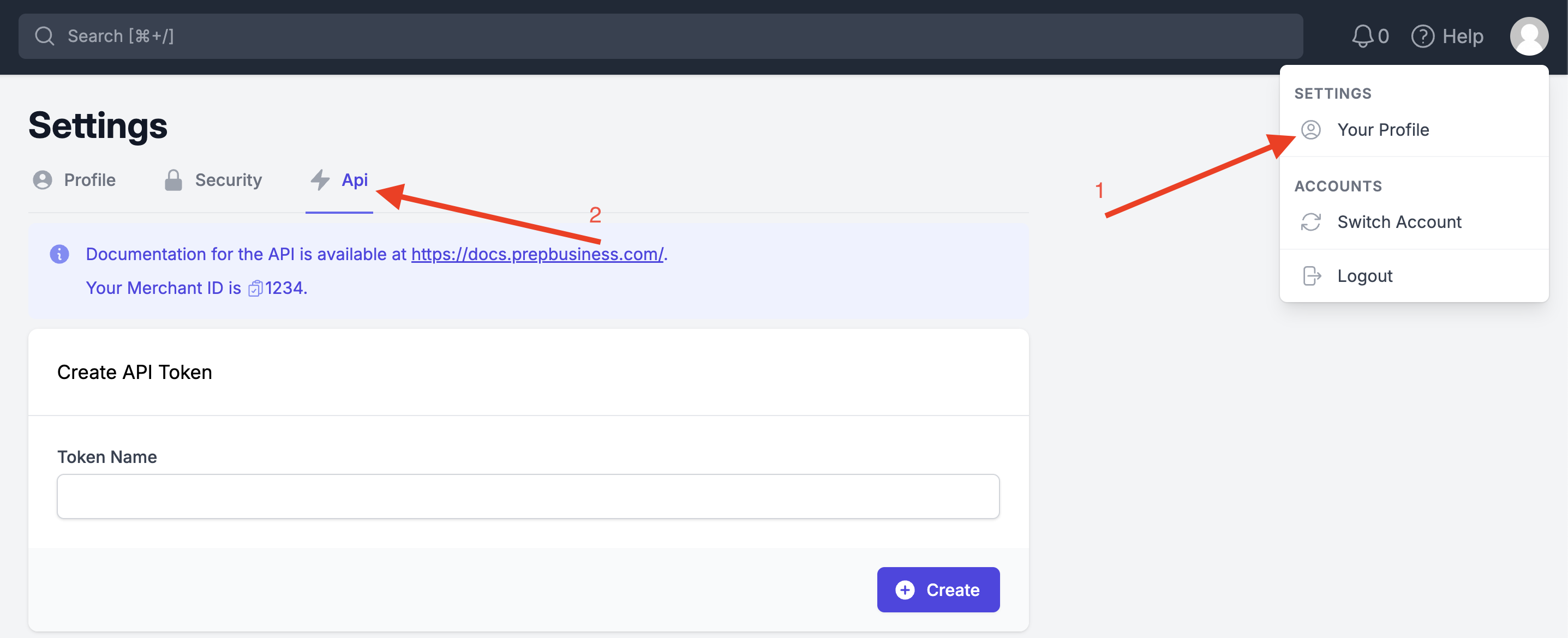
Log in to the **Prep Center portal** and click your profile picture in the top right. Select **"Your Profile"** and then the **"Api"** tab.
 **Step 2: Create an API token**
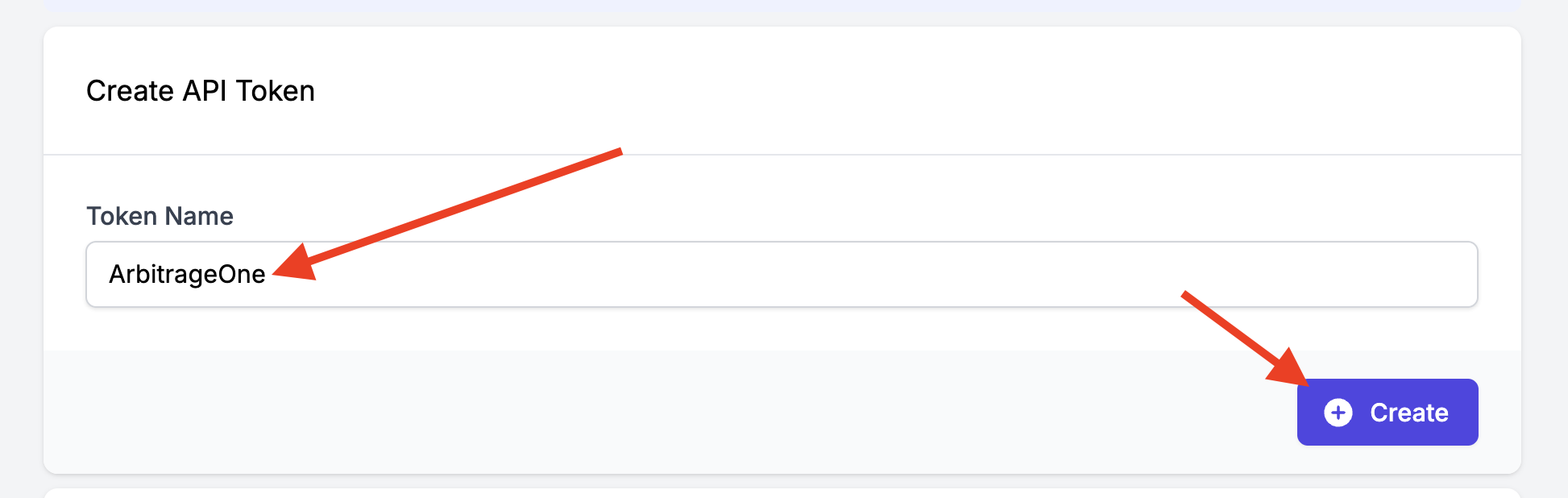
Under **"Create API Token"**, enter a **Token Name** (e.g. *ArbitrageOne*) and click **"Create"**.
**Step 2: Create an API token**
Under **"Create API Token"**, enter a **Token Name** (e.g. *ArbitrageOne*) and click **"Create"**.
 **Step 3: Copy and paste the API key**
→ Open directly in the app: [app.arbitrageone.de/apiconnections](https://app.arbitrageone.de/apiconnections)
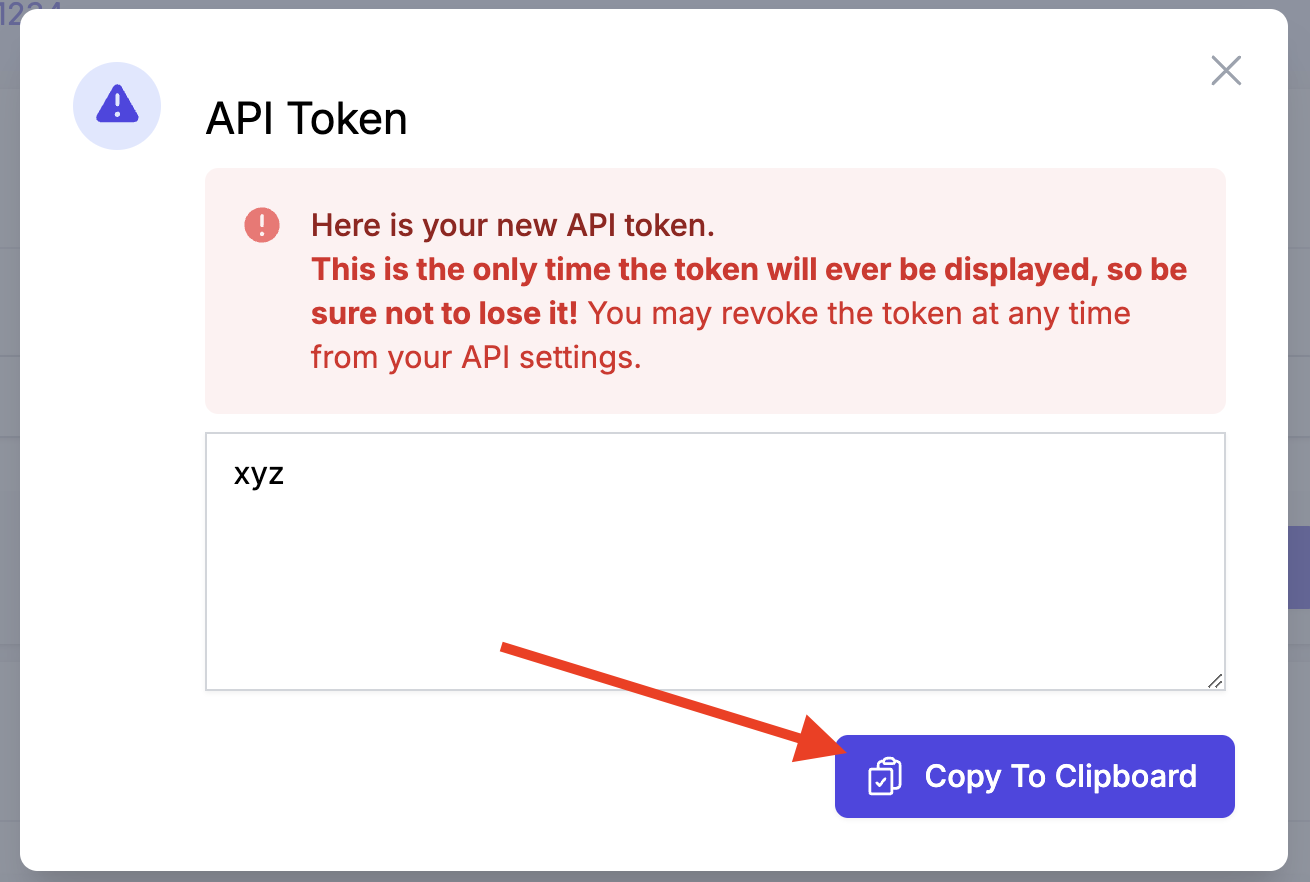
A pop-up window appears. Click **"Copy To Clipboard"**, then paste the API key into **ArbitrageOne** under **"API Token"**.
**Step 3: Copy and paste the API key**
→ Open directly in the app: [app.arbitrageone.de/apiconnections](https://app.arbitrageone.de/apiconnections)
A pop-up window appears. Click **"Copy To Clipboard"**, then paste the API key into **ArbitrageOne** under **"API Token"**.
 **Step 4: Copy and paste your Merchant ID**
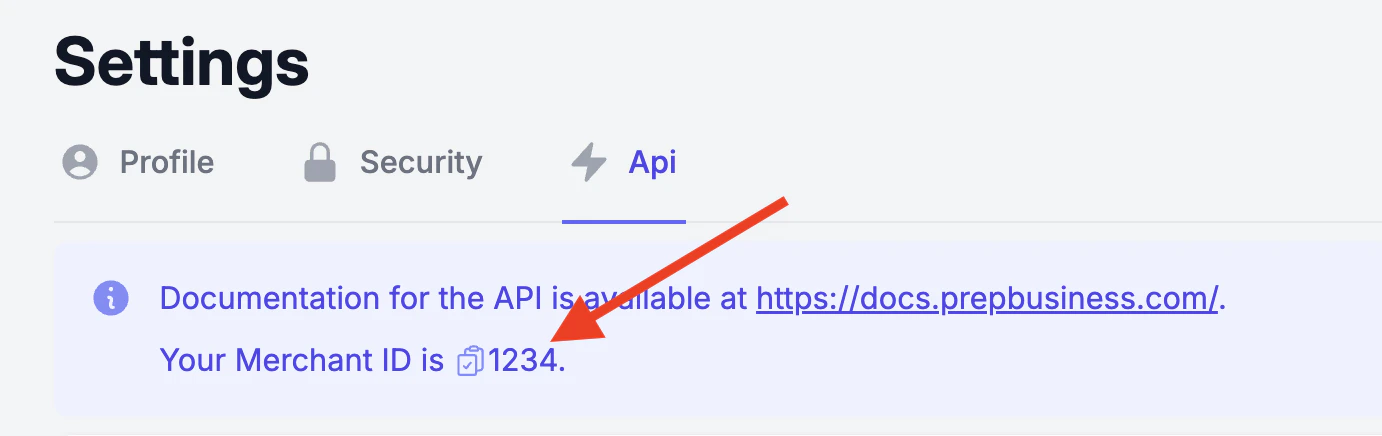
Go back to the **Prep Center portal** and close the pop-up. Next, copy your **Merchant ID** — you'll find it at the top inside the blue info box (click the copy icon next to the number) — and paste it into **ArbitrageOne**.
**Step 4: Copy and paste your Merchant ID**
Go back to the **Prep Center portal** and close the pop-up. Next, copy your **Merchant ID** — you'll find it at the top inside the blue info box (click the copy icon next to the number) — and paste it into **ArbitrageOne**.
 **Step 5: Add a shipping address**
→ Open directly in the app: [app.arbitrageone.de/shippingaddresses](https://app.arbitrageone.de/shippingaddresses)
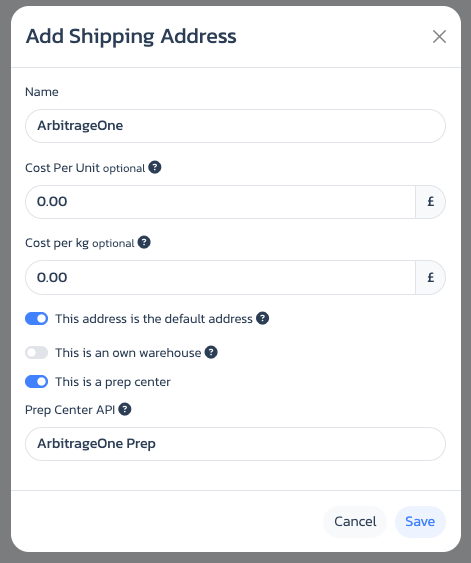
After successfully adding the Prep Center API, add or edit a **shipping address** in **ArbitrageOne** under *Settings*. Enable the toggle **"This is a Prep Center"** and select the correct entry under **"Prep Center API"**.
**Step 5: Add a shipping address**
→ Open directly in the app: [app.arbitrageone.de/shippingaddresses](https://app.arbitrageone.de/shippingaddresses)
After successfully adding the Prep Center API, add or edit a **shipping address** in **ArbitrageOne** under *Settings*. Enable the toggle **"This is a Prep Center"** and select the correct entry under **"Prep Center API"**.