> ## Documentation Index
> Fetch the complete documentation index at: https://docs.arbitrageone.de/llms.txt
> Use this file to discover all available pages before exploring further.
# How do I connect my Amazon account to ArbitrageOne?
> Connect your Amazon Seller Central account to ArbitrageOne via SP-API.
## Short description
With the Amazon SP-API connection, ArbitrageOne reads your sales, fees, inventory and orders directly from Seller Central. Without this connection, ProfitTracker, Purchase Analysis and almost everything around Amazon data won't work.
> **ℹ Note:** An **Amazon Seller Account** (Seller Central — for **selling** on Amazon) is **not the same** as an **Amazon Business Account** (B2B **purchasing** on Amazon Business). Both are connected separately in ArbitrageOne. This article is about the **Seller Account**.
## Requirements
* Active **Amazon Seller Central** account (not to be confused with Amazon Business)
* Your account must be **Professional** (not Individual)
* Access to the Seller Central region you want to connect
## Step-by-step guide
### Step 1: Open the marketplace page
→ Open directly in the app: [app.arbitrageone.de/apiconnections](https://app.arbitrageone.de/apiconnections)
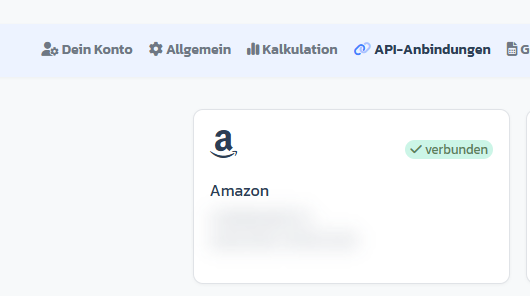
In the menu under **Settings → API connections** you'll find your marketplace dashboard with the Amazon card.
 ### Step 2: Open the connection page and authorize
→ Open directly in the app: [app.arbitrageone.de/oauth-amazon](https://app.arbitrageone.de/oauth-amazon)
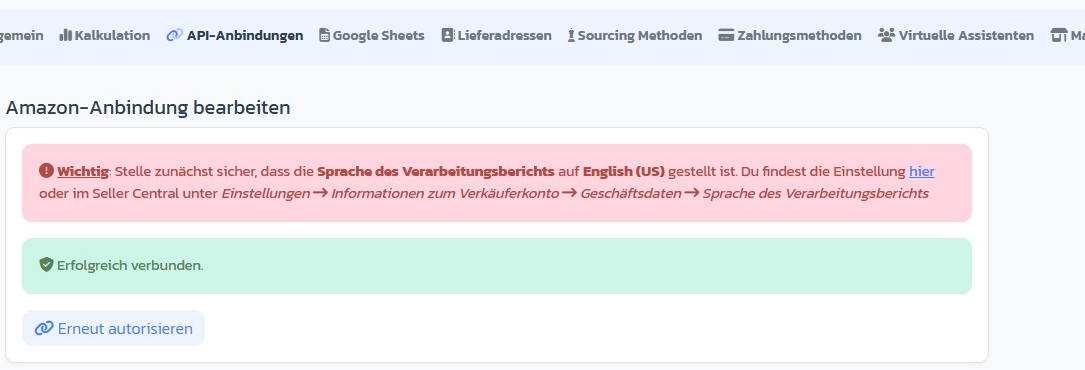
Click the Amazon card — the **Edit Amazon connection** page opens. Here you'll find the **Authorize now** button (or **Re-authorize** if already connected).
> **⚠ Important:** Before that, make sure the **processing report language is set to English (US)** — otherwise the SP-API can't read your reports. How to do that: [SP-API Processing Report Language](amazon-sp-api-processing-report-language).
### Step 2: Open the connection page and authorize
→ Open directly in the app: [app.arbitrageone.de/oauth-amazon](https://app.arbitrageone.de/oauth-amazon)
Click the Amazon card — the **Edit Amazon connection** page opens. Here you'll find the **Authorize now** button (or **Re-authorize** if already connected).
> **⚠ Important:** Before that, make sure the **processing report language is set to English (US)** — otherwise the SP-API can't read your reports. How to do that: [SP-API Processing Report Language](amazon-sp-api-processing-report-language).
 ### Step 3: Log in to Amazon and authorize
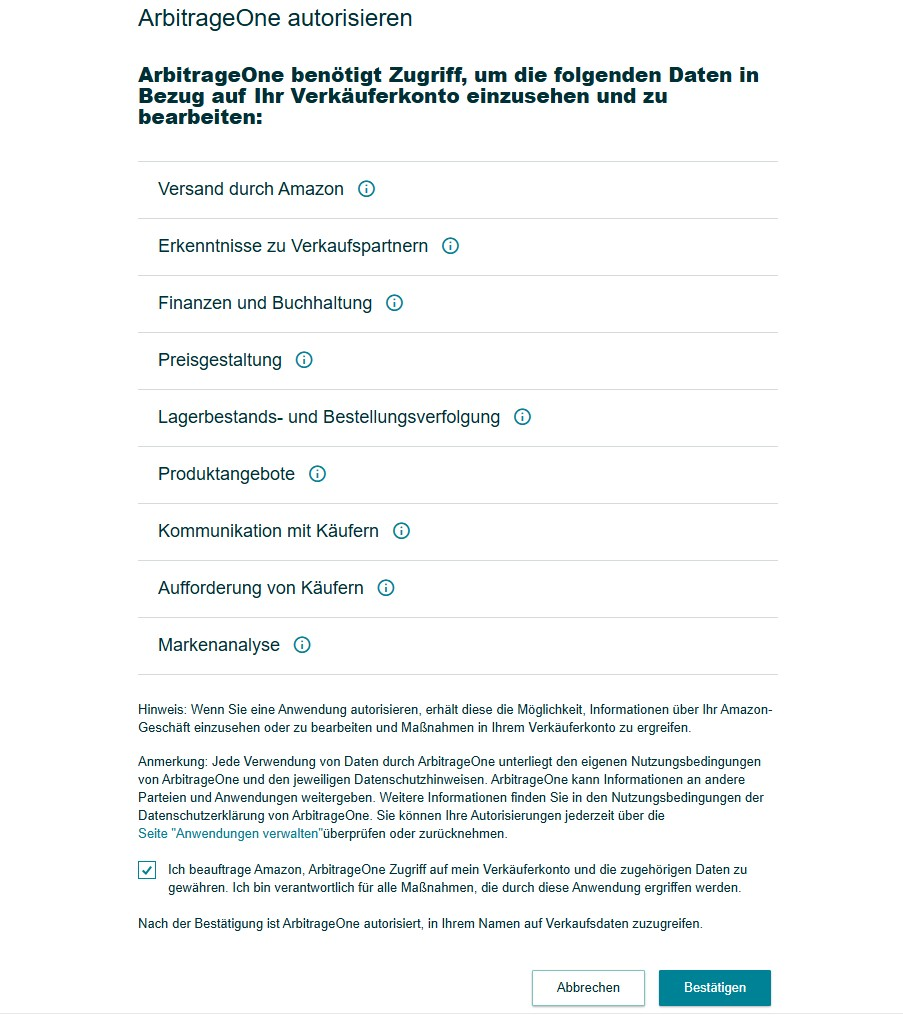
You'll be redirected to Amazon. Log in with your Seller Central credentials and confirm the permissions for ArbitrageOne.
### Step 3: Log in to Amazon and authorize
You'll be redirected to Amazon. Log in with your Seller Central credentials and confirm the permissions for ArbitrageOne.
 ### Step 4: Back to ArbitrageOne
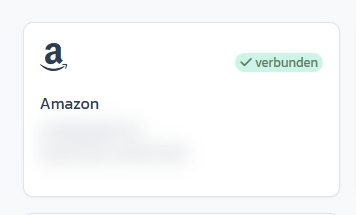
After authorization you're redirected back automatically. The green **connected** badge appears on the Amazon card and you see a success message.
### Step 4: Back to ArbitrageOne
After authorization you're redirected back automatically. The green **connected** badge appears on the Amazon card and you see a success message.
 ## Important notes
* After a successful connection, data imports start automatically in the background. The first full sync can take a few hours.
* The **processing report language** must be set to *English (US)* — see the linked article above.
## Common issues
**Issue:** "Amazon API error" after authorization
**Solution:** Make sure your account is **Professional Seller**. Try authorization again via **Re-authorize**.
**Issue:** After logging in to Amazon you land on an empty page
**Solution:** Disable blockers like uBlock Origin or third-party cookie blockers. Use Chrome or Edge in standard mode.
**Issue:** The card still shows "not connected" / no green badge after authorization
**Solution:** Wait 5 minutes (caching), reload the page. If it stays like that, check the *processing report language* in Seller Central and contact support if needed.
## Related articles
* [How do I set up my marketplaces and services?](marktplaetze-einstellen)
* [How do I configure my calculation basics?](kalkulationsgrundlagen-einrichten)
## Important notes
* After a successful connection, data imports start automatically in the background. The first full sync can take a few hours.
* The **processing report language** must be set to *English (US)* — see the linked article above.
## Common issues
**Issue:** "Amazon API error" after authorization
**Solution:** Make sure your account is **Professional Seller**. Try authorization again via **Re-authorize**.
**Issue:** After logging in to Amazon you land on an empty page
**Solution:** Disable blockers like uBlock Origin or third-party cookie blockers. Use Chrome or Edge in standard mode.
**Issue:** The card still shows "not connected" / no green badge after authorization
**Solution:** Wait 5 minutes (caching), reload the page. If it stays like that, check the *processing report language* in Seller Central and contact support if needed.
## Related articles
* [How do I set up my marketplaces and services?](marktplaetze-einstellen)
* [How do I configure my calculation basics?](kalkulationsgrundlagen-einrichten)