> ## Documentation Index
> Fetch the complete documentation index at: https://docs.arbitrageone.de/llms.txt
> Use this file to discover all available pages before exploring further.
# How do I manage my account and subscription?
> Manage your account, add-on users, trials and Stripe subscriptions in ArbitrageOne.
## Short description
Under **Settings → Your Account** you'll find your personal details and the *Manage subscriptions* section. Here you can see your active plans, add additional users, cancel a subscription or sign up for a new one.
## Requirements
* You must be the **account owner** (VA accounts don't see this section).
## Page layout
You'll find this section under **Settings → Your Account** (first tab in the top tab bar).
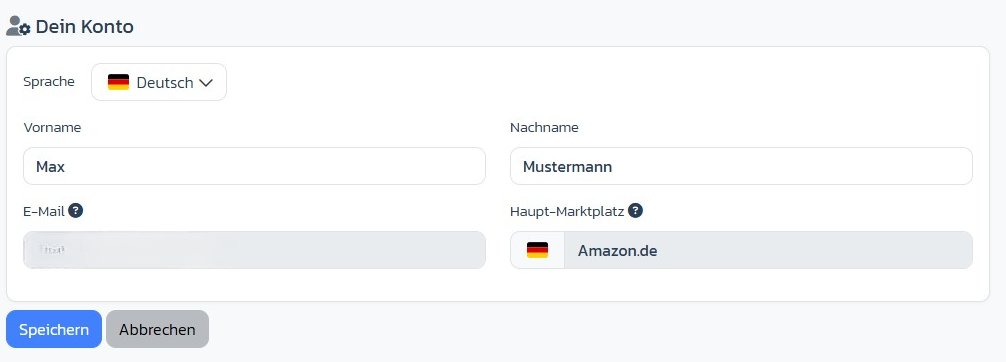
 ### Profile data
* **Language** (German / English / French)
* **First and last name**
* **Email address** (read-only)
* **Main marketplace** — determines default currency and tax logic
### Profile data
* **Language** (German / English / French)
* **First and last name**
* **Email address** (read-only)
* **Main marketplace** — determines default currency and tax logic
 ### Manage subscriptions
For each active Stripe subscription you see:
* **Stripe ID** of the subscription
* Status badge: **Active** (green), **Inactive** (red), **Cancels on \[date]** (yellow)
* List of included plans (e.g. ArbitrageOne Base, add-ons)
* Number of additional users (e.g. "2x")
* Link **Manage in Stripe portal** (for card, invoices, cancellation)
### Trial notice
While a trial is active, a yellow notice appears at the top: *"Trial active until: DD.MM.YYYY"*.
### Sign up for a new subscription
If you don't have an active Base plan (or it has already been cancelled), the **Subscribe now** section with the available plans is shown at the bottom.
## Step-by-step: Add an additional user
### Step 1: Open Your Account
→ Open directly in the app: [app.arbitrageone.de/profile](https://app.arbitrageone.de/profile)
Go to **Settings → Your Account**.
### Step 2: Manage add-on users
Click **Change** next to the add-on plan (or **Add** if none is booked yet).
### Step 3: Choose the number and save
In the modal you set the desired number of add-on users. Stripe bills the difference pro rata.
## Step-by-step: Cancel a subscription
→ Open directly in the app: [app.arbitrageone.de/subscription](https://app.arbitrageone.de/subscription)
Click **Manage in Stripe portal** on the subscription. In the Stripe customer portal you can cancel, change payment methods or download invoices. After cancellation, ArbitrageOne shows the date as *Cancels on*.
## Important notes
* VA accounts are billed via the account owner.
* A cancellation takes effect at the end of the period — access remains until then.
* For add-on users, all booked seats are shown; unassigned seats are not lost.
## Common issues
**Issue:** "Manage in Stripe portal" is not clickable.
**Solution:** Your subscription runs through an external provider (e.g. FastSpring). Contact support for changes.
**Issue:** My trial has expired but I still don't see any plans.
**Solution:** Scroll down — the *Subscribe now* section appears automatically once the trial ends.
### Manage subscriptions
For each active Stripe subscription you see:
* **Stripe ID** of the subscription
* Status badge: **Active** (green), **Inactive** (red), **Cancels on \[date]** (yellow)
* List of included plans (e.g. ArbitrageOne Base, add-ons)
* Number of additional users (e.g. "2x")
* Link **Manage in Stripe portal** (for card, invoices, cancellation)
### Trial notice
While a trial is active, a yellow notice appears at the top: *"Trial active until: DD.MM.YYYY"*.
### Sign up for a new subscription
If you don't have an active Base plan (or it has already been cancelled), the **Subscribe now** section with the available plans is shown at the bottom.
## Step-by-step: Add an additional user
### Step 1: Open Your Account
→ Open directly in the app: [app.arbitrageone.de/profile](https://app.arbitrageone.de/profile)
Go to **Settings → Your Account**.
### Step 2: Manage add-on users
Click **Change** next to the add-on plan (or **Add** if none is booked yet).
### Step 3: Choose the number and save
In the modal you set the desired number of add-on users. Stripe bills the difference pro rata.
## Step-by-step: Cancel a subscription
→ Open directly in the app: [app.arbitrageone.de/subscription](https://app.arbitrageone.de/subscription)
Click **Manage in Stripe portal** on the subscription. In the Stripe customer portal you can cancel, change payment methods or download invoices. After cancellation, ArbitrageOne shows the date as *Cancels on*.
## Important notes
* VA accounts are billed via the account owner.
* A cancellation takes effect at the end of the period — access remains until then.
* For add-on users, all booked seats are shown; unassigned seats are not lost.
## Common issues
**Issue:** "Manage in Stripe portal" is not clickable.
**Solution:** Your subscription runs through an external provider (e.g. FastSpring). Contact support for changes.
**Issue:** My trial has expired but I still don't see any plans.
**Solution:** Scroll down — the *Subscribe now* section appears automatically once the trial ends.